
 ChatEND USER4 min read
Copilot in Teams: pin it and drive it without leaving your everyday tool
Did you know you can use Copilot right inside Teams, the app you already keep open all day? Let's see where to find it in the left rail, how to pin it yourself if IT hasn't, what you can do with it (chat and agents), and its current limits.
✅ How to
- 1Drive Copilot from the tool you already keep open all day
No need to switch apps or open a browser tab: Copilot is available right inside Teams, where you spend most of your day. You chat, you follow your meetings, and in the same place you query Copilot.
This article shows you where to find it, how to pin it if needed, what you can do with it, and what it can't do yet from Teams.
- 2Spot it in the left rail
Look at the icon bar on the far left of Teams (the one with Activity, Chat, Calendar, Calls). If your IT has already deployed the app, the Copilot icon is already there: one click and you're in.
If you don't see it, no worries. Either your organization hasn't pinned it for everyone yet, or you need to add it yourself. That's what the next step is about.
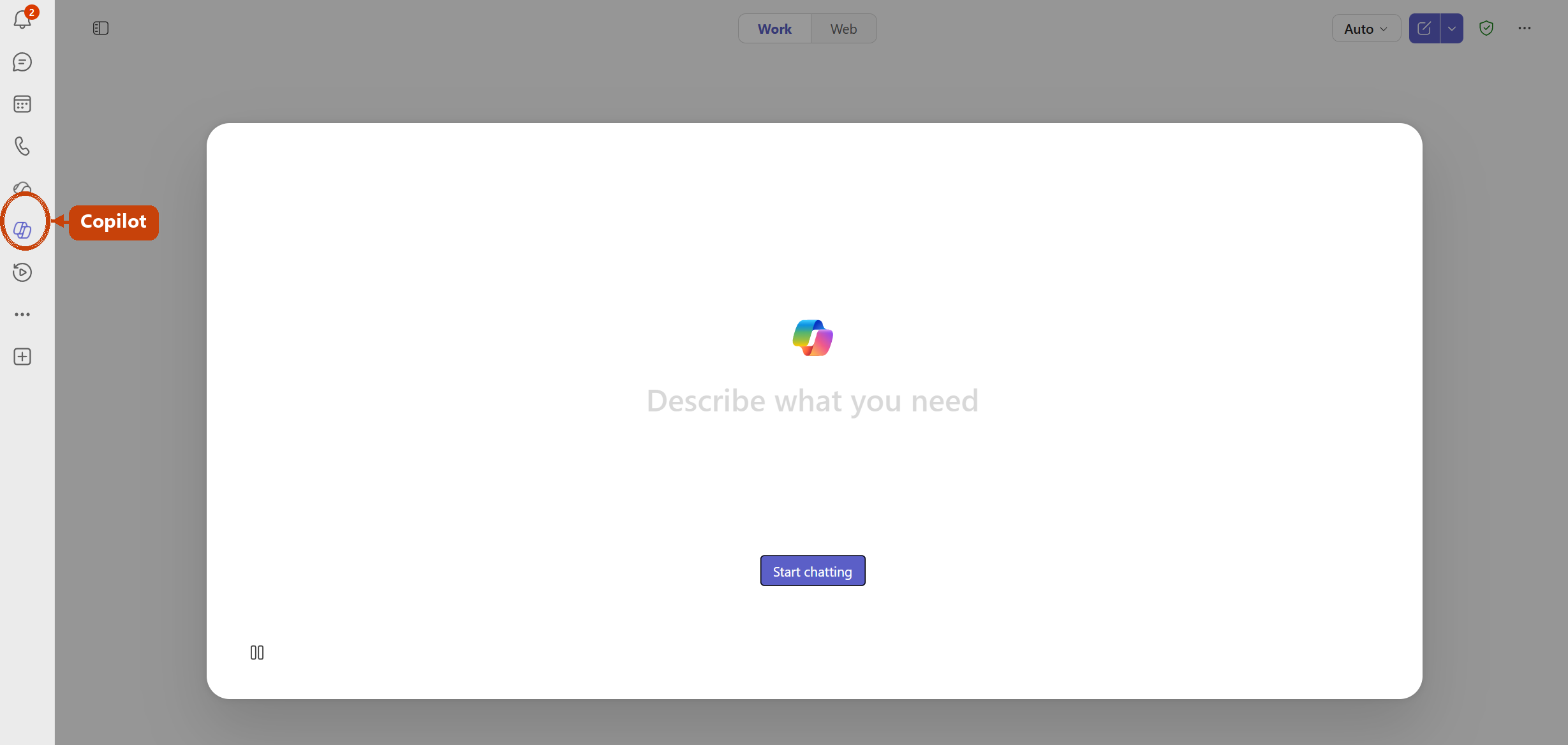
The Copilot app pinned in the Teams left rail.
- 3Pin it yourself in a few seconds
If Copilot isn't in your left rail, add it manually:
- Open the Teams app Store (the « + » or « Apps » in the left rail).
- Search for « Copilot ».
- On the Copilot row, click the « ... », then « Pin ».
The Copilot icon then locks into your left rail, and it stays there. You'll never have to search for it again.
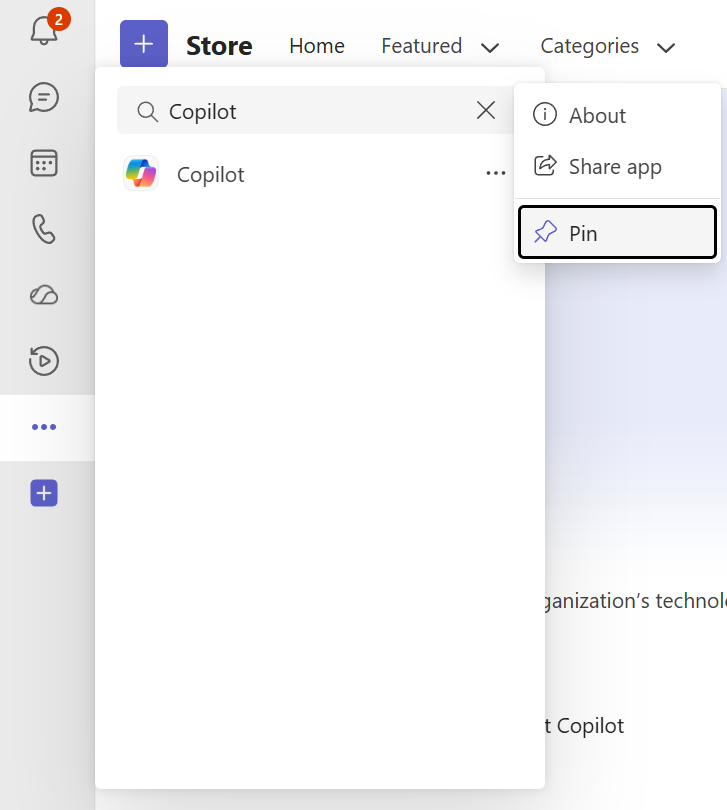
From the Teams Store: search Copilot, then « ... », then « Pin ».
- 4What you can do here: chat and agents
Once open, Copilot in Teams gives you the essentials :
- The Copilot chat, with the Work toggle (your work data if you have the license) and Web (web search).
- Your agents: Researcher, Analyst, the ones published by your organization and your own. You can also open « All agents » or « Create agent ».
- Suggested prompts and your conversation history, just like in the standalone Copilot app.
In short, you keep the heart of the Copilot experience without leaving Teams.
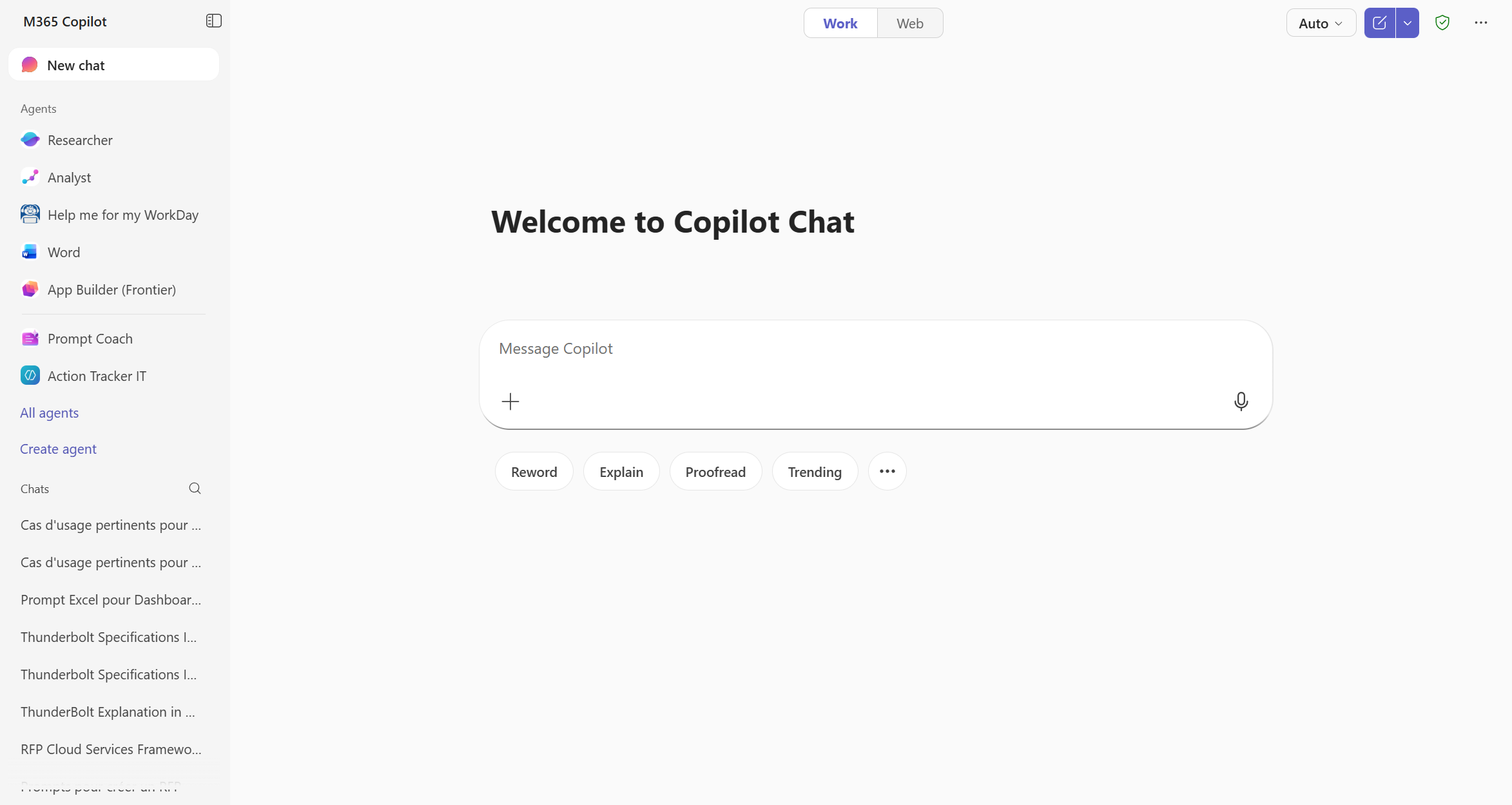
The Copilot chat in Teams: the Work / Web toggle and your agents in the left pane.
- 5What it can't (yet) do from Teams
The Copilot experience in Teams is deliberately trimmed down. The absences to know about :
- No Notebooks: Copilot notebooks aren't available here.
- No Create: the generation space (images, pages) isn't here either.
- No Library: you won't find your saved content and images.
- No Search: Copilot search isn't accessible from Teams.
So usage focuses on chats and agents. For Notebooks, Create, the Library or Search, use the dedicated Copilot app or the web. But to query Copilot throughout the day, having it in Teams remains the handiest reflex.
- 6What to remember
Copilot in Teams is Copilot right where you already work. Pin the icon in the left rail (or check that IT did it), and you reach the chat and your agents in one click.
Just keep the current limits in mind: no Notebooks, no Create. For everything else day to day, driving Copilot from Teams is often the shortest path.
The Copilot chat in Teams is accessible even without a license (Web mode). With a Microsoft Copilot license you unlock Work mode, which grounds answers on your work data (emails, files, meetings).
💬 Comments
No comments yet. Be the first!
✨ Discover more
ChatSchedule a meeting using Copilot
No more back-and-forth to find a slot. From the Copilot app, simply ask in natural language to schedule a Teams meeting: Copilot checks calendars, suggests slots where everyone is free, and prepares the invite. All you have to do is click « Send ».
 Chat
ChatPlan your day in Outlook, without a Copilot license
With Copilot Chat (included, no license), reason across your whole inbox and build a to-do list aligned with the day's meetings.
PremiumFacilitator: the agent that takes notes in your Teams meetings for you
Facilitator is a Copilot agent that sits in your Teams meetings like an extra teammate: it takes notes in real time, tracks the agenda, keeps up with decisions and tasks, and answers questions in the meeting chat. Let's see how to turn it on (two ways), what it does, and the nuance not to confuse with plain automatic transcription.