
 PremiumEND USER6 min read
Facilitator: the agent that takes notes in your Teams meetings for you
Facilitator is a Copilot agent that sits in your Teams meetings like an extra teammate: it takes notes in real time, tracks the agenda, keeps up with decisions and tasks, and answers questions in the meeting chat. Let's see how to turn it on (two ways), what it does, and the nuance not to confuse with plain automatic transcription.
✅ How to
- 1An extra teammate in the meeting
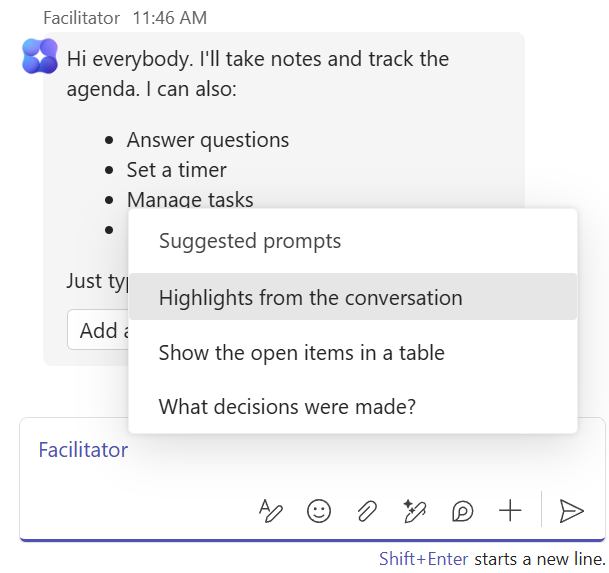
Facilitator is an agent that joins your meeting like a colleague handling the minutes. As soon as it's turned on, it introduces itself in the meeting chat and announces what it will do: take notes, track the agenda, manage a timer, answer questions.
An important difference with Copilot: Facilitator is visible to everyone. Where your exchanges with Copilot stay private, Facilitator's notes and answers are shared with all participants. It's a shared meeting assistant, not a personal one.
- 2First way to turn it on: quick access at creation
The simplest method appears as soon as you create the meeting, in Outlook as well as in Teams. The moment you flip the « Teams meeting » toggle, a « Facilitator is off for this meeting » banner shows up with a « Turn on » link.
One click on « Turn on » and you're set: Facilitator is enabled, and transcription will start automatically at the beginning of the meeting (that transcript is what lets it take notes). Good to know: only the organizer and presenters can turn it on or off.

When creating a Teams meeting (Outlook or Teams): the « Facilitator is off for this meeting » banner and its « Turn on » link.
- 3Second way: in the meeting options
You can also go through the full meeting options, which are available from Teams and from Outlook too. Open the options, go to the « Copilot and other AI » section, check that « Allow Copilot and Facilitator » is set correctly, then flip the « Facilitator » toggle. Pick the spoken language and apply.
Both methods do exactly the same thing: they turn on Facilitator, which automatically starts transcription at the beginning of the meeting. Pick whichever is faster in your context.
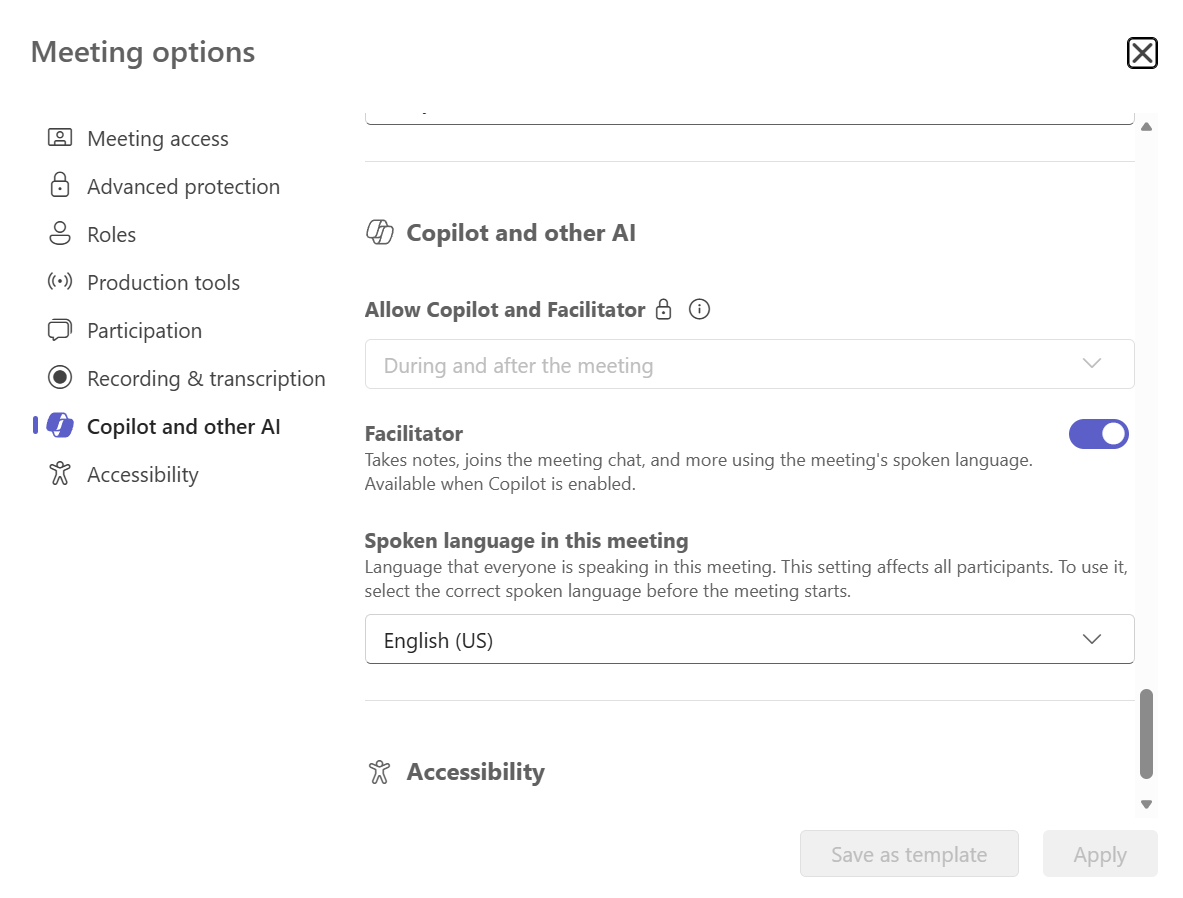
The other method: the Facilitator toggle in the meeting options, « Copilot and other AI » section.
- 4What it does: real-time meeting notes
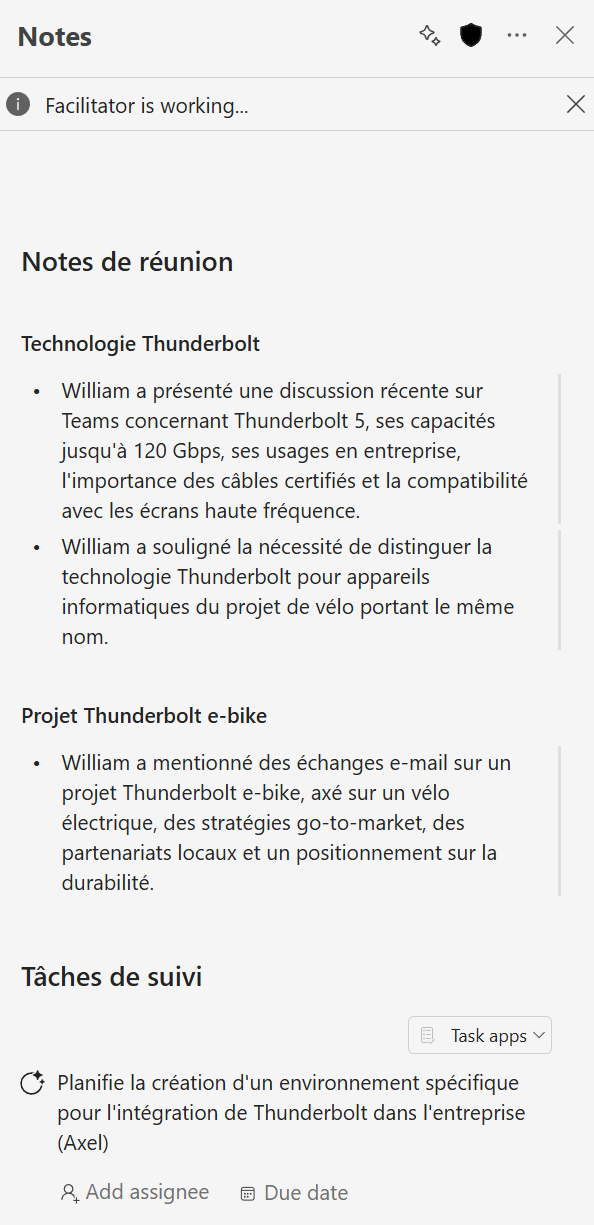
Once running, Facilitator writes structured notes as the discussion unfolds, in the meeting's « Notes » tab. They're organized by topic, editable by everyone, and fill in live while you talk.
The result: by the end of the meeting, the recap is already there. No need to appoint someone to write everything down, everyone can focus on the conversation.
- 5It keeps up: agenda, timer and next steps
Facilitator also tracks the flow. It can display the agenda, check off covered topics, start a timer to pace the items, and flag the next steps identified during the exchange.
On the meeting's top bar, you see it at work: note-taking progress and topic identification show live, with the elapsed time.

- 6It answers in the chat: decisions, tasks, open items
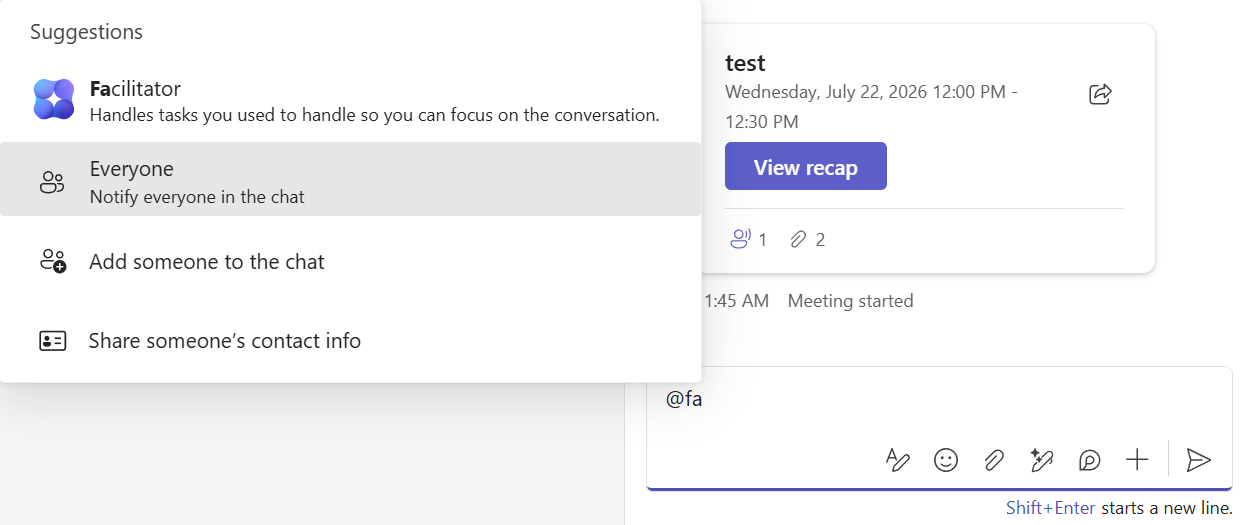
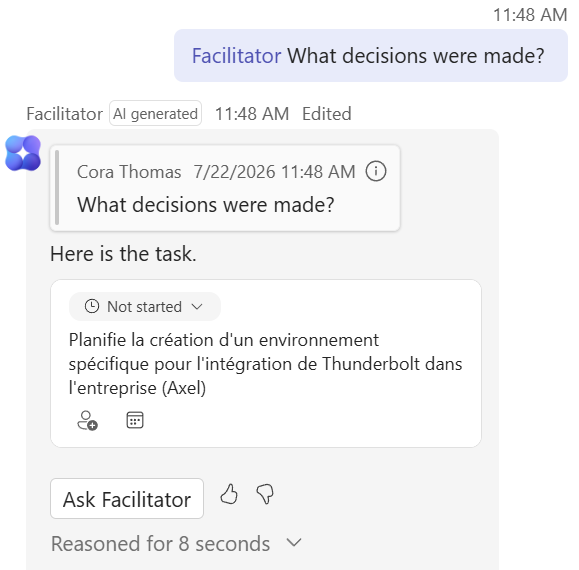
During the meeting, address it in the chat with @Facilitator. Type « @fa » and it appears in the suggestions. You can ask for the highlights, the list of open items as a table, or « What decisions were made? ».
It answers in front of everyone, citing the context of the discussion, and can turn an exchange into a concrete task (with an owner), ready to track. Suggested prompts help you get started if you're not sure what to ask.
- 7The nuance to know: automatic transcription isn't Facilitator
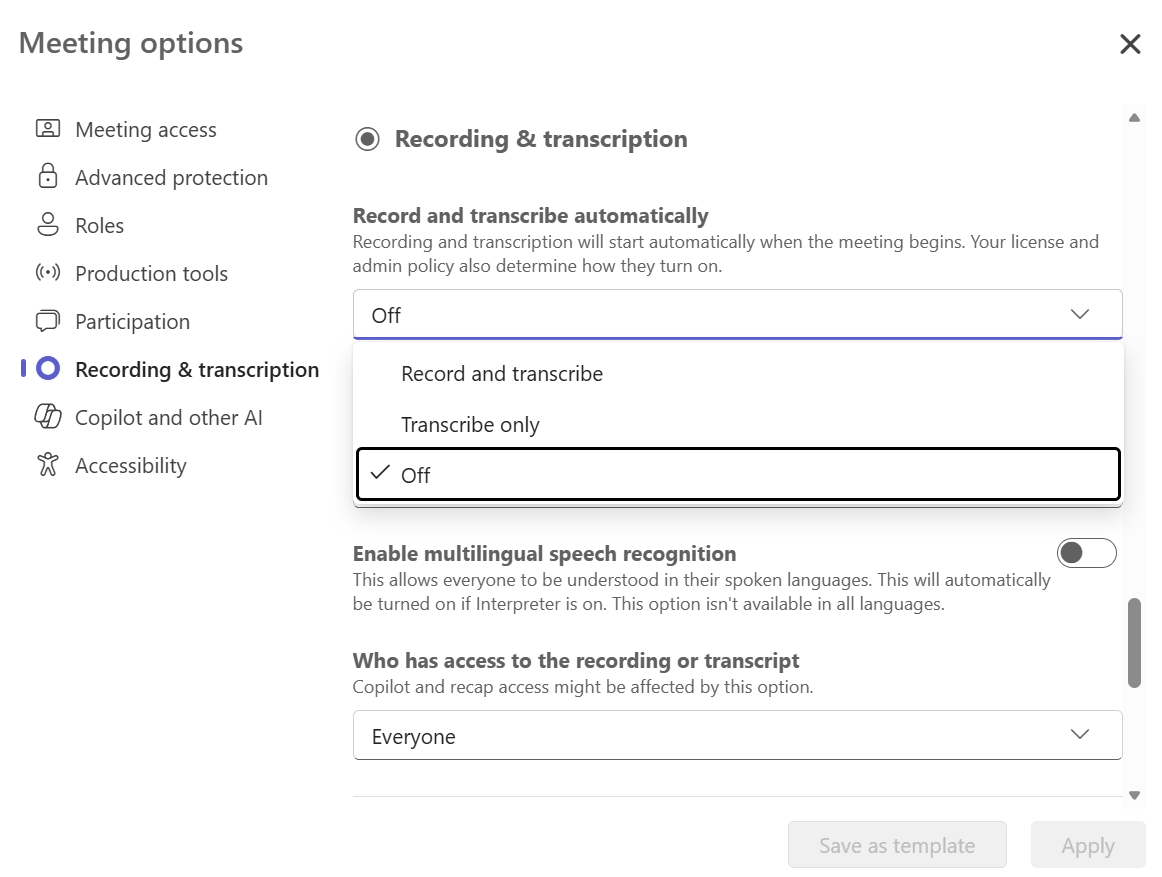
In the meeting options, another section exists: « Recording & transcription », with the « Record and transcribe automatically » setting (Record and transcribe, Transcribe only, or Off). Turn it on and recording and/or transcription start on their own at the beginning of the meeting. Careful: this setting does not turn on the Facilitator agent. To tell the two apart:
- Automatic transcription: you get a transcript. It lets you use Copilot in the meeting (at least thanks to that transcript), but doesn't add the agent.
- Facilitator: an extra agent that takes notes, tracks the agenda and hosts the meeting, with its own toggle.
- 8Turn it off whenever you want
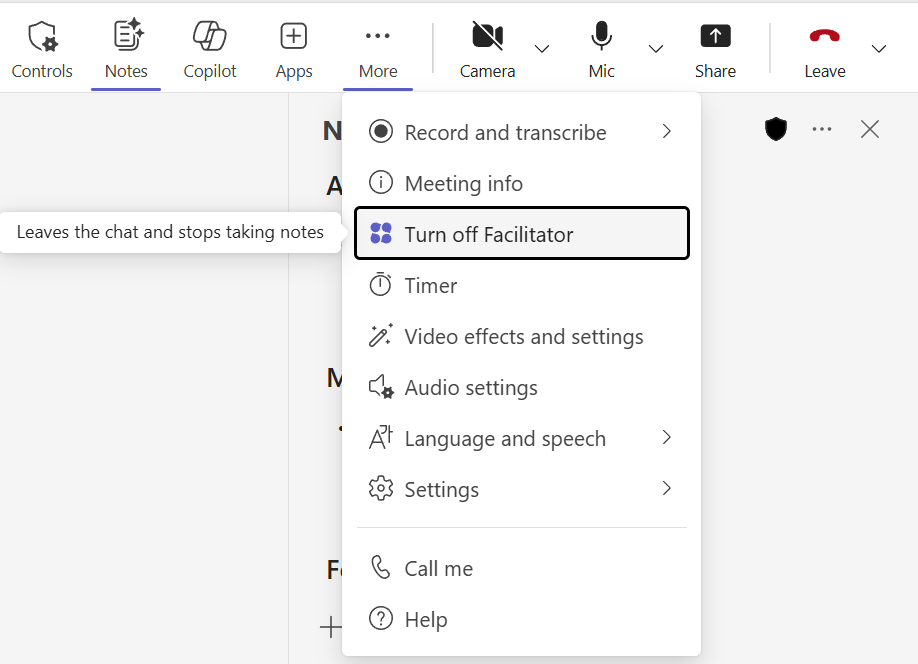
Need to stop it mid-way? In « More actions », choose « Turn off Facilitator » (or the « Turn off » link in the banner). It leaves the chat and stops taking notes.
Note: turning Facilitator off stops automatic note-taking but doesn't delete the notes already written, you keep them.
- 9What to remember
Facilitator is the smart minute-taker of your Teams meetings: it takes notes, tracks the agenda, manages time and answers in the chat, all shared with the whole meeting.
Two reflexes to use it well: turn it on in one click (in the meeting or in the options), and don't confuse it with automatic transcription, which mostly feeds Copilot. Facilitator is an agent included with the Microsoft Copilot license, available in scheduled meetings.
Facilitator is included with the Microsoft Copilot license and works only in scheduled Teams meetings (not calls, instant meetings, channel meetings, or chats). People without a license can't prompt it but can see its notes and answers. Only the organizer and presenters can turn it on or off.
📚 Official sources
💬 Comments
No comments yet. Be the first!
✨ Discover more
PremiumInterpreter: the real-time interpreter for your Teams meetings
Interpreter is an agent that translates speech live during your Teams meetings: everyone listens to the meeting in their own language, in real time, with the option to keep the tone of your voice. No more human interpreter to understand a colleague or client abroad.
PremiumGet the recap of a Teams meeting
After a meeting, Teams and Copilot produce the full recap: summary, decisions, speakers, which you can customize, share and even listen to.
PremiumMeeting Recaps: all your meeting summaries in one place
An often-overlooked Teams app that brings together all your meetings, past and upcoming, each with an intelligent recap. No more digging through chats or emails to find a summary: everything is centralized, and you can even listen to an audio recap.