
 PremiumEND USER2 min read
Send an email straight from Copilot
Draft and send an email without leaving Copilot: describe the intent, let Copilot draft it, tweak the tone, send.
✅ How to
- 1
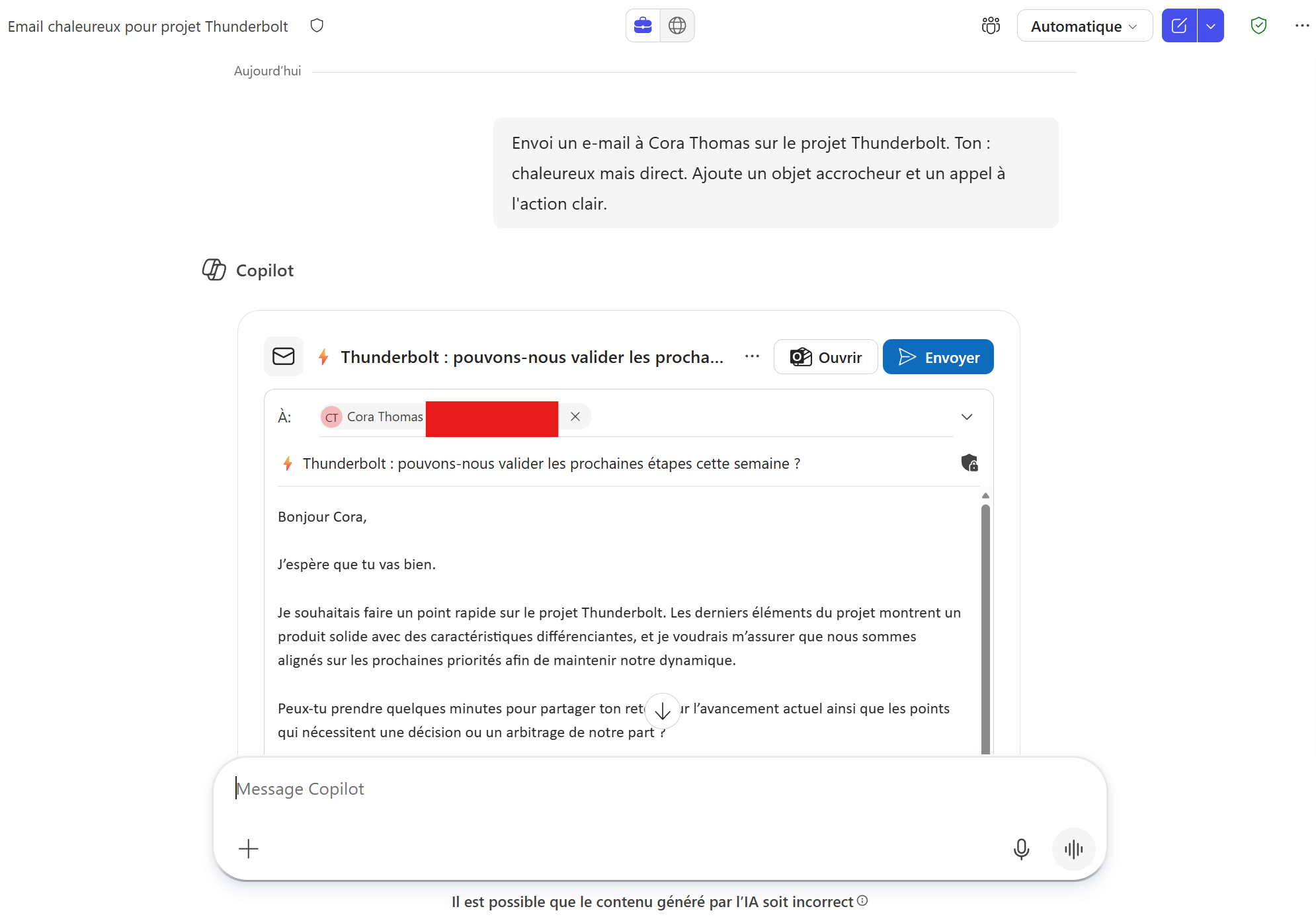
Open Copilot (M365 Chat) and describe the ask: “Write an email to Marie to move Thursday's meeting to Monday 10am.”
- 2
Copilot drafts it; refine: “Make it warmer” or “shorter”.
- 3
In Outlook, Copilot can start from your inbox: “Reply to this thread confirming I'll attend.”
- 4
Check recipient and subject, then send.
⚡ Prompt to copy
Send a concise, professional email to [recipient] about [goal]. Tone: warm but direct. Add a catchy subject line and a clear call to action.
💬 Comments
No comments yet. Be the first!
✨ Discover more
PremiumSummarize your inbox and reply to an email
Ask Copilot for a digest of your unread mail sorted by priority, then let it draft your replies right inside Outlook.
PremiumOutlook's hidden duo: Agenda + Prepare
Copilot can help you shape a meeting when you create the invite, then bring together useful context before it starts. Discover Agenda, Prepare and the quick way to turn on Facilitator ahead of time.
PremiumSchedule with Copilot: from an email thread to a structured meeting
Schedule with Copilot in Outlook automatically turns an email exchange into a meeting. Copilot analyzes the thread's context and helps create a meeting with the right people, a suitable time slot and a first draft agenda.