
 PremiumEND USERIT PRO5 min read
Microsoft Copilot: a new name, a new icon, one single app
The Microsoft 365 Copilot app is becoming Microsoft Copilot, with an updated icon. The goal: one single app for work and personal use. Here's what's changing, what you don't need to do, and what IT should watch to keep the transition smooth.
✅ How to
- 1The change at a glance
The Microsoft 365 Copilot application is changing its name and icon to become simply Microsoft Copilot. On Windows, Mac, mobile and the web, it's the same application, with a unified icon. The web URL is progressively moving to copilot.cloud.microsoft.
Nothing changes underneath: your data, your account and how you use it stay the same. Only the name and the icon are updated.
- 2Why one single app for work and personal
The idea is simple: no more juggling between two different Copilot apps. Whether you're signed in with your work or school account, or with your personal account, you get the same app.
Both worlds stay clearly separated: conversations, content and data don't mix between your work and personal accounts, and your organization's security, compliance and controls keep applying normally to your work usage.
- 3Do you need to do anything?
For most users, no. The switch happens automatically. If you were already using the Microsoft 365 Copilot app or the Microsoft Copilot app, your conversations and content come with you.
If the icon doesn't look updated yet on your device, simply check your internet connection and restart the app.
- 4In pictures: the icon before and after
As shown in the illustration below, the previous Microsoft 365 Copilot icon carried a small « M365 » badge. The new Microsoft Copilot icon keeps the same symbol, without that badge: simpler, and shared across both work and personal use.
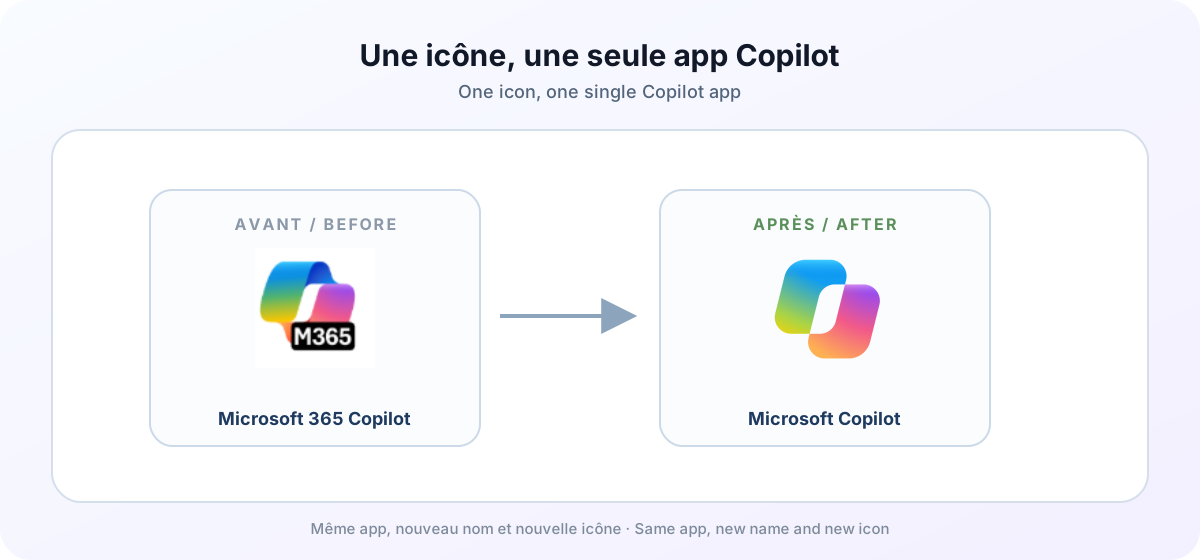
Before / after: the Microsoft 365 Copilot icon with its « M365 » badge becomes the Microsoft Copilot icon, shared across work and personal use.
- 5IT attention point: don't block these endpoints
For the transition to happen without any user action, make sure the copilot.cloud.microsoft domain isn't blocked on your network, along with the other Copilot endpoints documented by Microsoft in the official allow list.
A network block is the most common reason an icon doesn't update, or a user stays stuck on the old app.
- 6IT attention point: an old Intune policy to clean up
If your organization had an Intune policy blocking the old consumer Copilot app, it no longer has any effect on the unified Microsoft Copilot app and can safely be removed.
The only thing to check is the network: don't block the copilot.cloud.microsoft URL, since it's what lets the app update correctly.
- 7Blocking the switch to a personal account: Tenant Restrictions
If you want to prevent your users from switching to a personal tenant, and therefore to the consumer version of Copilot, the right approach isn't to block the app, but to block that account switch at the identity level.
This is configured in Entra ID, with Tenant Restrictions: this feature lets you allow only your work tenant and prevent a user from signing in with a personal Microsoft account on a company device. It's the most reliable way to keep work and personal usage clearly separated.
- 8What to remember
This is first and foremost a name and icon change, not a feature change: reassure your users, the app stays the same. On the IT side, the only real prerequisite is not blocking the required network access.
📚 Official sources
💬 Comments
No comments yet. Be the first!
✨ Discover more
 Premium
EU Data Boundary: understanding Microsoft's commitment
The EU Data Boundary is Microsoft's initiative to frame the storage and processing of data for in-scope cloud services within the European Union and EFTA. Here's what the commitment really covers, its limits and what IT should check.
PremiumThe Frontier program: early access to Microsoft Copilot
Frontier is your door to the next Copilot features, ahead of everyone else. Here's a clear rundown of this early-access program: what it is, who it's for, how IT turns it on (with screenshots), how to spot a Frontier feature with real examples, its benefits and its caveats.
PremiumCopilot Search: find the right file using natural language
You know the document exists, but you just can't find it. Copilot's « Search » section scans all your enterprise content (SharePoint, Outlook, Teams…) and understands a request phrased in plain language. Filters, sources, recent or shared content, and even a prompt launched straight from a file: here's how to make the most of it.