
 PremiumEND USER6 min read
Copilot Search: find the right file using natural language
You know the document exists, but you just can't find it. Copilot's « Search » section scans all your enterprise content (SharePoint, Outlook, Teams…) and understands a request phrased in plain language. Filters, sources, recent or shared content, and even a prompt launched straight from a file: here's how to make the most of it.
✅ How to
- 1What is Copilot Search?
It's Copilot's intelligent search engine, reachable via « Search » in the left menu. Unlike a classic keyword search, it uses AI to understand what you're looking for and digs through your whole work universe: files, people, messages, your company's content.
The landing page already offers shortcuts to your colleagues and apps (Teams, Outlook, SharePoint, Power BI…). Just type in the bar to start a search.
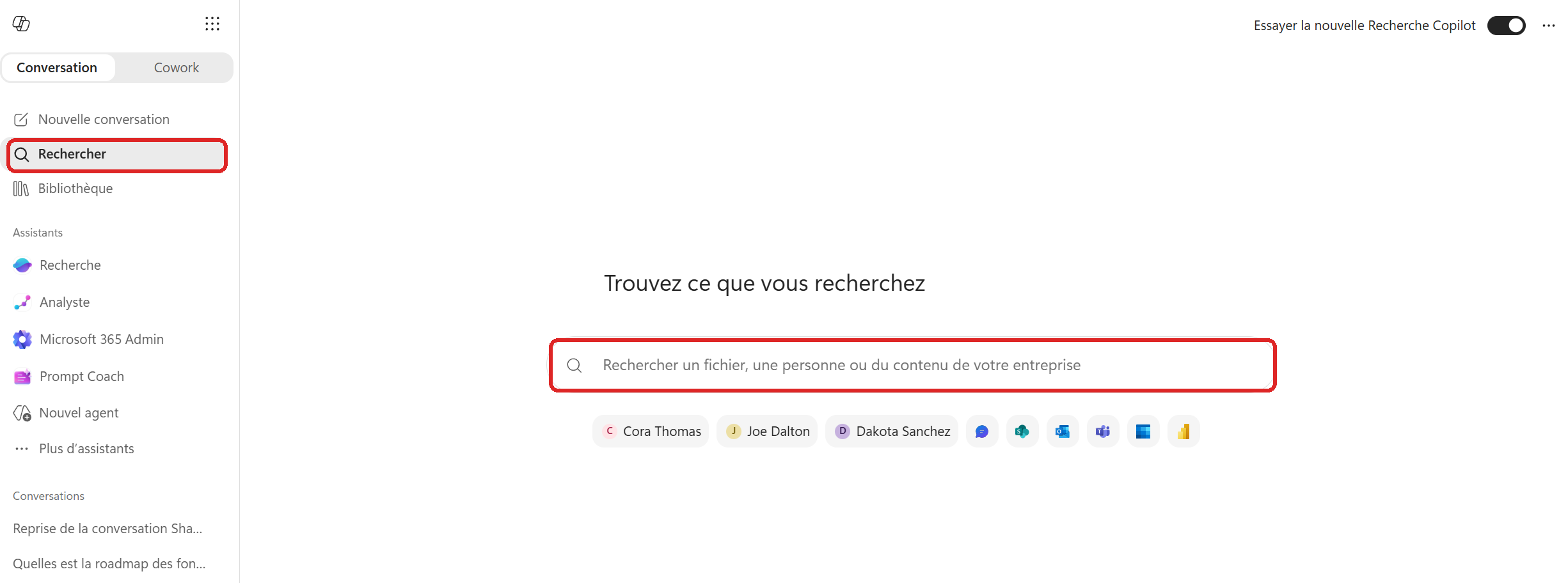
The « Search » section and its universal search bar.
- 2Search in natural language
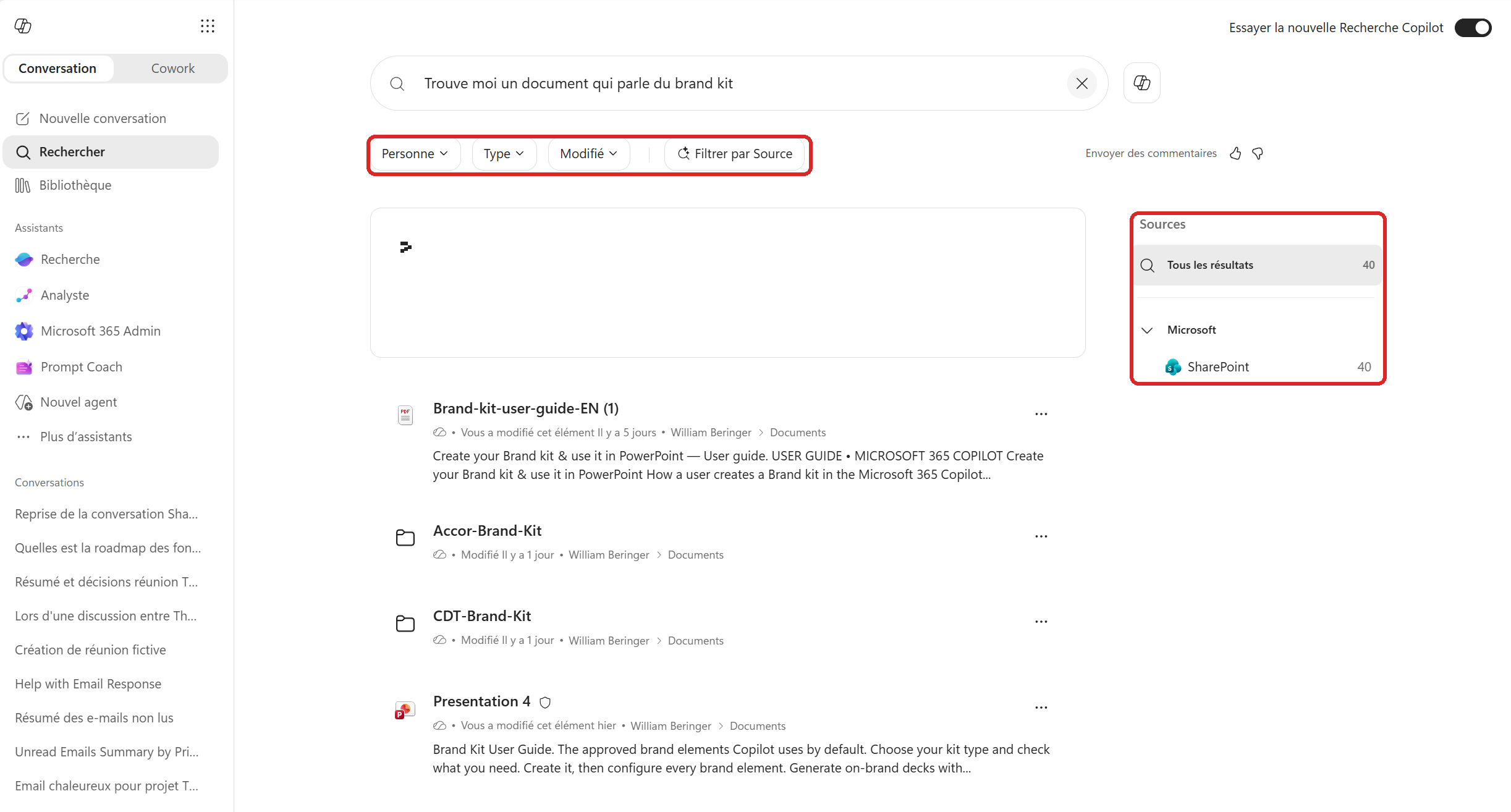
No need to guess the exact file name. Write your request as you'd say it to a colleague: « Find me a document about the brand kit ».
Copilot reads the intent, not just the words, and surfaces the most relevant items: files, folders, presentations, each with the author, the modified date and a snippet. You can tell right away if it's the right one.
- 3An AI-written answer, with its sources
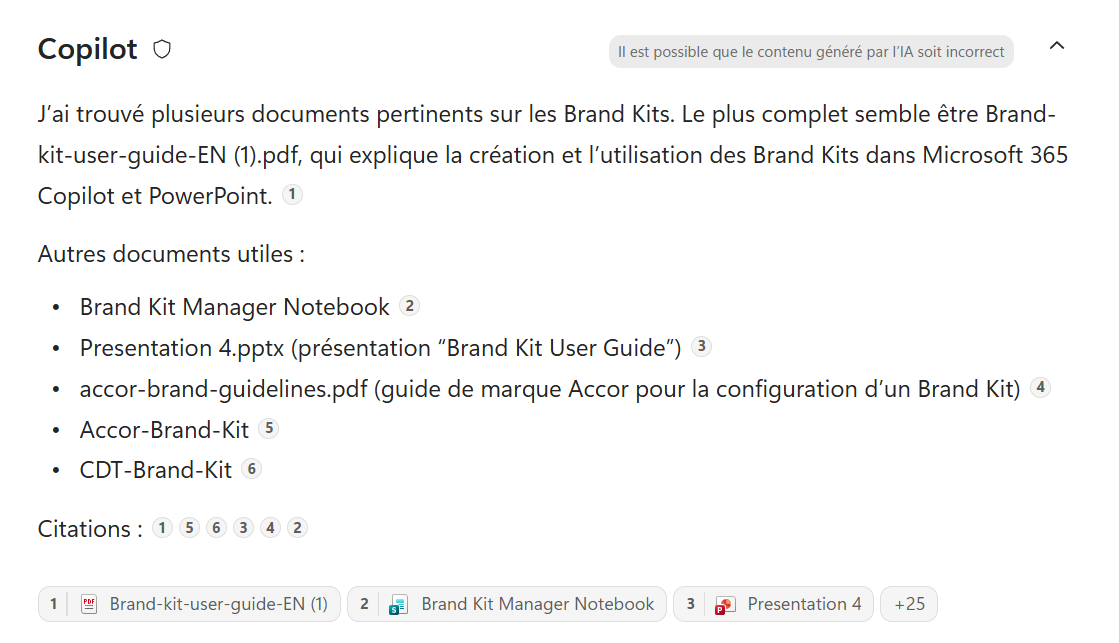
On top of the results list, Copilot writes a real summary: it tells you which document looks most complete, cites other useful ones, and shows its numbered sources at the bottom of the answer.
That's the difference from a classic search: you don't just get a list of links, but an answer that guides you, with the ability to check every source in one click.
- 4Refine with filters
Too many results? Use the filters above the list: Person (who created or edited the file), Type (PDF, Word, PowerPoint…) and Modified (today, this week, this month…).
For example, combining Type: PDF and Last week keeps only recent PDFs. Each active filter shows as a tag you can remove by clicking its cross.
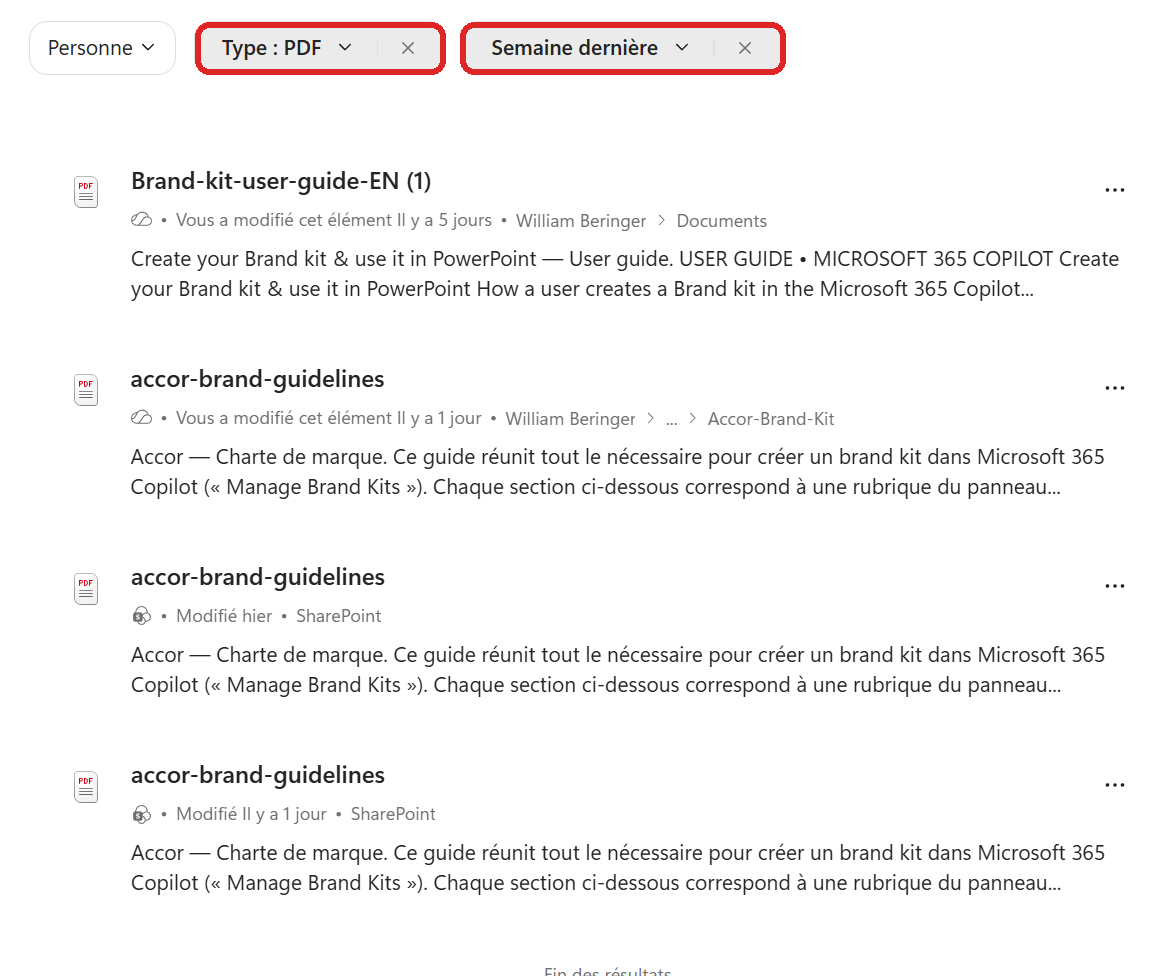
Combined Type: PDF and Last week filters, removable in one click.
- 5Target a specific source
You can tell Copilot where to look. The « Filter by Source » button (and the Sources panel on the right) limits the search to SharePoint, Outlook, Teams, and so on.
Tip: simply type « source: » right in the search bar, and Copilot offers the list of available sources (M365 Copilot Chats, SharePoint, Outlook Mail, Teams, Calendar, Power BI, Viva Engage, ServiceNow…). Handy to say « find this, but only in my emails ».
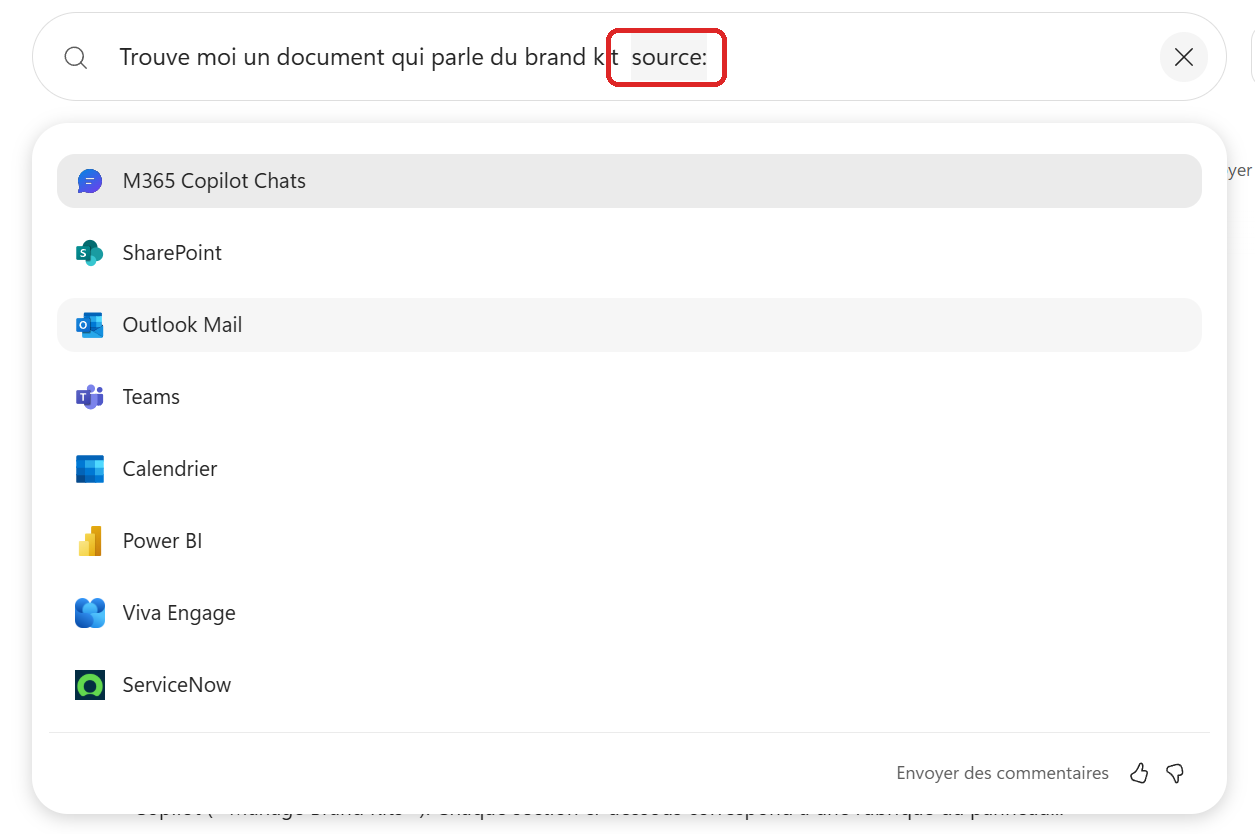
Type « source: » to choose where to search (SharePoint, Outlook, Teams…).
- 6Recent, Shared, Favorites: act directly on your documents
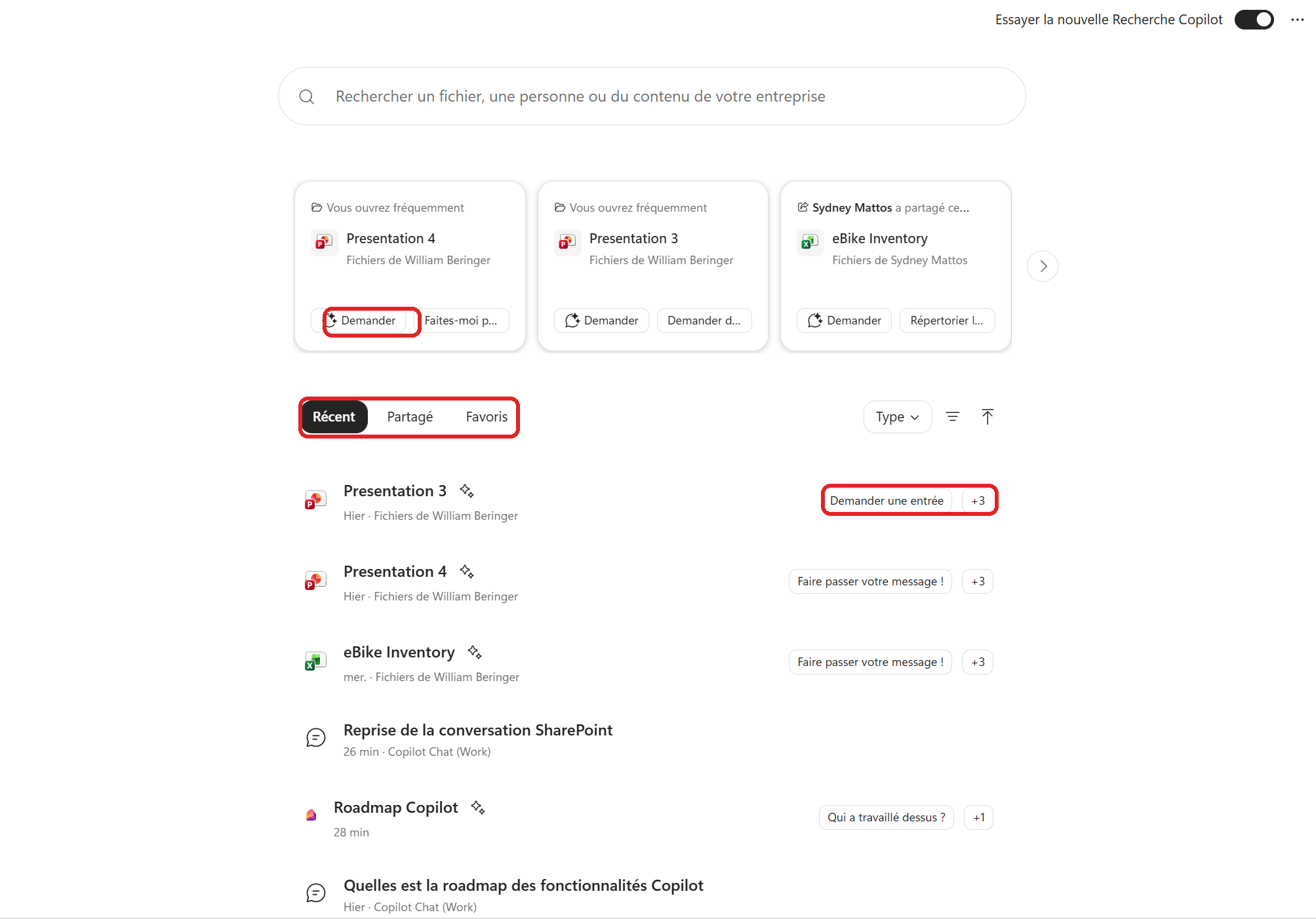
Even without running a search, the page puts your content within reach, split into three tabs: Recent (your latest opened files), Shared (what's been shared with you) and Favorites (what you pinned).
Better still: next to each document, a button lets you launch a prompt straight on it. One click on « Ask » or « Ask for an entry » and Copilot opens the exchange on that file, without you reopening it. The perfect bridge between finding a document and working with it.
- 7What to remember
Copilot Search is Google for your work universe, but smarter: you phrase your request in natural language, the AI grasps the intent, writes a sourced summary and surfaces the right files. You refine with filters (person, type, date), target a specific source, and from recent, shared or favorite content, you can launch a prompt in a single click. Enough to stop wasting time searching, and spend more of it doing.
💬 Comments
No comments yet. Be the first!
✨ Discover more
PremiumThe Frontier program: early access to Microsoft Copilot
Frontier is your door to the next Copilot features, ahead of everyone else. Here's a clear rundown of this early-access program: what it is, who it's for, how IT turns it on (with screenshots), how to spot a Frontier feature with real examples, its benefits and its caveats.
PremiumThe Library and Pages: keep a memory of your work with Copilot
At the end of a prompt, Copilot can turn its answer into a « Page »: a living document you edit, enrich, export to Word or PDF, share, and even reload into a conversation to pick up where you left off. All your Pages (and generated images) live in one place: the Library.
PremiumPersonalize Copilot: Custom Instructions and Memories
Copilot answers everyone the same way? Not anymore. With Custom Instructions and Memories, you teach it who you are, how you like to work and what it should remember over time. Two settings, a Copilot that feels like yours.