
 ChatEND USER5 min read
Where can you access Copilot? All the entry points
« But where do I actually find Copilot? » That's THE question that keeps coming back. Good news: there isn't one single place, but many. Here are all the entry points, from web to mobile, through Edge, Teams, the dedicated app and of course your Microsoft 365 apps.
✅ How to
- 1Copilot is everywhere: the overview
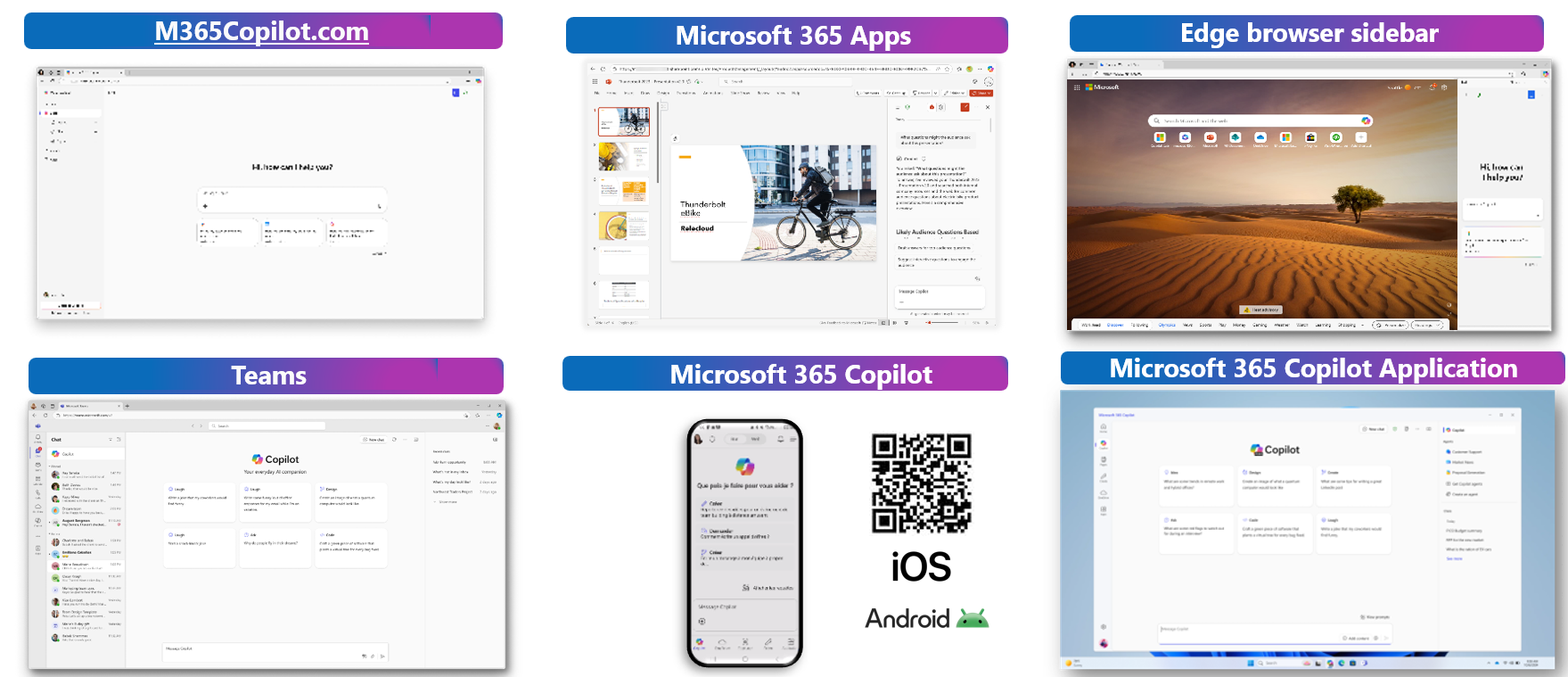
The first thing to understand is that there isn't ONE Copilot but many doors into the same assistant. Depending on where you work, you reach it differently, but it's the same Copilot behind, with the same work context. The screenshot above sums up the main access points, and we'll go through them one by one.
- 2M365Copilot.com: the direct web access
The simplest and most universal route: open your browser and go to m365copilot.com. You land straight on the conversation interface (« Hi, how can I help you? »), with nothing to install. Ideal to get started fast, from any machine, or to build the habit of keeping Copilot handy in a tab.
- 3Inside your Microsoft 365 apps
Copilot lives right inside your everyday tools: Word, Excel, PowerPoint and the rest. You find it as a side pane that understands the document you're working on. No need to copy and paste anything: it sees your content and helps you where you are, when you need it.
- 4The Edge browser sidebar
If you use Microsoft Edge, Copilot is already built into the browser sidebar. One click on the icon and the pane opens on the right, ready to help on the page you're viewing or on your work topics. Handy to keep Copilot accessible while you browse, without switching windows.
- 5In Microsoft Teams
Copilot is also present in Teams, your « everyday AI companion ». You find it in the left pane to chat, but also at the heart of your meetings and conversations: summarize an exchange, recover a decision, prepare a check-in. The assistant is where collaboration happens.
- 6On mobile: iOS and Android
Copilot follows you on the go with the mobile app, available on iOS and Android. Scan the QR code (or search « Microsoft Copilot » in your store) and there you are with the assistant in your pocket, including dictation to talk to it rather than type. Perfect between two meetings or while commuting.
- 7The Microsoft Copilot app (desktop)
There's also a dedicated Microsoft Copilot application for your computer. It brings together the conversation, your agents (Customer Support, Proposal Generation, Get Copilot agents…), your suggested prompts and the whole Copilot experience in a separate window. A direct access, without going through the browser, for those who want Copilot always open next to their apps.
- 8And of course, in Outlook
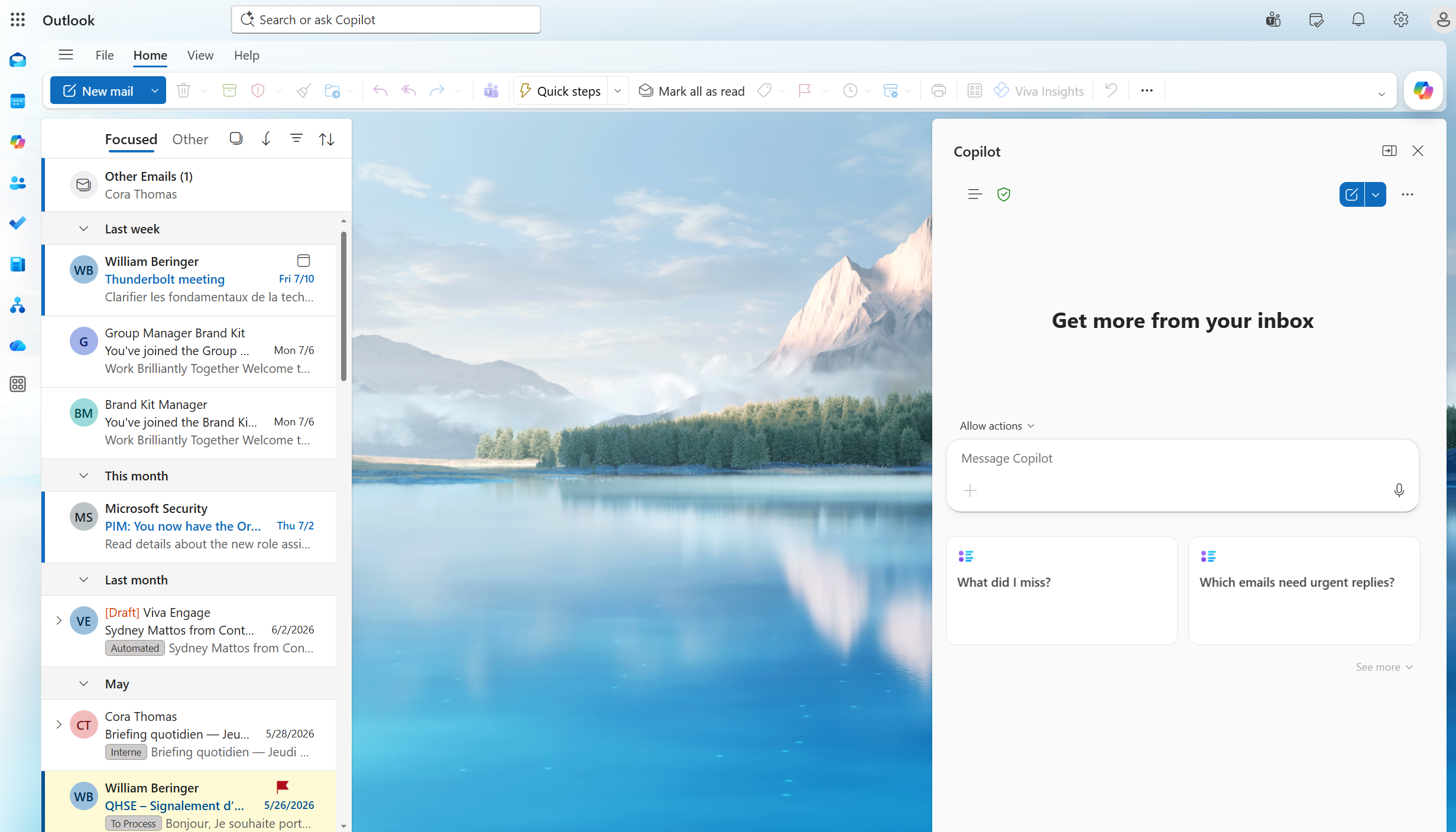
Impossible to forget Outlook, probably one of the most useful everyday uses. At the top, the « Search or ask Copilot » bar lets you search or ask Copilot directly. And on the right, the Copilot pane (« Get more from your inbox ») offers to summarize a thread, spot the emails needing an urgent reply (« Which emails need urgent replies? ») or catch up on what you missed (« What did I miss? »). A real copilot for your mailbox.
- 9Deployed and integrated into Microsoft 365
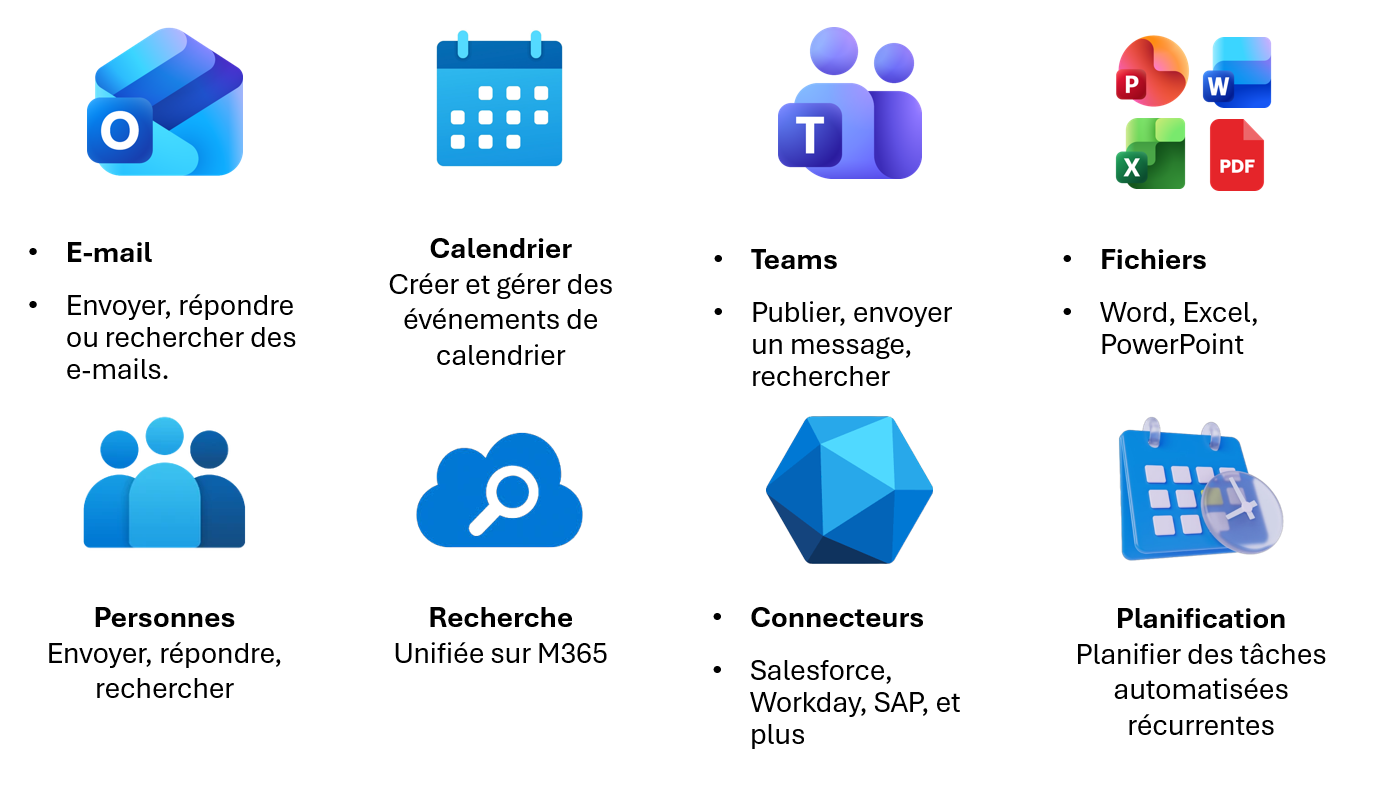
Beyond the access points, the key is to understand that Copilot is deployed and integrated at the core of M365. It acts on your emails (send, reply, search), your calendar (create and manage events), Teams (publish, send a message, search), your files (Word, Excel, PowerPoint, PDF), your contacts (People), unified M365 search, but also through connectors to your business tools (Salesforce, Workday, SAP, and more) and the scheduling of recurring automated tasks. It's not just one more app: it's an AI layer that runs across your entire work environment.
💬 Comments
No comments yet. Be the first!
✨ Discover more
 Chat
ChatTalk to Copilot: voice conversation on mobile
What if you talked to Copilot like a real personal assistant? Voice conversation, grounded in your work data and the web, makes your exchanges simpler, faster and more natural. Here's how to start it, how to dialogue well, and 4 concrete scenarios to get going.
 Chat
ChatPlan your day in Outlook, without a Copilot license
With Copilot Chat (included, no license), reason across your whole inbox and build a to-do list aligned with the day's meetings.
ChatSave a prompt to reuse it in one click
Saving a prompt lets you store an instruction you use regularly so you can find it in one click, without rewriting it. Available with or without a Copilot license, it's the habit that saves time and standardizes usage.