
 PremiumEND USER4 min read
Add Copilot to a Teams conversation
Adding Copilot to a Teams conversation is like inviting a virtual assistant into the chat to help you summarize, analyze and make the most of the exchanges in real time. It then works with the context of that specific discussion: ideal for long conversations and team projects.
✅ How to
- 1The idea: an assistant inside your chat
The Copilot app in Teams lets you ask questions directly about a conversation's content and get help without leaving the chat. The right image for a workshop: adding Copilot to a Teams conversation is like inviting a virtual assistant into the chat to help summarize, analyze and make the most of the exchanges in real time.
- 2How to add it to a conversation
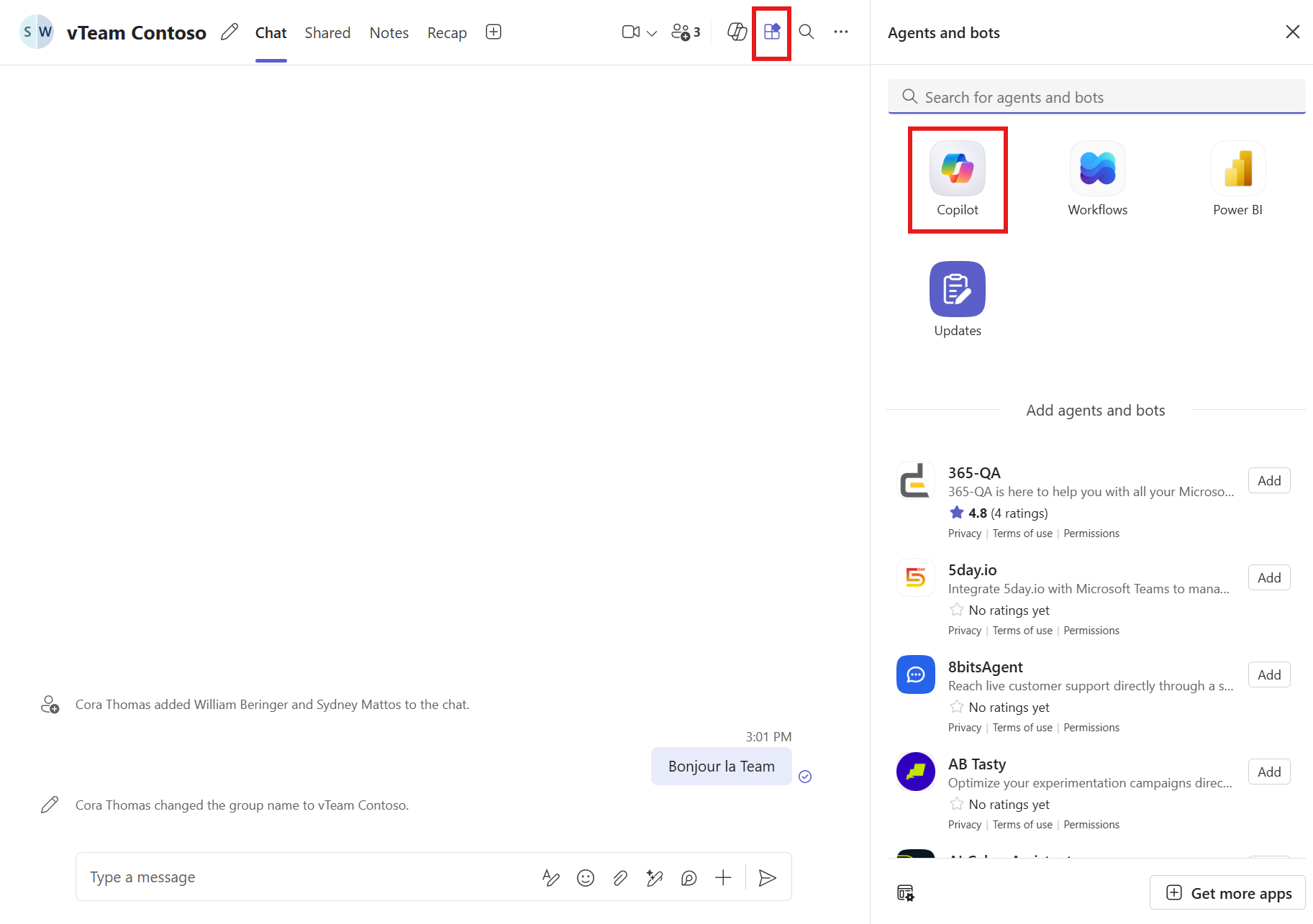
In your Teams conversation, click the « Agents and bots » icon (the apps icon at the top right of the chat window). The « Agents and bots » pane opens on the right: pick « Copilot » among the offered apps. Done, Copilot joins the discussion and can be queried right inside the thread.
- 3The difference with the general Copilot in Teams
This is the key takeaway: when Copilot is added to a chat, it works with the context of that specific conversation and can analyze all the messages visible to the participants. In other words, Copilot in a chat = Copilot with the context of that chat. Where the general Copilot answers broadly, this one reasons over what's being said here, in this discussion.
- 4A few usage examples
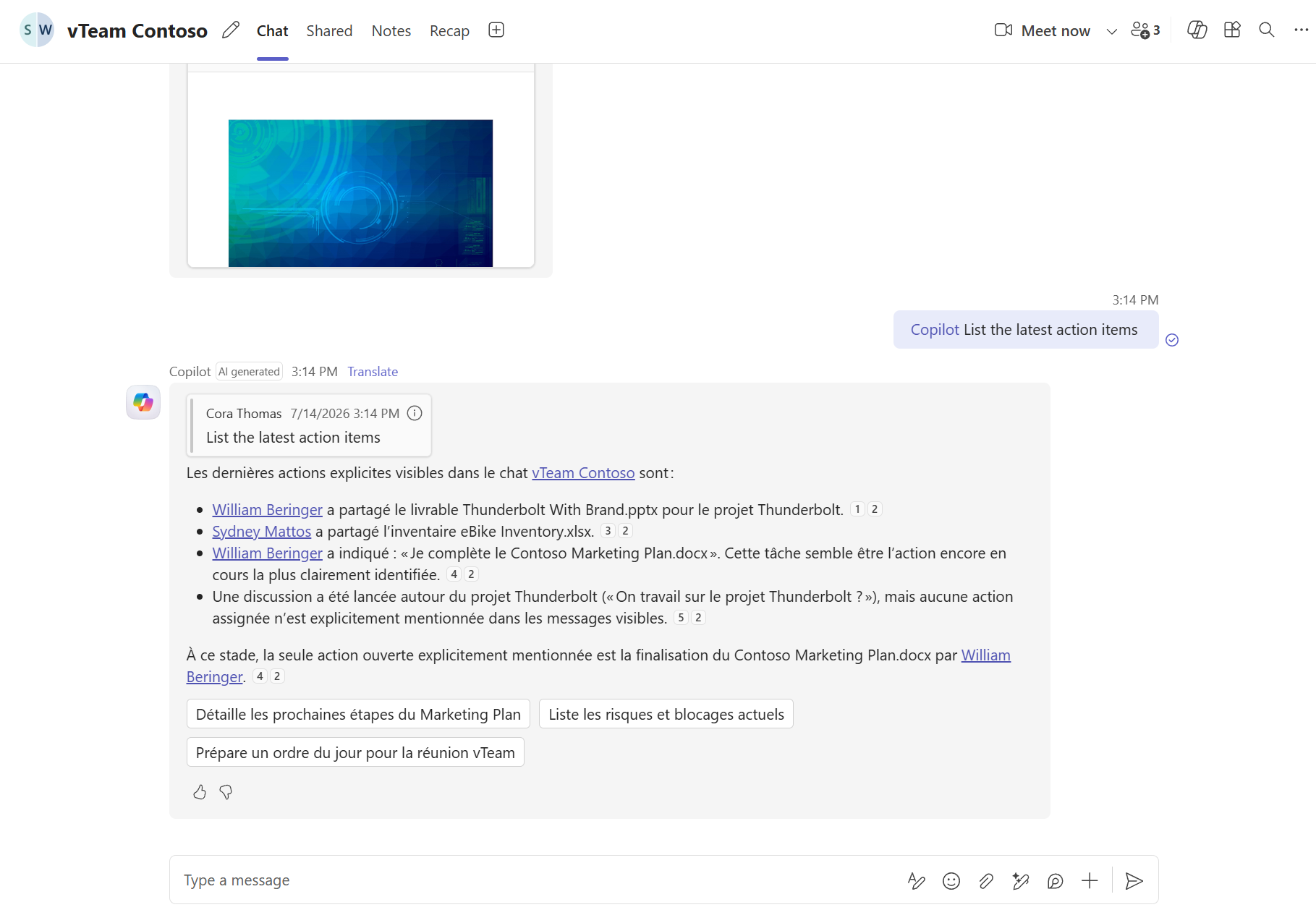
Once added, address it directly in the thread (for example « Copilot, List the latest action items »). It can then:
- Summarize a long Teams conversation.
- Identify the decisions made.
- Extract the action items to complete.
- Generate a recap.
- Quickly find a piece of info shared in the chat.
- Draft a reply from the context of the discussion.
In the screenshot, we ask for the list of the latest action items: it names who shared which file, spots the task in progress and even suggests follow-ups (detail the next steps, list the risks, prepare an agenda).
- 5What I'd keep in mind for a client
Three simple ideas to remember:
- Copilot in a chat = Copilot with the context of that chat.
- Very useful for long conversations or team projects.
- Lets you quickly find decisions, actions and important information.
In short, no more scrolling through hundreds of messages: you ask, Copilot synthesizes.
⚡ Prompt to copy
Copilot, summarize this conversation: list the decisions made, the action items with their owner, and the key information shared in the chat.
💬 Comments
No comments yet. Be the first!
✨ Discover more
PremiumFacilitator: the agent that takes notes in your Teams meetings for you
Facilitator is a Copilot agent that sits in your Teams meetings like an extra teammate: it takes notes in real time, tracks the agenda, keeps up with decisions and tasks, and answers questions in the meeting chat. Let's see how to turn it on (two ways), what it does, and the nuance not to confuse with plain automatic transcription.
PremiumGet the recap of a Teams meeting
After a meeting, Teams and Copilot produce the full recap: summary, decisions, speakers, which you can customize, share and even listen to.
PremiumInterpreter: the real-time interpreter for your Teams meetings
Interpreter is an agent that translates speech live during your Teams meetings: everyone listens to the meeting in their own language, in real time, with the option to keep the tone of your voice. No more human interpreter to understand a colleague or client abroad.