
 PremiumEND USER6 min read
Interpreter: the real-time interpreter for your Teams meetings
Interpreter is an agent that translates speech live during your Teams meetings: everyone listens to the meeting in their own language, in real time, with the option to keep the tone of your voice. No more human interpreter to understand a colleague or client abroad.
✅ How to
- 1An interpreter built into the meeting
Interpreter acts like an instant translator during your Teams meetings. It listens to the spoken language and renders it live into another language, voice to voice (speech-to-speech). Each participant can follow the meeting in the language of their choice.
The cherry on top: an option lets it simulate your voice, so the translation sounds like you rather than a neutral synthetic voice.
- 2Turn it on during a meeting
In a meeting, open « More actions », then « Language and speech », and click « Turn on Interpreter for me ». That's the gesture that starts interpretation for you.
Only your listening is affected: turning Interpreter on « for me » changes nothing for the other participants, who keep their own setting.
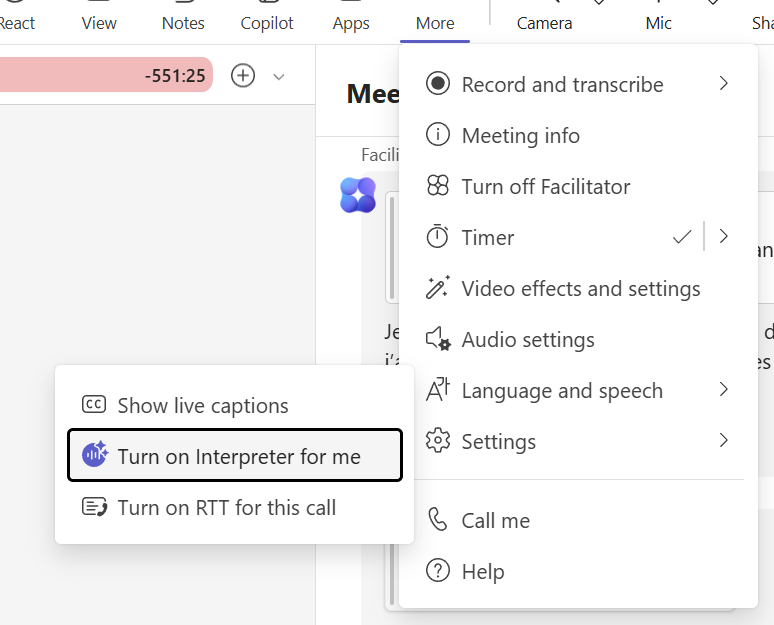
In a meeting: More actions › Language and speech › Turn on Interpreter for me.
- 3Choose your language and voice
The « Interpreter settings » pane opens. Two key settings:
- « Listen to the meeting in »: the language you want to hear the meeting in.
- « Choose your voice when interpreted »: either « Simulate my voice » (the translation takes on a tone close to yours, from your temporarily used voice data), or « Automated voice » with a choice of voices (Auto, Ava, Andrew, Brian, Fable Turbo...).
Also adjust the volume balance between the original audio and the translation, to your liking.
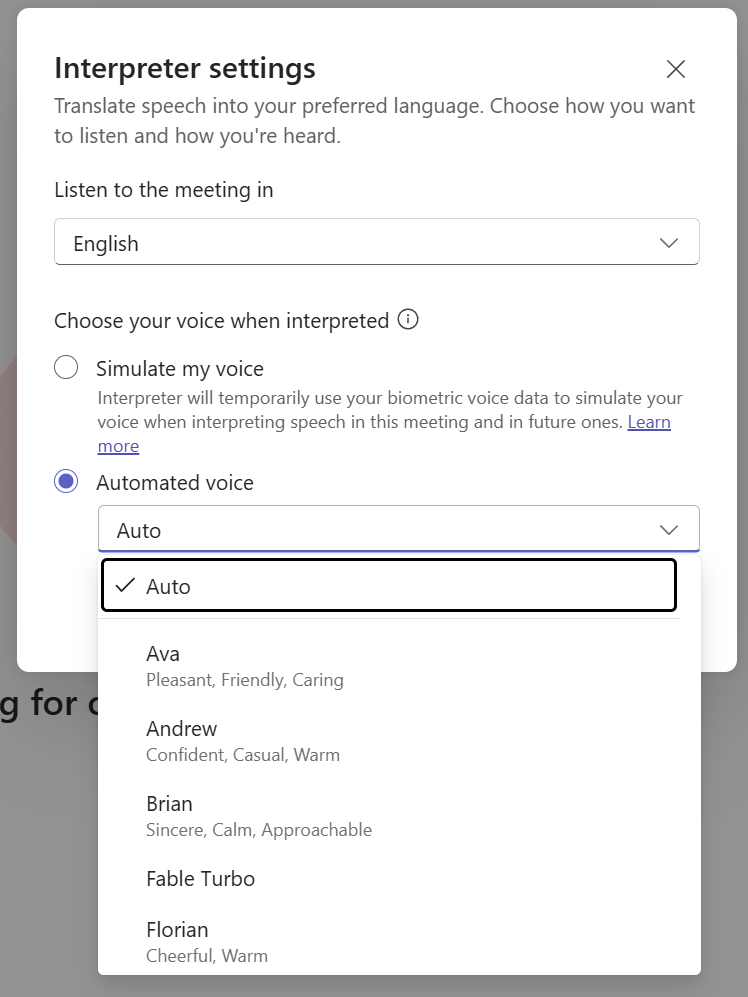
Interpreter settings: the listening language and the voice choice (simulated or automated voice).
- 4When translation is running
Once active, an « AI is interpreting this meeting » indicator reminds you that you're using Interpreter and in which language. From there, you can « Manage settings » to adjust, or « Turn off for me » to stop, at any time.
The spoken language is detected automatically and reflected in live captions and the transcript.
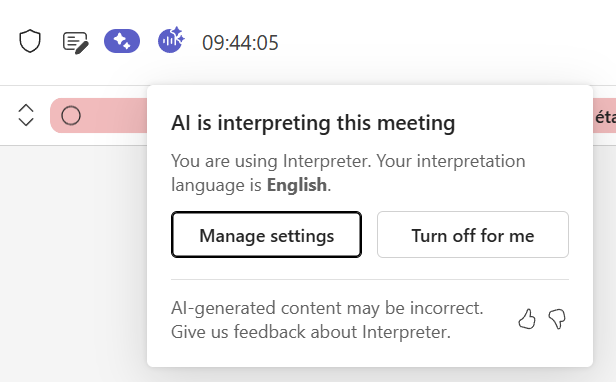
The « AI is interpreting this meeting » indicator, with Manage settings and Turn off for me.
- 5Two good habits for smooth translation
Interpreter needs a little time to do well: at the start, a reminder invites you to « allow time for the AI ». Two reflexes help quality:
- The agent waits for a sentence to be finished before translating it for others: speak in complete sentences.
- Wait for the indicator on the person's video to disappear before speaking, so you don't cut off those listening to the translation.
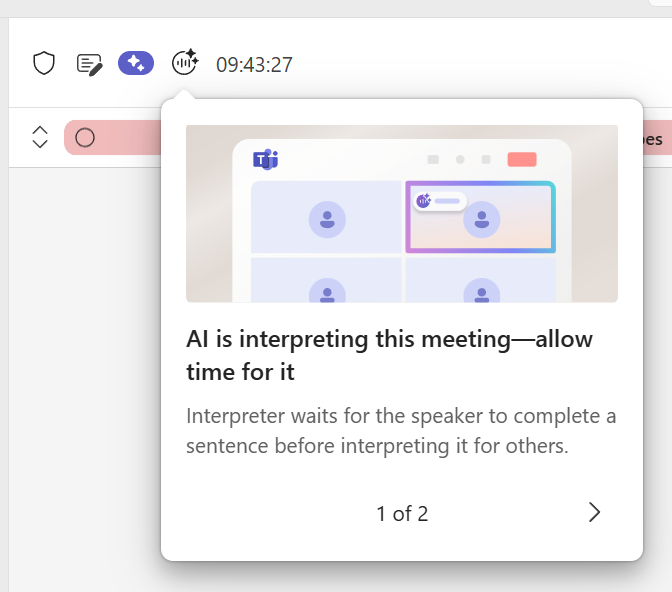
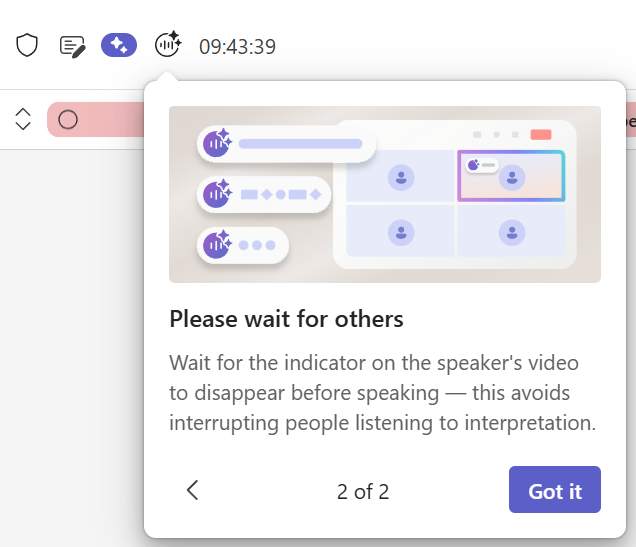
The good-practice reminders shown when interpretation starts.
- 6On mobile too
On the go, it's just as simple. On Teams mobile (iOS or Android): « More », then « Turn on Interpreter », pick the language and confirm. You follow the translated meeting from your phone.
- 7The prerequisites to know
Before you start, keep these points in mind:
- Teams Premium: lets you turn Interpreter on in Teams meetings.
- Microsoft Copilot: also includes Interpreter and brings the included interpretation hours plus the advanced AI experience.
- 20 hours of interpretation included per user per month with a Microsoft Copilot license; beyond that, subject to available capacity.
- Around ten supported languages (English, French, Spanish, Portuguese, German, Italian, Japanese, Mandarin Chinese, Korean, among others).
- Available in scheduled and channel meetings (desktop, mobile, web, Teams Rooms on Windows), but not in ad-hoc calls, webinars/town halls, or Teams Free.
- The translation isn't captured in the recording or transcript, which stay in the original language.
- 8What to remember
Interpreter is live voice translation that drops the language barrier in meetings. One click in the meeting controls, you choose your listening language, and you follow everyone effortlessly. Privacy is preserved: no voice sample is kept.
Interpreter requires a Microsoft Copilot license to listen to the translation (20 hours of interpretation included per user per month; beyond that, subject to available capacity). The organizer needs Microsoft Copilot or Teams Premium. No voice sample is stored.
📚 Official sources
💬 Comments
No comments yet. Be the first!
✨ Discover more
PremiumFacilitator: the agent that takes notes in your Teams meetings for you
Facilitator is a Copilot agent that sits in your Teams meetings like an extra teammate: it takes notes in real time, tracks the agenda, keeps up with decisions and tasks, and answers questions in the meeting chat. Let's see how to turn it on (two ways), what it does, and the nuance not to confuse with plain automatic transcription.
PremiumGet the recap of a Teams meeting
After a meeting, Teams and Copilot produce the full recap: summary, decisions, speakers, which you can customize, share and even listen to.
PremiumMeeting Recaps: all your meeting summaries in one place
An often-overlooked Teams app that brings together all your meetings, past and upcoming, each with an intelligent recap. No more digging through chats or emails to find a summary: everything is centralized, and you can even listen to an audio recap.