
 PremiumEND USER7 min read
The Library and Pages: keep a memory of your work with Copilot
At the end of a prompt, Copilot can turn its answer into a « Page »: a living document you edit, enrich, export to Word or PDF, share, and even reload into a conversation to pick up where you left off. All your Pages (and generated images) live in one place: the Library.
✅ How to
- 1So what exactly is a Page?
When you chat with Copilot, answers scroll by in the conversation and eventually get lost. A Page is the opposite: a clean, lasting document, created from a Copilot answer, that you can calmly rework.
Think of a Page as a smart draft: Copilot lays down the first version, and you grow it, on your own or by going back through Copilot. It's the bridge between a conversation and a real deliverable.
- 2Send an answer to a Page
At the end of an answer you like, click the « … » under the message, then « Edit in Pages ». Two options appear:
- « Add to recent page »: add the answer to an existing Page, to keep enriching a document you already started.
- « Add to new page »: create a new Page from this answer.
In one click, your answer leaves the chat and becomes an editable document.
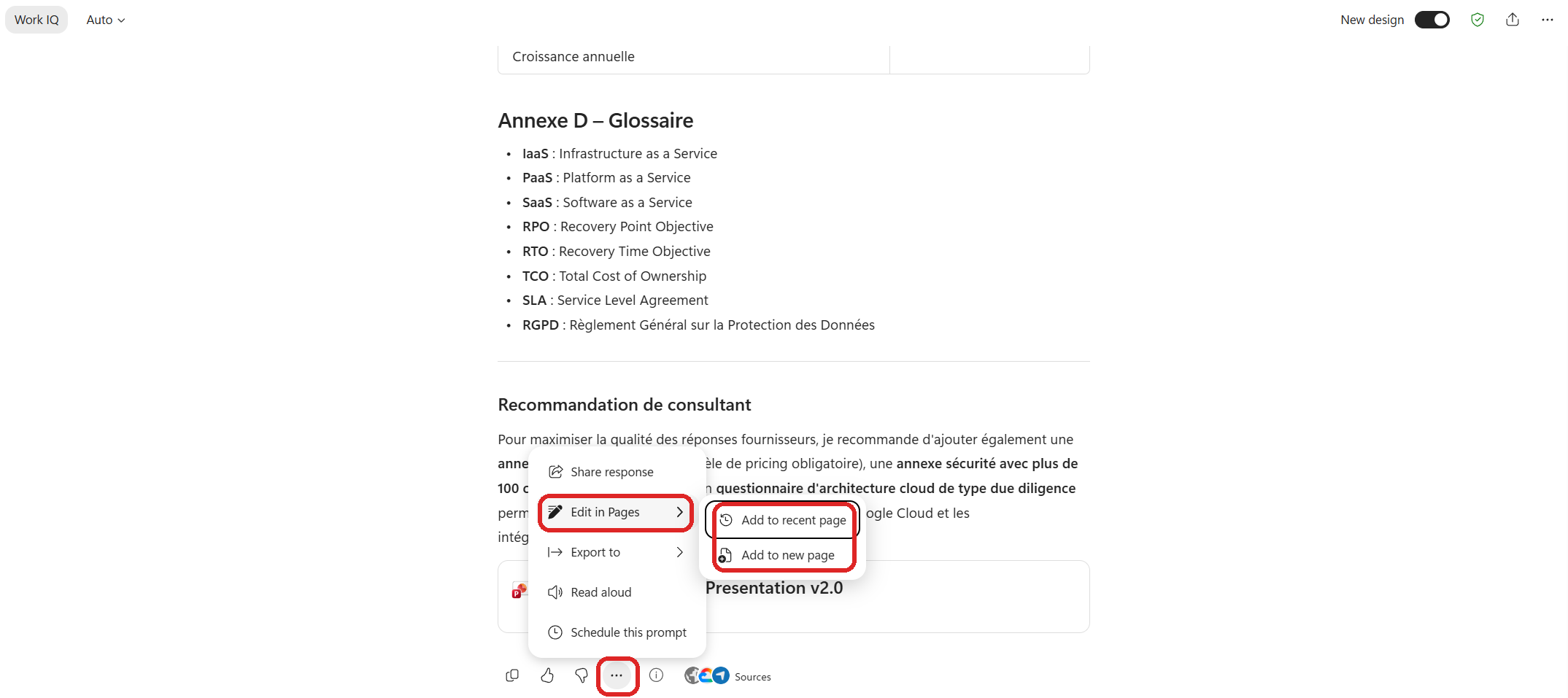
The « … » menu of an answer: Edit in Pages, then Add to recent page or Add to new page.
- 3Edit, export and share the Page
Once created, the Page opens in a dedicated pane next to the conversation. You can write in it directly, reorganize, complete it.
Two key actions at the top of the Page:
- The « Create » button exports the Page as a Word document or a PDF, to send or archive it outside Copilot.
- The share icon lets you give colleagues access to the Page, like any Microsoft 365 document.
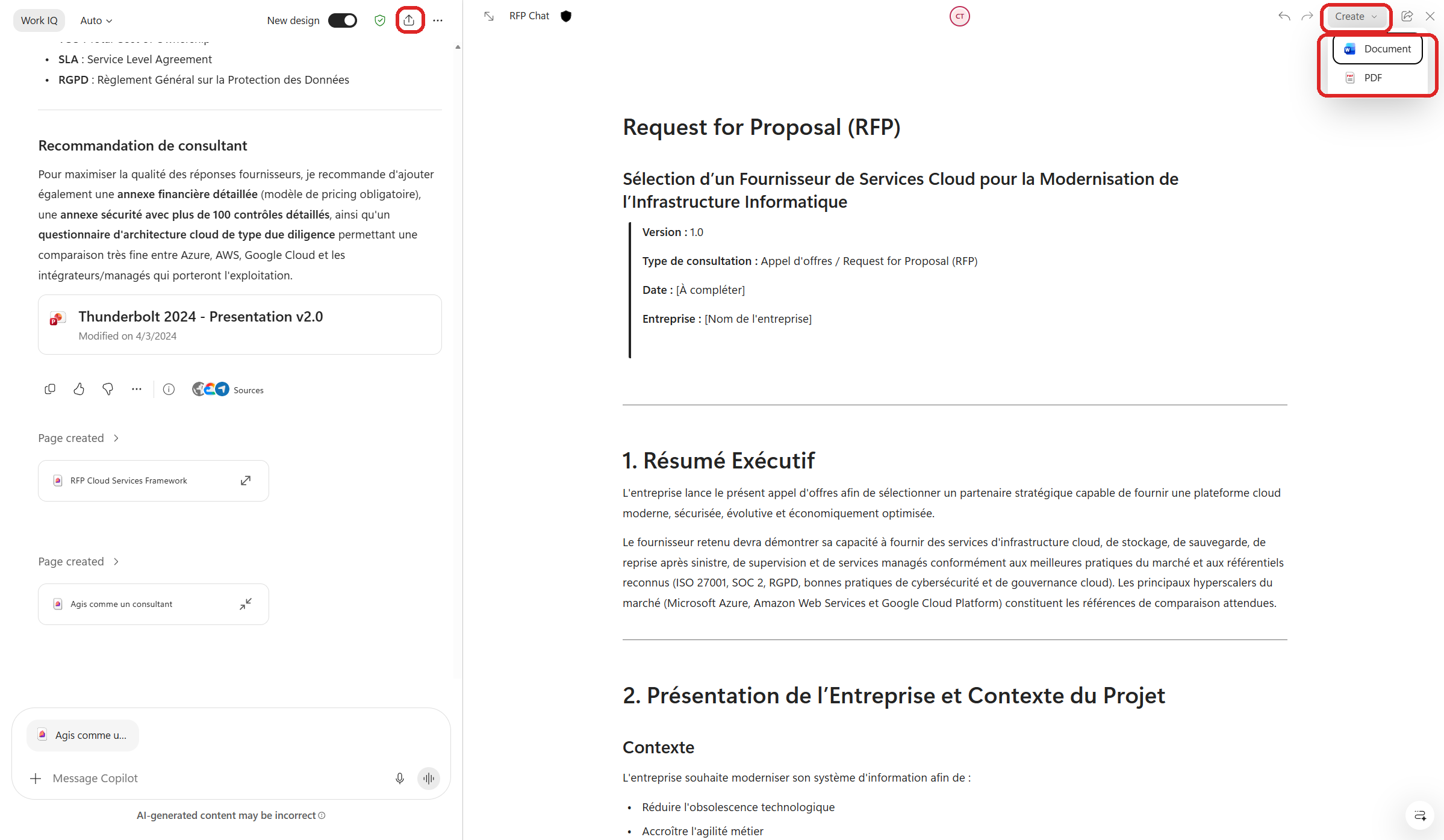
At the top of the Page: « Create » to export (Word / PDF), the share icon on the left.
- 4Improve and enrich the Page
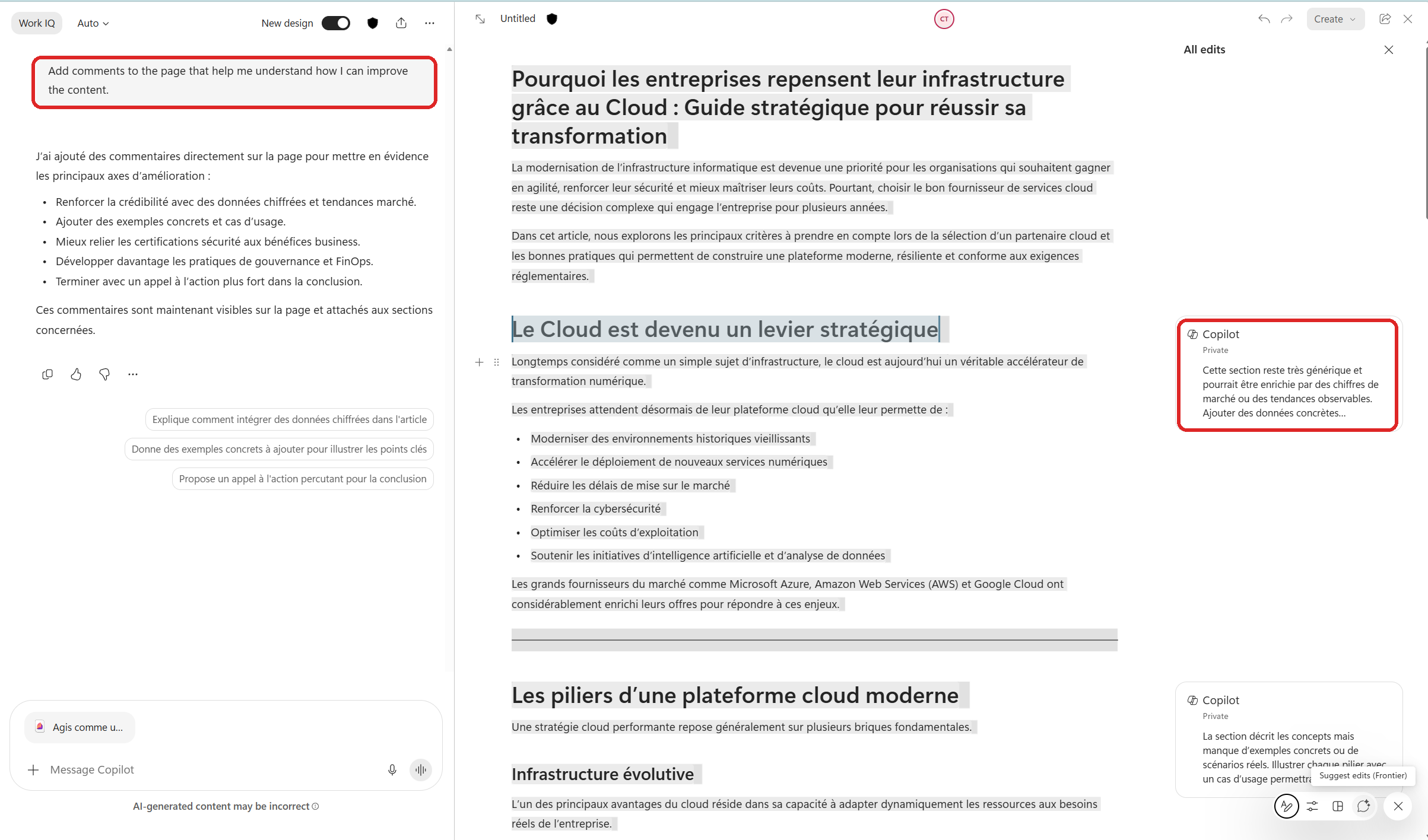
The Page stays connected to Copilot: you can ask it to improve the content at any time. For example: « Add comments to the page that help me understand how I can improve the content. »
Copilot then annotates the document directly (the « All edits » panel) with concrete, section-by-section suggestions: enrich this passage with figures, add an example, strengthen the conclusion. You accept what suits you. The Page becomes a real co-writing workshop.
- 5Find your Pages in the Library
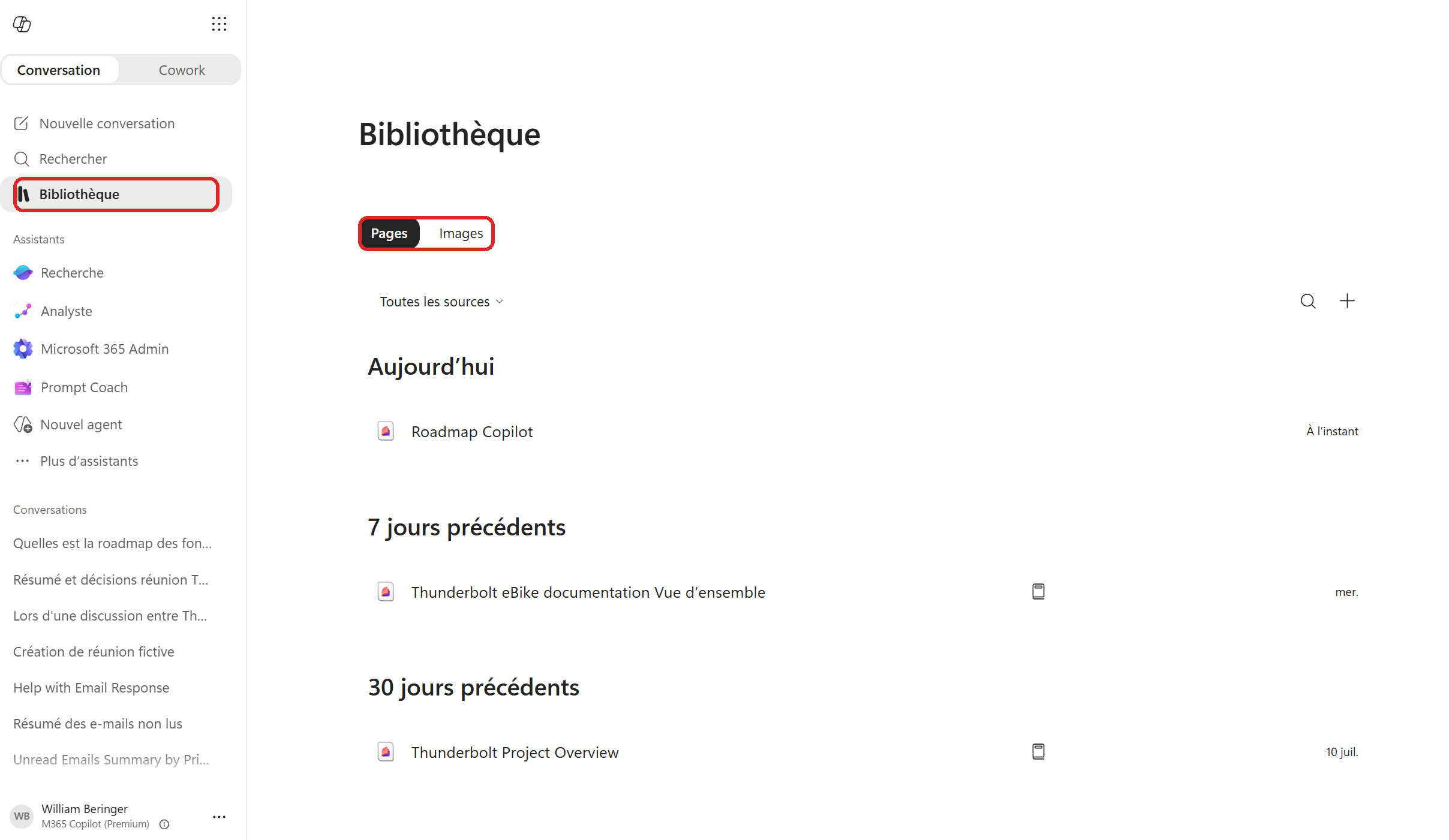
All your Pages are kept in one place: the Library, reachable from Copilot's left menu. Open the « Pages » tab: your documents are listed by date (Today, Previous 7 days, Previous 30 days).
No more hunting for which conversation held which content: the Library is your central binder.
- 6Reload a Page into a conversation
This is the game-changer: you can bring a Page back into a new conversation. From the input box, attach the Page (it shows up as a « … .page » attachment), and Copilot resumes with all its content in memory.
The result: you pick up exactly where you left off, without re-explaining everything. It's a great way to keep your notes alive and preserve a topic's context over time.
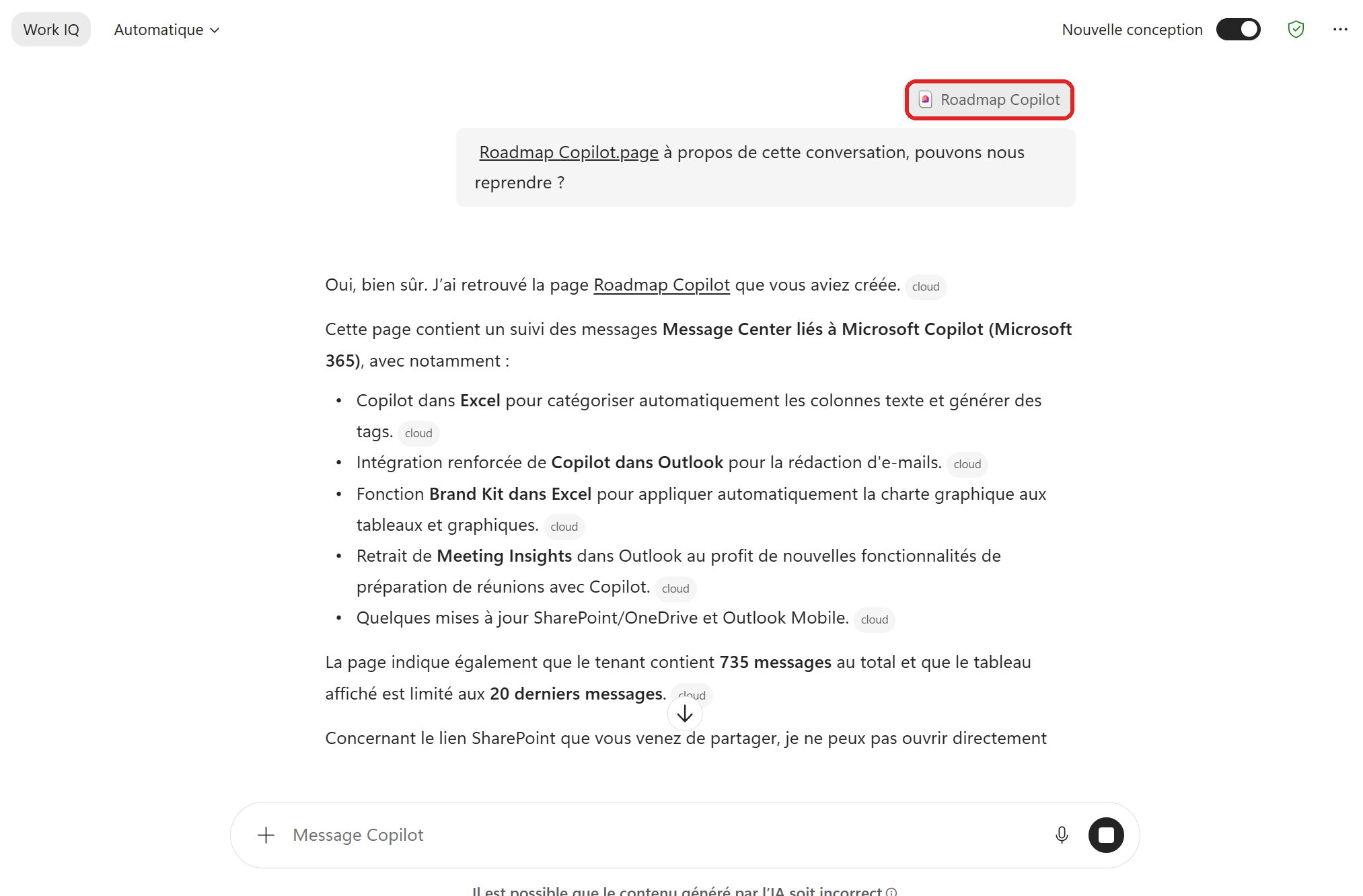
The Page attached to a new conversation: Copilot resumes with the full context.
- 7The Images tab of the Library
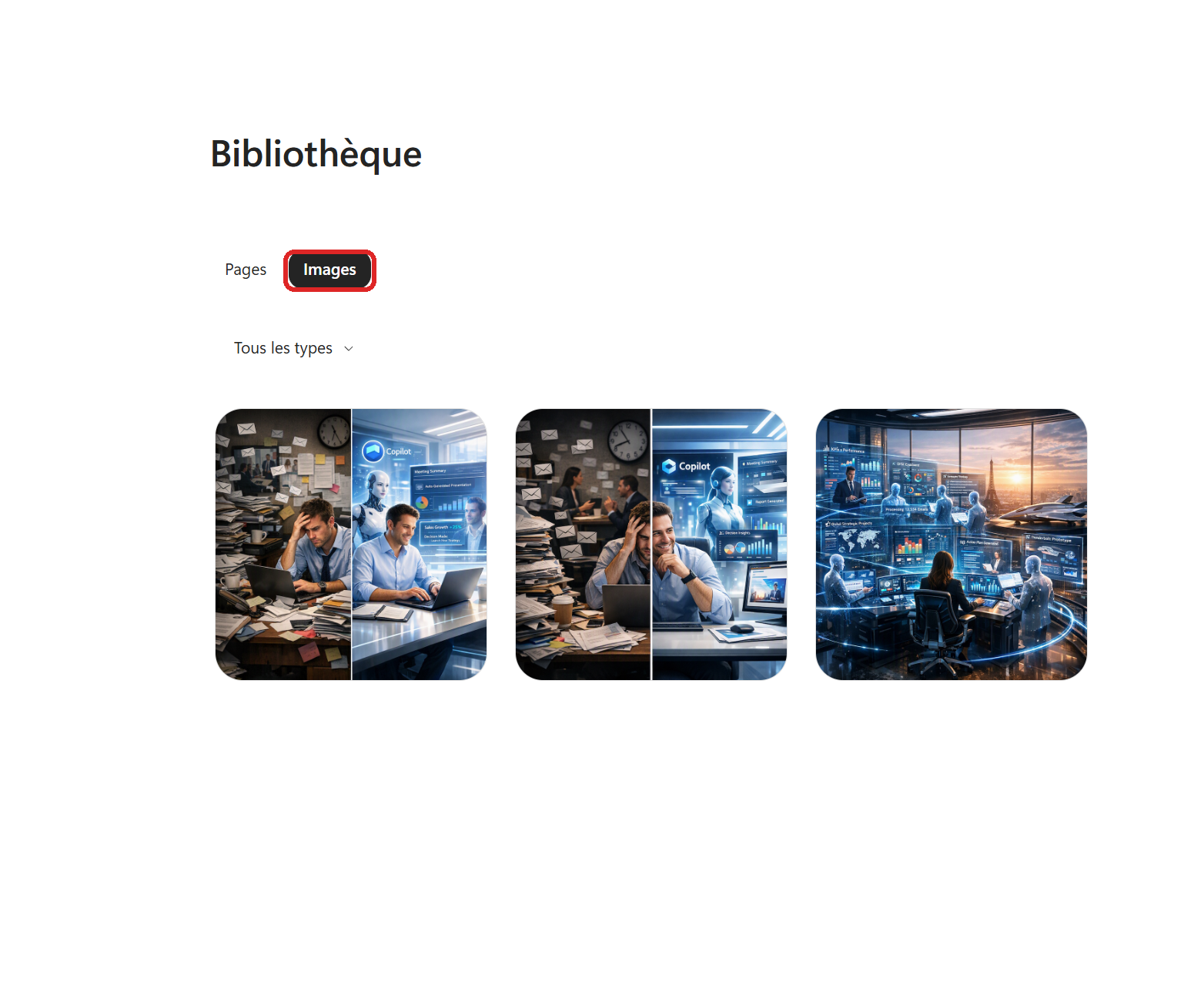
The Library doesn't only store text. Switch to the « Images » tab: you'll find all the images you generated in Copilot, gathered in one place.
Handy to reuse a visual created last week without regenerating it, or simply to keep a trace of your creations.
- 8What to remember
Pages turn a Copilot answer into a living document: you edit it, enrich it with Copilot's help, export it to Word or PDF, share it. The Library centralizes everything: your Pages and your generated images. And because a Page reloads into a conversation, it's also the best way to keep a memory of your topics and resume work without starting over.
💬 Comments
No comments yet. Be the first!
✨ Discover more
PremiumA guided tour of the Microsoft Copilot interface
You open Copilot, you see a text box, and you have no idea what's hiding all around it. Here's a guided tour, button by button, of the licensed Microsoft Copilot app: the two Chat and Cowork spaces, the model picker, Work IQ, the Library, Notebooks and everything else.
PremiumThe Frontier program: early access to Microsoft Copilot
Frontier is your door to the next Copilot features, ahead of everyone else. Here's a clear rundown of this early-access program: what it is, who it's for, how IT turns it on (with screenshots), how to spot a Frontier feature with real examples, its benefits and its caveats.
PremiumCopilot Search: find the right file using natural language
You know the document exists, but you just can't find it. Copilot's « Search » section scans all your enterprise content (SharePoint, Outlook, Teams…) and understands a request phrased in plain language. Filters, sources, recent or shared content, and even a prompt launched straight from a file: here's how to make the most of it.