
 PremiumEND USER6 min read
A guided tour of the Microsoft Copilot interface
You open Copilot, you see a text box, and you have no idea what's hiding all around it. Here's a guided tour, button by button, of the licensed Microsoft Copilot app: the two Chat and Cowork spaces, the model picker, Work IQ, the Library, Notebooks and everything else.
✅ How to
- 1Two spaces to know: Chat and Cowork
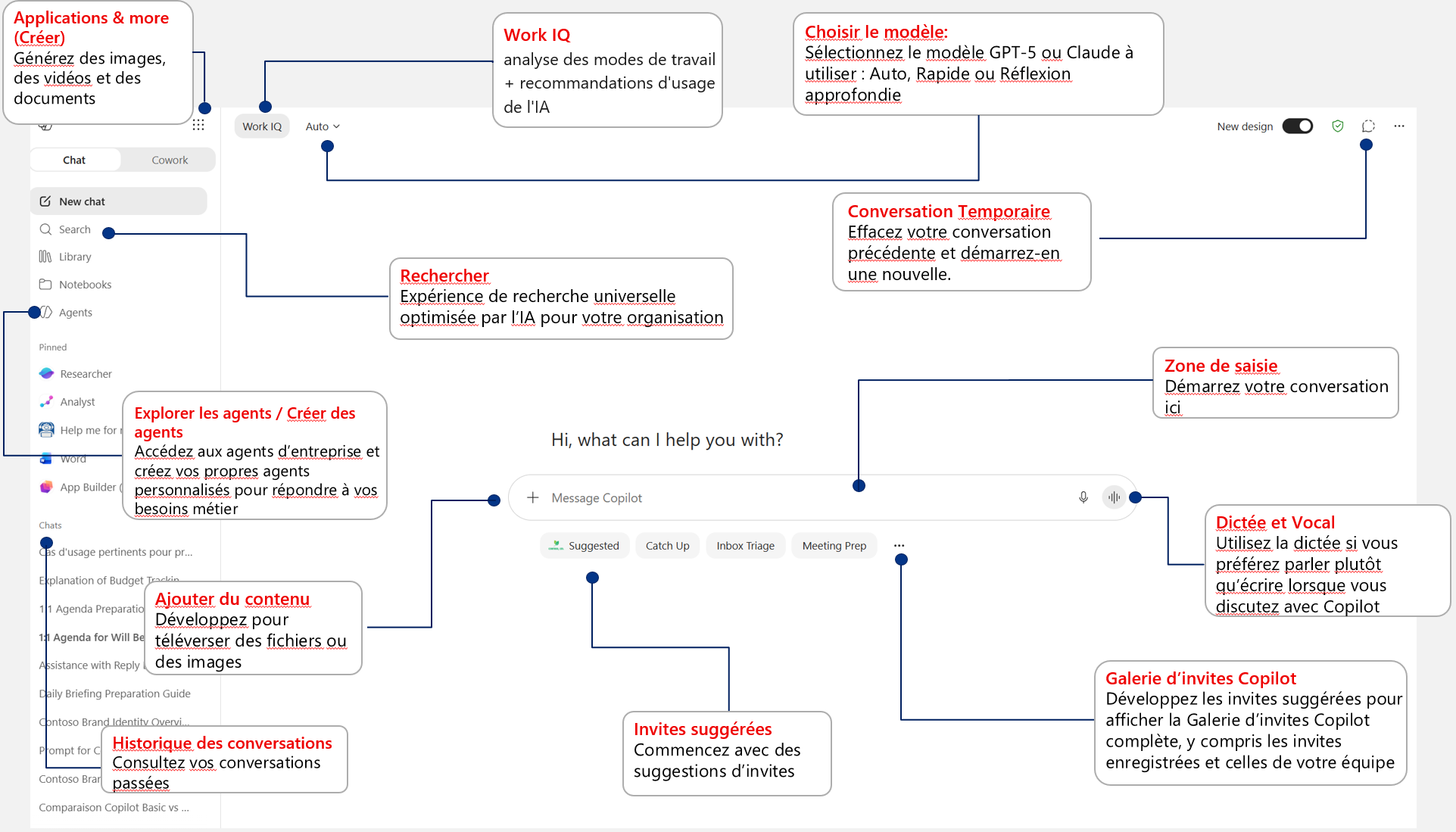
At the very top left, two tabs sit side by side. « Chat » is the classic conversation, the one you use daily to ask your questions. « Cowork » is where Copilot works alongside you on longer, multi-step tasks (more on that below, it's especially interesting if you're on PAYGO). Also keep an eye on the « New design » switch at the top right: Microsoft is rolling out the new interface gradually, so don't be surprised if your screen shifts a little.
- 2The left pane: your command post
All navigation happens here:
- New chat: starts a fresh conversation, a clean slate.
- Search: an AI-powered universal search across your organization, to find a document, an exchange or a piece of info without knowing where it lives.
- Library: your library of content created with Copilot (details below).
- Notebooks: topic-based workspaces where Copilot reasons only over the sources you drop in (also detailed below).
- Agents: access your company's agents and build your own to match your business needs. Just below, the « Pinned » section keeps your favorite agents (Researcher, Analyst, Word…) one click away.
- 3Choosing the model and the thinking mode
At the top of the conversation, next to « Work IQ », there's a small picker (often set to « Auto »). It decides how much power is used:
- Auto: Copilot picks the thinking time and the best-fit model on its own. The most comfortable everyday setting.
- Quick: an immediate answer, ideal for simple questions.
- Think deeper: Copilot takes more time to reason, perfect for a demanding analysis or piece of writing.
- The model itself: you can switch between GPT-5 (OpenAI) and Claude (Anthropic). Two engines, two styles, up to you which one fits the task best.
- 4Work IQ: the context of your work
The « Work IQ » button is no gimmick. It analyzes your ways of working and gives Copilot AI usage recommendations tailored to your context. In short, it's what lets Copilot understand your organization, your documents and your habits, for answers grounded in your reality rather than generic ones.
- 5The input area: far more than a text box
This is where it all begins, but look at the icons around it:
- The « + » (Add content): upload files or images for Copilot to work on. A contract, a spreadsheet, a screenshot, drop it in and ask your question.
- The mic (Dictation): speak instead of typing, handy when you have a lot to say or your hands are busy.
- Voice mode: talk with Copilot out loud, like a real conversation.
- 6Suggested prompts and the prompt gallery
Right below the input box, suggested prompts give you starting points (« Catch Up », « Inbox Triage », « Meeting Prep »…). No need to think about wording, you click and you're off. The « … » button opens the full Copilot prompt gallery, with your saved prompts and those shared by your team. A real time-saver to build on good prompts.
- 7Create: images, videos and documents
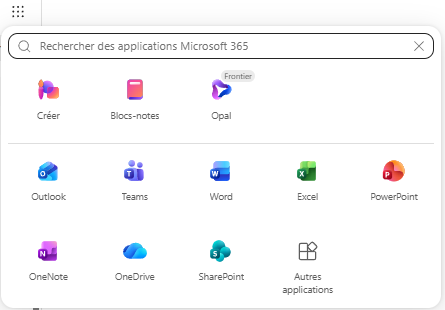
At the top left, the grid icon (the « waffle », labeled « Applications & more » or « Create ») opens the creation studio: generate images, videos and documents straight from Copilot. It's also where you find all available apps and agents.
- 8Temporary conversation and history
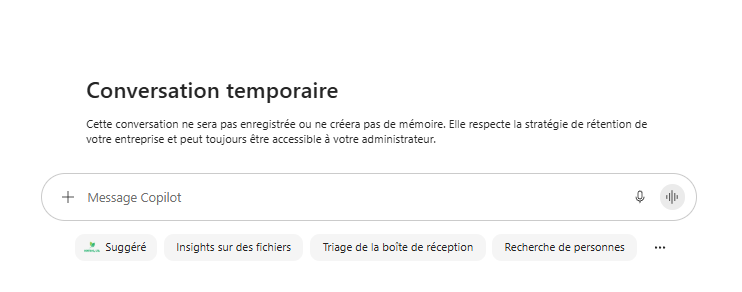
Need to start over without cluttering your history? The temporary conversation clears the previous exchange and starts a new one without keeping it. Conversely, at the bottom of the left pane, the conversation history (« Chats ») keeps track of your past exchanges so you can pick them back up whenever you want.

- 9A closer look at Cowork (very useful on PAYGO)
The « Cowork » tab deserves attention, especially if you're on pay-as-you-go (PAYGO). Where Chat answers a question, Cowork takes on more ambitious tasks and runs several steps for you: preparing a deliverable, cross-referencing sources, unfolding a long line of reasoning. It's where Copilot shifts from an assistant that replies to a colleague that produces. A good reflex to adopt as soon as the request goes beyond a simple question and answer.
To go further on Cowork:
- 10A closer look at Library and Notebooks
Two left-pane entries too often overlooked:
- Library: your personal library of Copilot creations (images, documents, generated pages). Instead of recreating, you find and reuse what you've already produced. The famous « never start from scratch ».
- Notebooks (« Blocs-notes » in French): spaces dedicated to one specific topic, where you gather your sources (web pages, Word, Excel, PowerPoint, PDF files, emails). Copilot then reasons only over that scope, generates mind maps and study guides, and the notebook can be shared with your colleagues. Perfect for a case, a project or a watch.
To dig deeper, two related reads:
💬 Comments
No comments yet. Be the first!
✨ Discover more
PremiumThe Frontier program: early access to Microsoft Copilot
Frontier is your door to the next Copilot features, ahead of everyone else. Here's a clear rundown of this early-access program: what it is, who it's for, how IT turns it on (with screenshots), how to spot a Frontier feature with real examples, its benefits and its caveats.
 Premium
The Library and Pages: keep a memory of your work with Copilot
At the end of a prompt, Copilot can turn its answer into a « Page »: a living document you edit, enrich, export to Word or PDF, share, and even reload into a conversation to pick up where you left off. All your Pages (and generated images) live in one place: the Library.
 Premium
Discover Copilot Cowork
Cowork is where Copilot goes from an assistant that answers to a teammate that gets things done. You hand it a broad task, it breaks it down, works step by step, and comes back to you when it needs a green light. Here's how to get comfortable with it.