
 PremiumEND USER6 min read
Cowork in practice: a multi-task prompt and tracking credits with /cost
You know Cowork, now let's see it in action. An example prompt that chains several tasks at once, the right reflex to choose between Cowork and classic Copilot, and the /cost command to see how many credits your request used.
✅ How to
- 1Cowork or Copilot: which to choose?
The rule is simple. If your request fits in one answer (« summarize this email », « translate this paragraph », « give me 3 ideas »), classic Copilot is perfect: fast and immediate.
If your request is really a multi-step mission (« prepare the full brief for... »), it's time to switch to Cowork. It breaks the work down, moves step by step and comes back to you at key moments. In a word: Copilot answers, Cowork handles the mission.
- 2The point: one prompt, several tasks
Cowork's strength is holding a chain of tasks without you relaunching it at every step. You describe the mission once, with numbered steps, and it runs through.
Here's a concrete example you can adapt: preparing a full client check-in in a single request.
- 3The example, broken down
In this prompt, we ask for five things in a row: gather the material (emails + notes), summarize, identify blockers with an action for each, prepare an agenda, then questions. Classic Copilot would handle the first and wait for the rest. Cowork chains them: it flags when a step is done, shows you its plan, and pauses to validate if an important choice comes up.
The right reflex: number your steps and be explicit about the expected deliverable (a 30-min agenda, 5 questions, etc.). The more framed the mission, the better the result.
- 4How much does it cost? The /cost command
A Cowork mission uses more resources than a simple question: it reasons, chains actions, sometimes goes to fetch information. This consumption is measured in credits.
To find out what your request cost, simply type /cost in the conversation. Cowork then shows the number of credits the mission used. Handy to keep an eye on your budget and understand what's « expensive ».
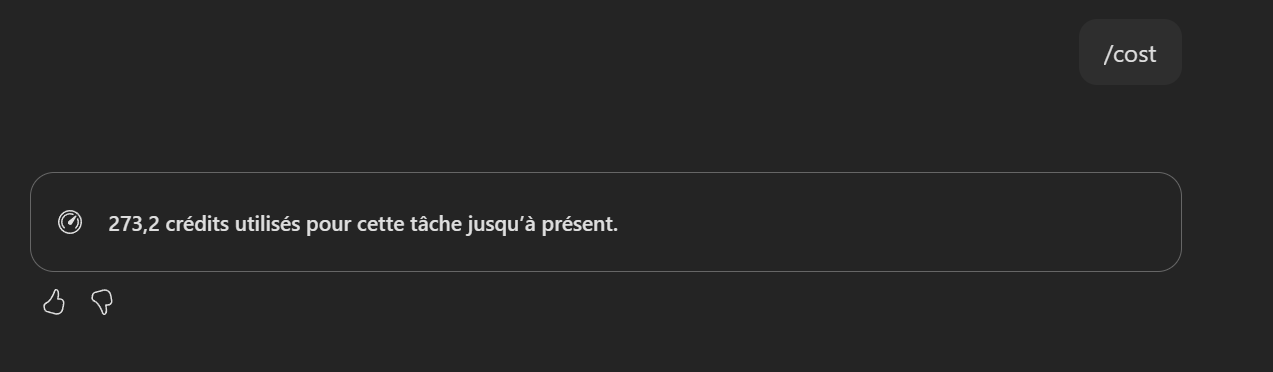
The /cost answer: the number of credits used by the current mission.
- 5Dose it right so it's worth it
Not every task deserves a Cowork mission. For a two-line answer, stick to classic chat: it's lighter and just as effective. Save Cowork for missions that would have taken you time by hand, where automatic breakdown and chaining really pay off.
/cost helps you build that reflex: early on, check what your missions cost, and you'll quickly know when delegating is worth it.
- 6What to remember
Cowork is made for multi-step missions: one well-framed prompt, and it runs the work through, coming back to you at the important moments. Keep classic Copilot for quick answers. And remember /cost to see, in credits, what your request used: it's the best way to learn to delegate at the right time, without waste.
⚡ Prompt to copy
Prepare the full brief for my client check-in with Contoso on Thursday.
1) Find our latest email exchanges and the notes from our last two meetings.
2) Summarize the status of their Copilot rollout.
3) List the top 3 blockers and propose an action for each.
4) Draft an agenda outline for a 30-minute meeting.
5) Prepare 5 questions to ask them to move the project forward.
💬 Comments
No comments yet. Be the first!
✨ Discover more
PremiumAutomate your Copilot watch: a monthly « What's New » generated and sent by Cowork
Cowork's real superpower is running a recurring mission for you. Here's a ready-to-schedule prompt that, every month, reads the « What's New in Microsoft Copilot » article on the Microsoft Community Hub, produces a structured summary, then emails it in a branded layout and posts it to your Teams channels.
PremiumDiscover Copilot Cowork
Cowork is where Copilot goes from an assistant that answers to a teammate that gets things done. You hand it a broad task, it breaks it down, works step by step, and comes back to you when it needs a green light. Here's how to get comfortable with it.
PremiumCowork: understanding value consumed, not price
Cowork isn't reasoned about like one more license, but like value consumed: you pay for the work actually done. Let's look at the four-building-block framework, how to classify missions (Light, Medium, Heavy) to size a budget, why pay-as-you-go is interesting, and how to spot your best use cases.