
 PremiumEND USERIT PRO7 min read
Automate your Copilot watch: a monthly « What's New » generated and sent by Cowork
Cowork's real superpower is running a recurring mission for you. Here's a ready-to-schedule prompt that, every month, reads the « What's New in Microsoft Copilot » article on the Microsoft Community Hub, produces a structured summary, then emails it in a branded layout and posts it to your Teams channels.
✅ How to
- 1The idea: delegate a recurring watch
Everyone wants to stay up to date on Copilot news, but nobody has time to read the blog every month, sort it, summarize it and share it. That's exactly the kind of repetitive, multi-step mission Cowork can run on its own.
The principle is simple: you write the prompt once, you schedule it to run every month, and Cowork does the work (check, summarize, format, send). You never touch it again.
- 2Cowork works in plain sight
While it runs the mission, Cowork stays transparent. In the Workspace you see everything: the scheduled task and its frequency as the input; the generated file as the output (here the HTML email); and the skills Cowork uses at each step.
So you keep control: open the output, run the task manually, or adjust the schedule at any time.
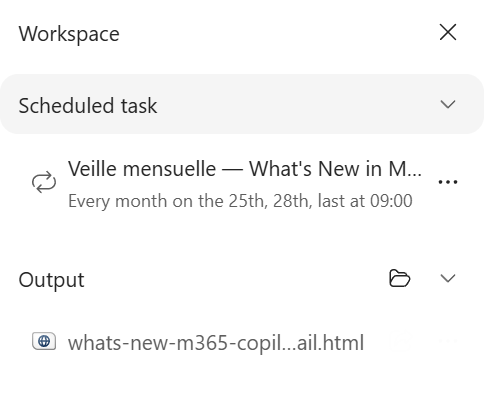
Cowork's Workspace: the scheduled task as input, the generated file as output, and the skills it uses.
- 3What the prompt asks Cowork to do
The prompt to copy below describes a complete, framed mission:
- Go to the Microsoft Copilot blog on the Microsoft Community Hub.
- Check whether the current month's recap edition, « What's New in Microsoft Copilot | [Month] [Year] », is published (they ship at month's end).
- Do not confuse it with a single-feature announcement or a Copilot Studio article.
- If this month's edition was already sent, stop. If it isn't published yet, send nothing and retry on the next run.
- 4A structured, reworded summary
When the article is available, Cowork grabs all the content, analyzes it and produces a concise summary in English, reworded in its own words and never copied verbatim.
The summary is sorted into two families, which makes it immediately usable:
- User Capabilities: the news for business users.
- IT Admin Capabilities: what concerns IT, security, compliance and governance.
Each line follows the same short format: « Name: one-sentence description ».
- 5Distribution: a formatted HTML email
This is where Cowork shines: it doesn't just summarize, it formats. It generates a professional HTML email, compatible with the main mail clients and in your organization's colors.
A header with a gold band, the title « What's New in Microsoft Copilot » and the subtitle « Édition [Month] [Year] », an intro line, then the two sections (User and IT Admin), a « Read the full [Month] [Year] update » button pointing to the source article, and a footer with the link, the author and the organization.
Below is the actual rendering produced for the June 2026 edition.
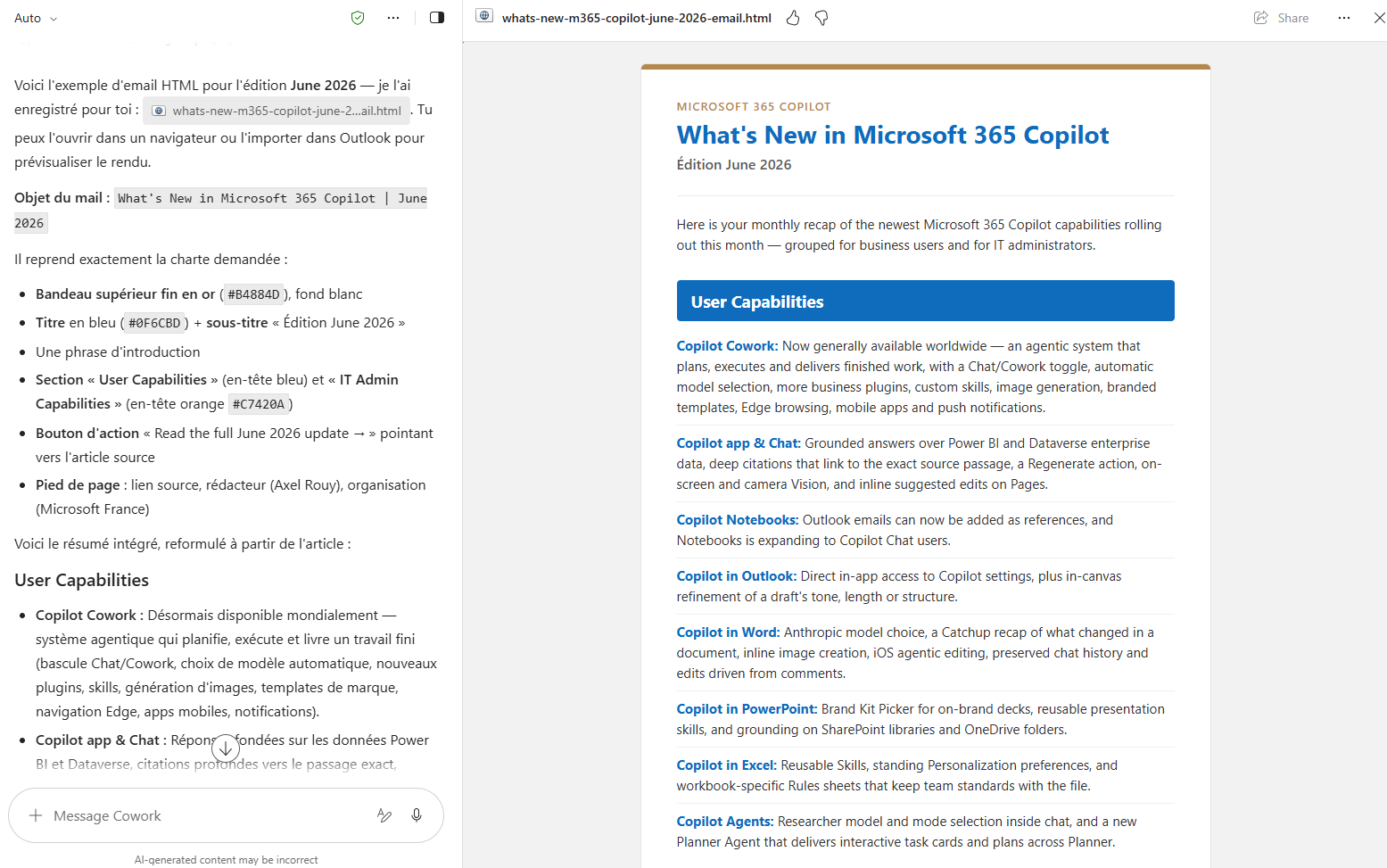
The actual rendering generated by Cowork: the branded HTML email for the June 2026 edition, ready to send.
- 6And in Teams too
The same summary is posted to two Teams spaces to reach your relays:
- The « Microsoft Copilot News » channel of the « Digital Workplace » team (plain text is enough).
- The « Copilot Champions Network » group chat, which Cowork finds automatically by name before posting.
One prompt, three channels: email for broad reach, Teams for your communities.
- 7Duplicate handling and scheduling
So the same edition is never sent twice, the prompt asks Cowork to record the month and year once distribution succeeds, then resume watching for the next edition.
On scheduling: run the mission once to validate the output, then schedule it to run on a recurring basis (for example on the last days of each month). Since editions ship at month's end, Cowork lands at the right time. And if it finds nothing, it simply waits for the next run.
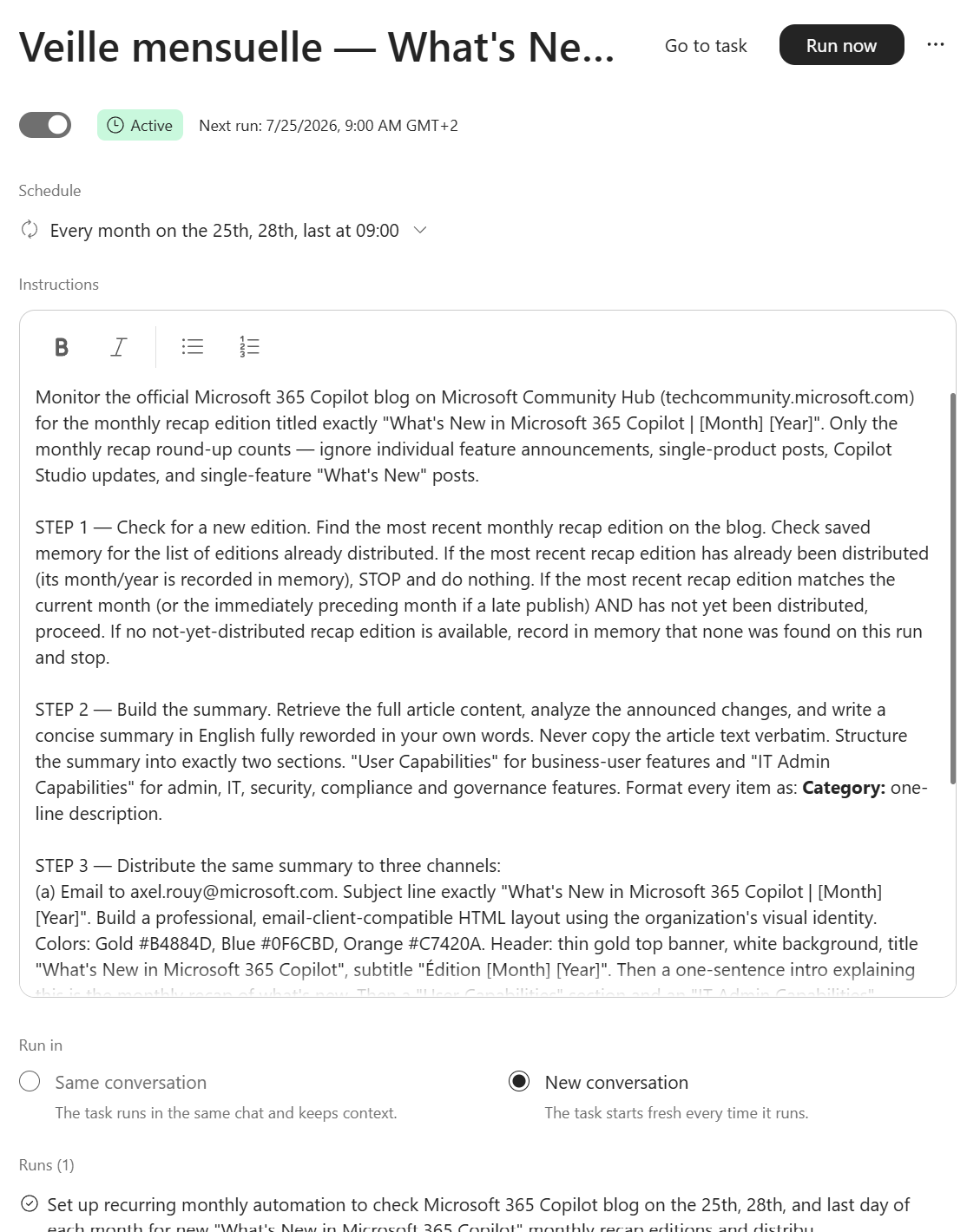
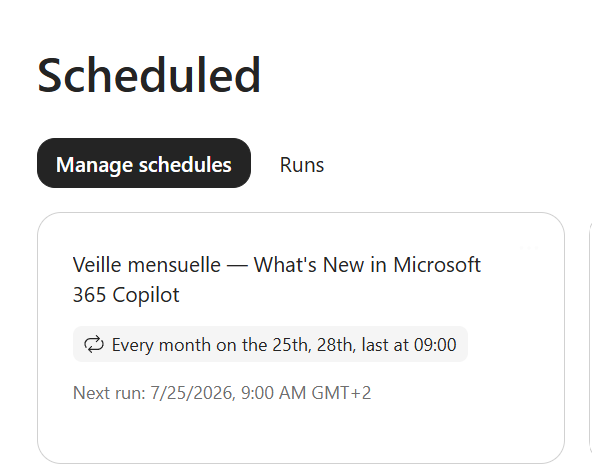
The scheduled mission in Cowork: recurring monthly run and detailed instructions.
- 8What to remember
A well-crafted, scheduled Cowork prompt is an entire watch task that disappears from your mental load. You frame the mission once (what to look for, how to summarize, where to distribute, how to avoid duplicates), and every month you get a ready-to-use, branded, multi-channel communication.
The same pattern works for any recurring watch: roadmap, Message Center, a product blog. Copy the prompt, adapt the source and recipients, schedule it, and let Cowork keep the rhythm.
⚡ Prompt to copy
Every month, check whether the current month's edition of the article « What's New in Microsoft Copilot | [Month] [Year] » has been published on the Microsoft Copilot blog on the Microsoft Community Hub.

Validation rules:
➞ Only consider the monthly recap edition (not single-feature announcements, not product-specific posts, not Copilot Studio).
➞ If this month's edition has already been distributed, stop immediately.
➞ If it isn't published yet, distribute nothing, note that no publication was found, and check again on the next scheduled run.

When the article is available:
1) Retrieve its full content and analyze the new features.
2) Produce a concise summary in English, reworded in your own words, without ever copying the text verbatim.
3) Structure it into two categories, each line formatted as « Name: one-line description »:
   • User Capabilities: features for business users.
   • IT Admin Capabilities: admin, IT, security, compliance and governance.

Distribution (3 channels):
1) Professional HTML email, compatible with the main mail clients. Subject: « What's New in Microsoft Copilot | [Month] [Year] ». Palette: gold #B4884D, blue #0F6CBD, orange #C7420A. Structure: thin gold top band on white, title « What's New in Microsoft Copilot », subtitle « Édition [Month] [Year] », one intro sentence, « User Capabilities » section, « IT Admin Capabilities » section, a « Read the full [Month] [Year] update » button pointing to the source article, footer (link to the article, author name, organization name). Recipients: the configured distribution list.
2) Teams channel « Microsoft Copilot News » in the « Digital Workplace » team: same summary, plain text, title « What's New in Microsoft Copilot | [Month] [Year] ».
3) Teams group chat « Copilot Champions Network » (find it automatically by name before posting): same summary, same title.

Duplicate handling: after a successful distribution, record the month and year as already sent, prevent any new send of that edition, then resume watching for the next month's edition.
Cowork requires a Microsoft Copilot license AND an enabled billing policy (pay-as-you-go / PAYGO) to work: agentic missions consume pay-as-you-go metered credits. Recurring scheduling and access to your Teams channels / mailbox also depend on the capabilities enabled in your environment. Check with your IT.
📚 Official sources
💬 Comments
No comments yet. Be the first!
✨ Discover more
PremiumCowork in practice: a multi-task prompt and tracking credits with /cost
You know Cowork, now let's see it in action. An example prompt that chains several tasks at once, the right reflex to choose between Cowork and classic Copilot, and the /cost command to see how many credits your request used.
PremiumDiscover Copilot Cowork
Cowork is where Copilot goes from an assistant that answers to a teammate that gets things done. You hand it a broad task, it breaks it down, works step by step, and comes back to you when it needs a green light. Here's how to get comfortable with it.
PremiumCowork: understanding value consumed, not price
Cowork isn't reasoned about like one more license, but like value consumed: you pay for the work actually done. Let's look at the four-building-block framework, how to classify missions (Light, Medium, Heavy) to size a budget, why pay-as-you-go is interesting, and how to spot your best use cases.