
 PremiumEND USER5 min read
Create an Outlook rule with Copilot
No more digging through Outlook's rules menus: tell Copilot what you want to automate in plain language, and it creates the rule for you. Here's the principle, several concrete video examples, where to find your rules, and the few limits to know.
✅ How to
- 1The principle: describe, don't configure
Creating a rule in Outlook used to be a small chore: open the settings, stack conditions, exceptions, actions… With Copilot, the approach changes. You describe the outcome you want in one sentence, like to a colleague, and Copilot turns it into a working Outlook rule.
A few example phrasings:
- « Automatically file emails from my manager into a “Priority” folder. »
- « Mark newsletters as read and move them to “Read later”. »
- « Flag every message containing the word “invoice”. »
- 2Example 1: sort emails from one person
A very common first case: automatically file messages from a specific contact. Here, we ask Copilot to move emails received from a colleague (Lisa) into a « Manager » folder. Copilot creates the rule, you confirm, and it's live. The video below shows the whole exchange.
- 3Example 2: sort by message subject
Another classic: sort by a keyword in the subject line. In this example, every email whose subject contains « Thunderbolt » is filed automatically. Perfect to isolate everything about a project.
- 4Adjust, or rephrase if needed
Copilot understands natural language, but it isn't infallible: a request may sometimes be misread. No worries, just rephrase your instruction more precisely (the exact folder, the condition, the expected action) and try again. You can also tweak an existing rule the same way, as the video shows.
- 5Where to find your created rules
Every rule created via Copilot is a real Outlook rule: you'll find them here: Settings›Mail›Rules. That's where you can enable or disable them, reorder them (they apply top to bottom), edit or delete them. In the screenshot, you can see the two rules created in the previous examples: sorting by sender (Lisa to the Manager folder) and by subject (Thunderbolt).
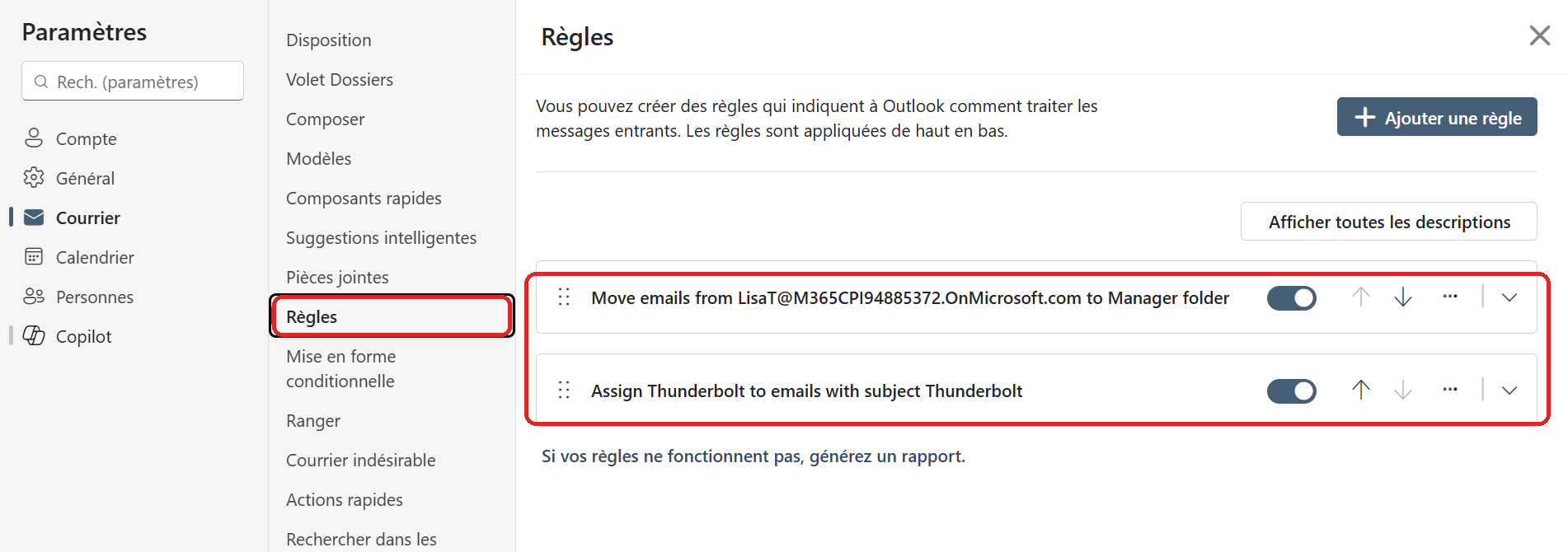
Settings › Mail › Rules: the rules created via Copilot, toggleable and editable.
- 6Good to know: the limits
Two things to keep in mind:
- Copilot relies on « classic » Outlook rules. If your request can't be expressed as a classic rule (too complex or not supported by Outlook), Copilot won't be able to create it.
- Keep it simple and explicit: one condition, one action. The clearer the rule, the more reliable the result, and the less you'll need to rephrase.
Otherwise, it's a real time-saver: you describe, Copilot sets it up, and your inbox stays tidy effortlessly. More rule examples will be added to this article.
💬 Comments
No comments yet. Be the first!
✨ Discover more
PremiumCopilot settings in Outlook
Copilot in Outlook isn't a black box: four settings let you decide how it works, what it treats as a priority, how it drafts your emails and how it handles your calendar. A quick trip to the settings, and Copilot truly works your way.
PremiumOutlook's hidden duo: Agenda + Prepare
Copilot can help you shape a meeting when you create the invite, then bring together useful context before it starts. Discover Agenda, Prepare and the quick way to turn on Facilitator ahead of time.
PremiumSchedule with Copilot: from an email thread to a structured meeting
Schedule with Copilot in Outlook automatically turns an email exchange into a meeting. Copilot analyzes the thread's context and helps create a meeting with the right people, a suitable time slot and a first draft agenda.