
 PremiumEND USER6 min read
Copilot settings in Outlook
Copilot in Outlook isn't a black box: four settings let you decide how it works, what it treats as a priority, how it drafts your emails and how it handles your calendar. A quick trip to the settings, and Copilot truly works your way.
✅ How to
- 1Preferences: the basic setting
Let's start simple. In Outlook, open Settings (the gear icon top right), then the « Copilot » section in the left menu. Four tabs appear: Preferences, Prioritize, Drafting instructions and Calendar instructions. We'll go through them one by one.
The « Preferences » tab manages how Copilot works overall in Outlook:
- Turn Copilot on or off with a single switch.
- The general settings of the Copilot experience.
- The privacy information (your emails and calendar are not used to train the models).
In short: this is where you control Copilot's overall behaviour.
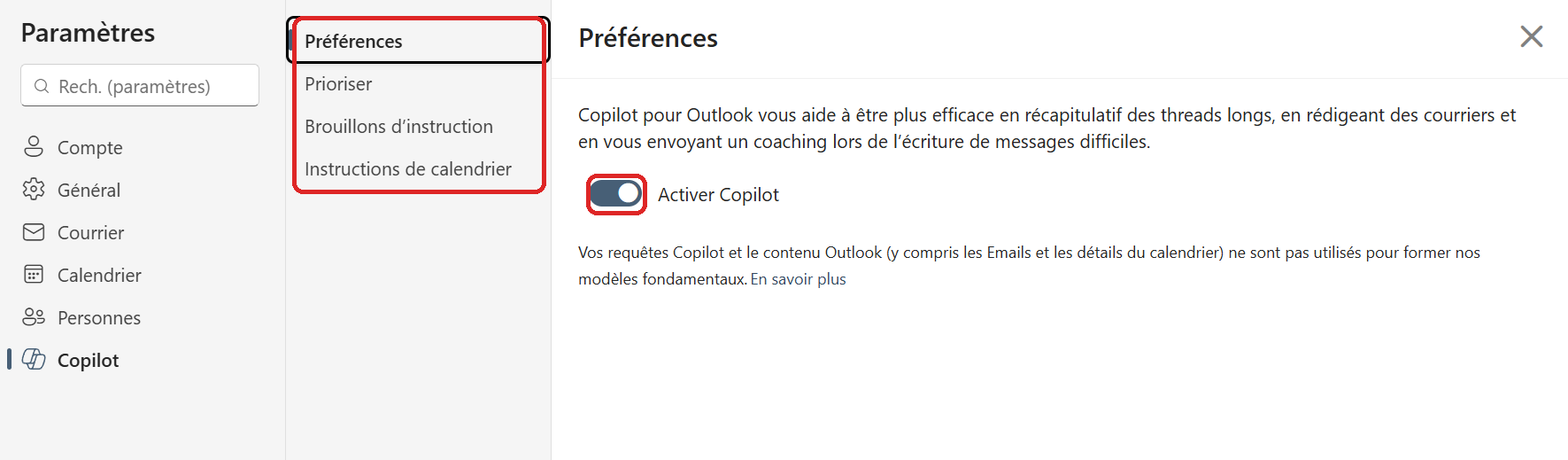
Settings › Copilot: the four tabs, and the « Turn on Copilot » switch.
- 2Prioritize: what really matters in your inbox
This tab helps Copilot spot the emails that matter most to you. Once enabled, Copilot can:
- Analyse new messages as they arrive.
- Assign them a priority (high, normal or low).
- Explain why an email is deemed important.
- Show an AI-generated summary right in the priority message list.
Above all, the « Personalize » part lets you tell Copilot what's a priority for YOU: a specific project, certain people, certain topics. In the example, we tell it that anything about the « ThunderBolt project » should be handled first.
In short: Copilot helps you tackle the highest-value emails first.
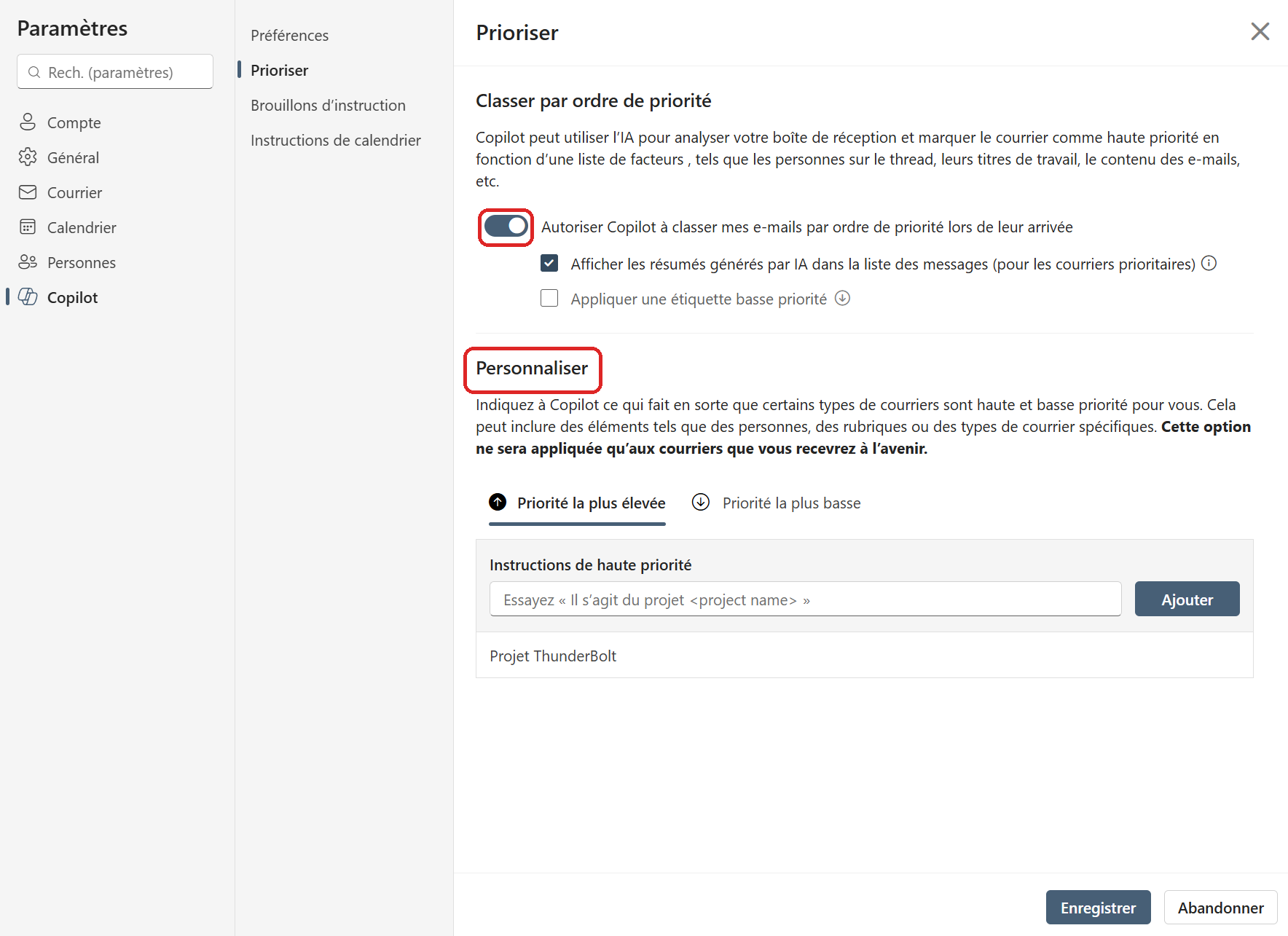
The Prioritize tab: automatic ranking and the « Personalize » area.
- 3Drafting instructions: how Copilot writes your emails
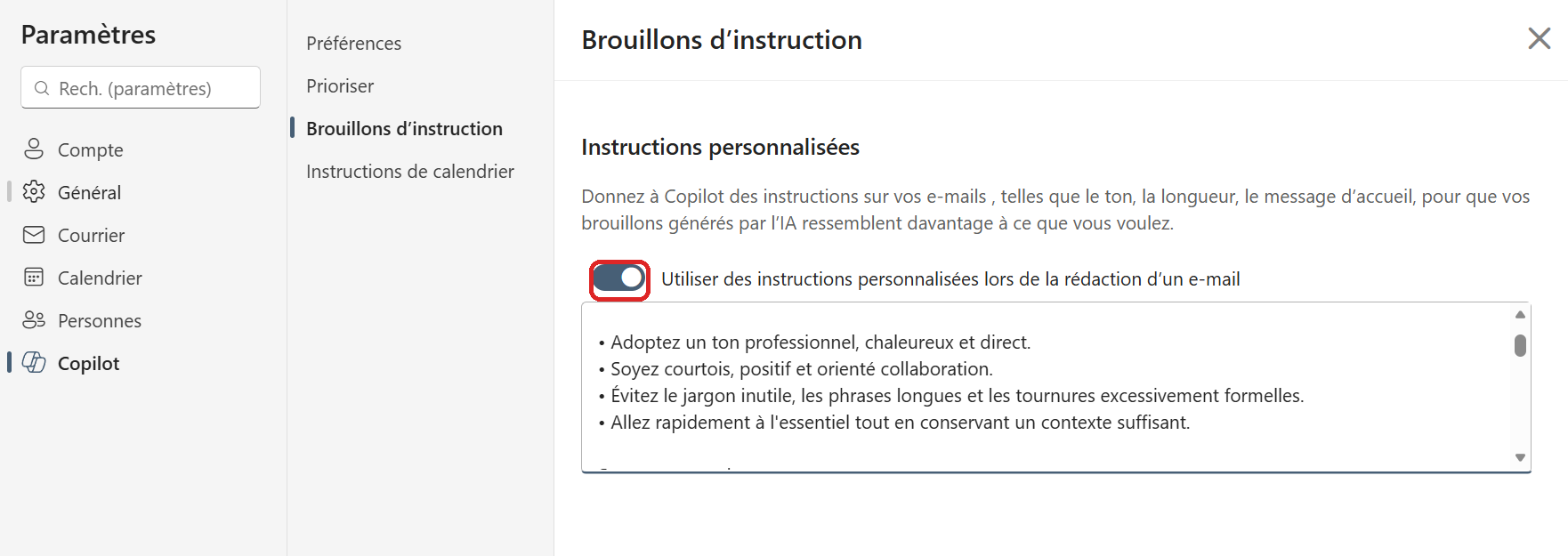
This tab sets standing guidelines that Copilot applies every time it drafts an email or a reply for you. You write them once, they're reused automatically. For example:
- Always write in French.
- Use a professional yet warm tone.
- Prefer short, direct replies.
- End with a suggested next step.
- Stay close to your writing style.
In short: this is where you personalize Copilot's pen so it sounds like yours.
- 4Calendar instructions: how Copilot handles your agenda
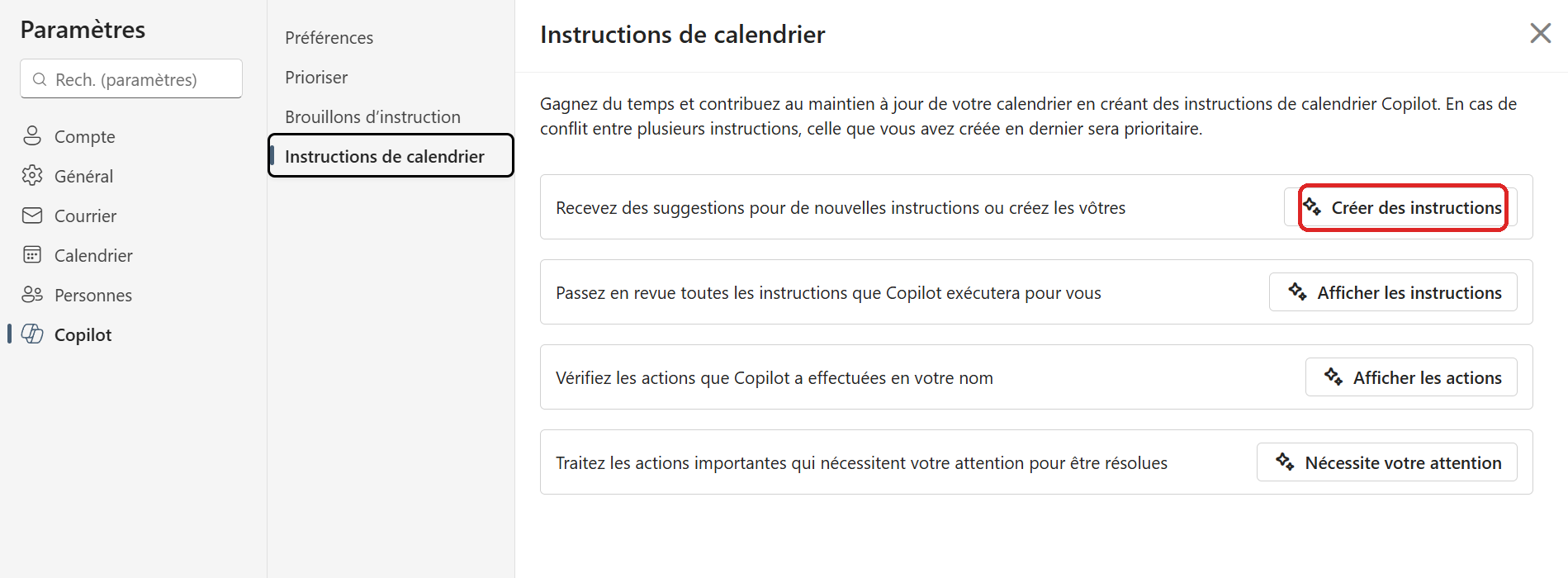
This last tab sets your scheduling preferences, which Copilot follows when it helps you organize meetings and events. A few example rules you can set:
- Avoid meetings before 9am.
- Keep Friday afternoon for deep work.
- Leave a 15-minute buffer between meetings.
- Always add a Teams link.
- Automatically block focus time.
The « Create instructions » button even suggests some for you, and if two instructions conflict, the most recently created one wins.
In short: this is where you personalize how Copilot organizes your calendar.
- 5Example: creating an instruction in practice
In practice, click « Create instructions », describe your need in natural language, and Copilot sets up the rule for you. The video below shows the whole flow, as an example.
- 6Tip: manage your instructions from the Copilot chat
Good to know: your calendar instructions aren't only managed from Settings. In the Copilot chat (« Work » tab), you can ask in plain language: « List all my calendar instructions », and Copilot shows what's active. You can also add one on the fly: « Add an instruction to automatically accept Lisa Taylor's meetings ».
Handy to check what's actually configured and adjust without going through the menus.
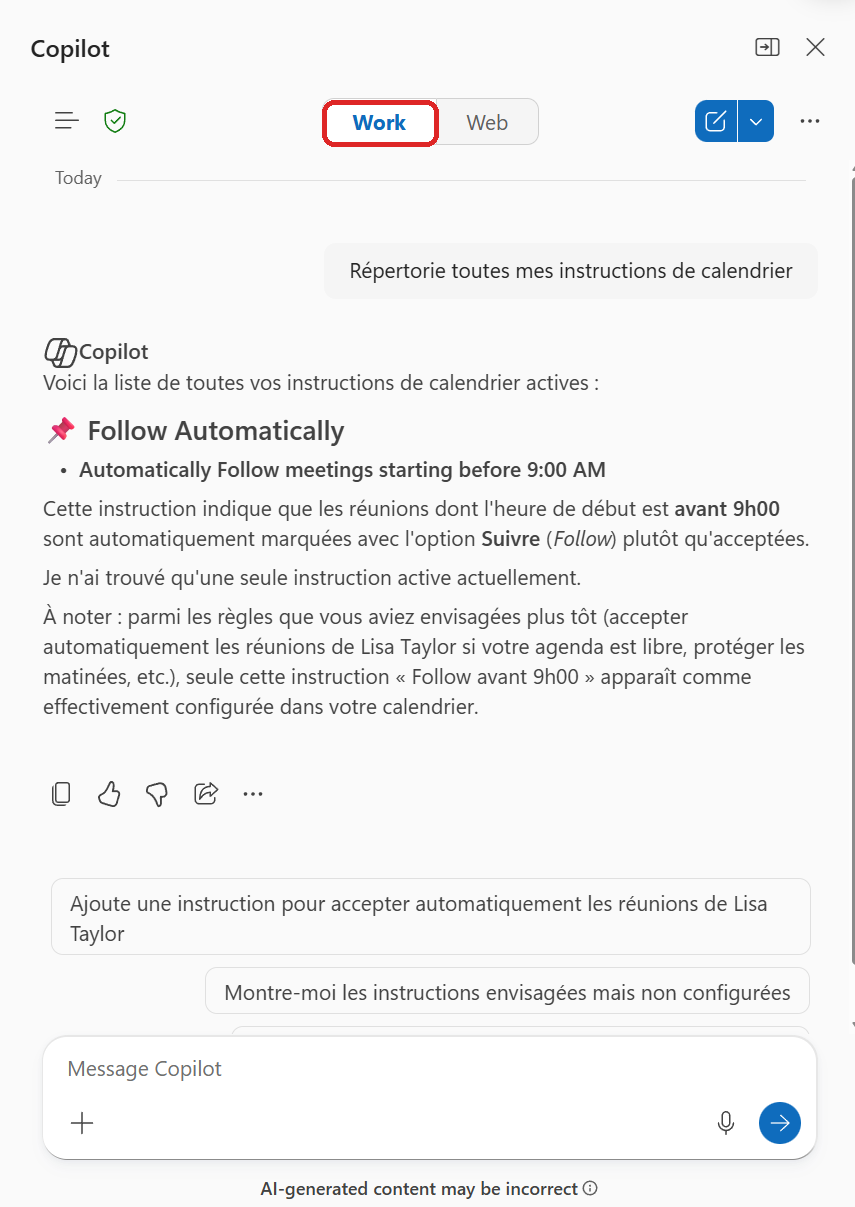
From the Copilot chat (Work), you list and add your calendar instructions.
- 7The simple summary, to keep it straight
Four tabs, four easy-to-remember roles:
- Preferences: how Copilot works in Outlook.
- Prioritize: what's important in my inbox.
- Drafting instructions: how Copilot writes my emails.
- Calendar instructions: how Copilot organizes my agenda.
Take five minutes to set them once: after that, Copilot works for you, but your way. That's the whole difference between a generic assistant and one that knows you.
💬 Comments
No comments yet. Be the first!
✨ Discover more
PremiumCreate an Outlook rule with Copilot
No more digging through Outlook's rules menus: tell Copilot what you want to automate in plain language, and it creates the rule for you. Here's the principle, several concrete video examples, where to find your rules, and the few limits to know.
PremiumOutlook's hidden duo: Agenda + Prepare
Copilot can help you shape a meeting when you create the invite, then bring together useful context before it starts. Discover Agenda, Prepare and the quick way to turn on Facilitator ahead of time.
PremiumSchedule with Copilot: from an email thread to a structured meeting
Schedule with Copilot in Outlook automatically turns an email exchange into a meeting. Copilot analyzes the thread's context and helps create a meeting with the right people, a suitable time slot and a first draft agenda.