
 PremiumIT PROEND USER5 min read
Build a Copilot agent for a business use case
With Agent Builder, anyone can create their own agent, no code: describe it in natural language, add your instructions, enable options (images, sources) or start from a ready-made template.
✅ How to
- 1
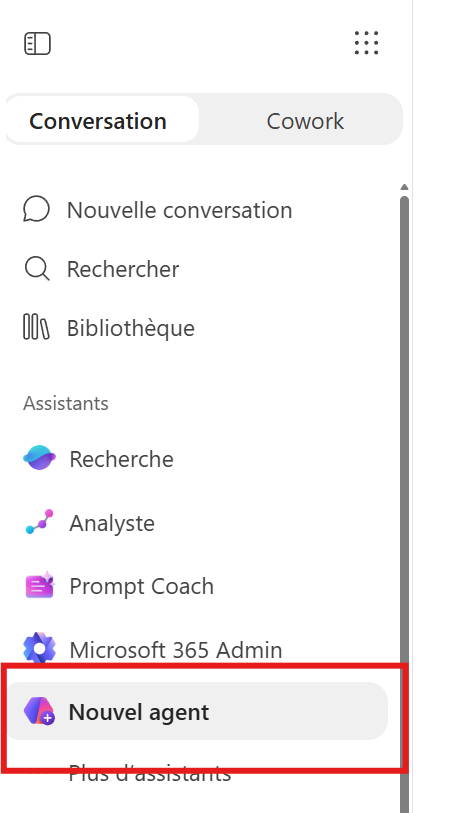
Open Agent Builder from Copilot (m365copilot.com, the Teams app or the Microsoft Copilot app): left menu›Create›New agent.
- 2
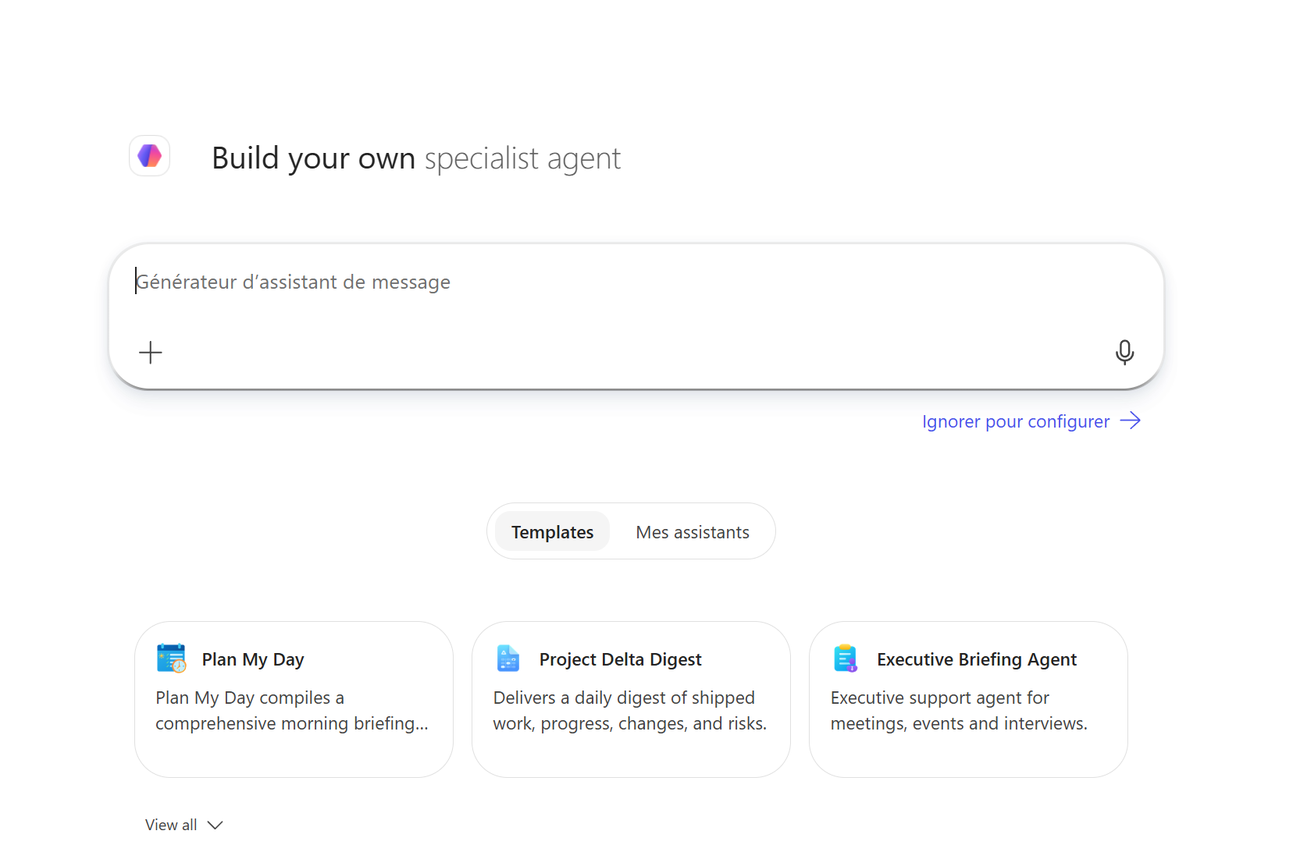
Create it through conversation: you can type in natural language directly in the agent creation chat, or click “Skip” to configure it manually. Describe in natural language what the agent should do, it builds itself from your description.
- 3
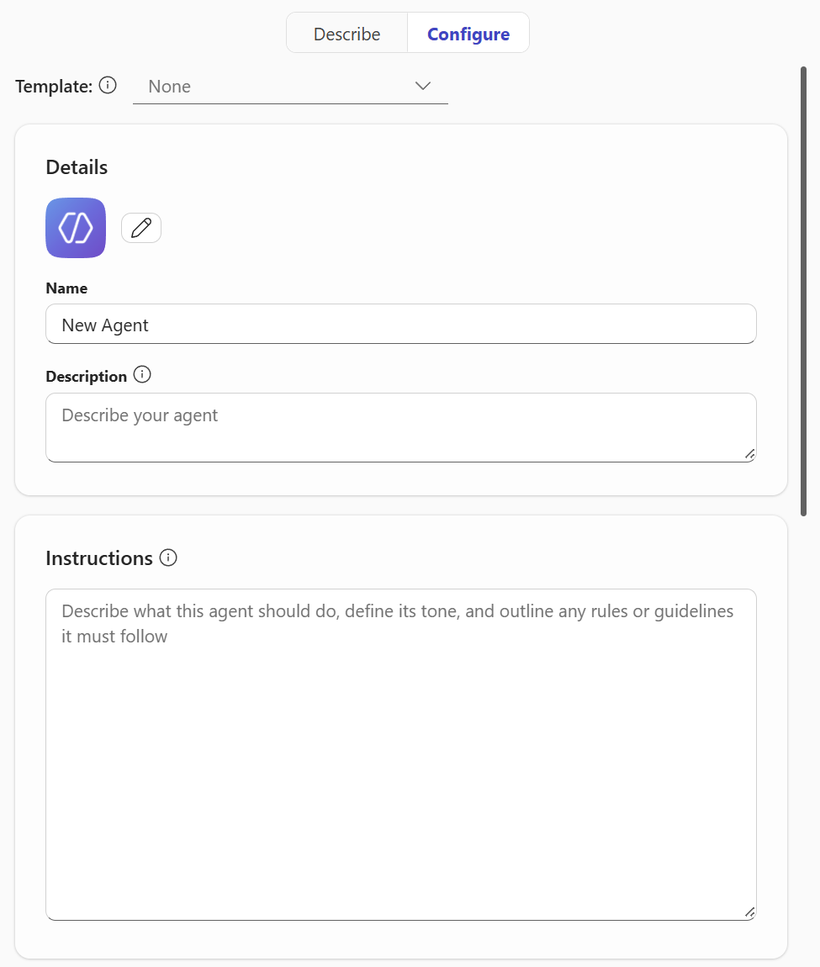
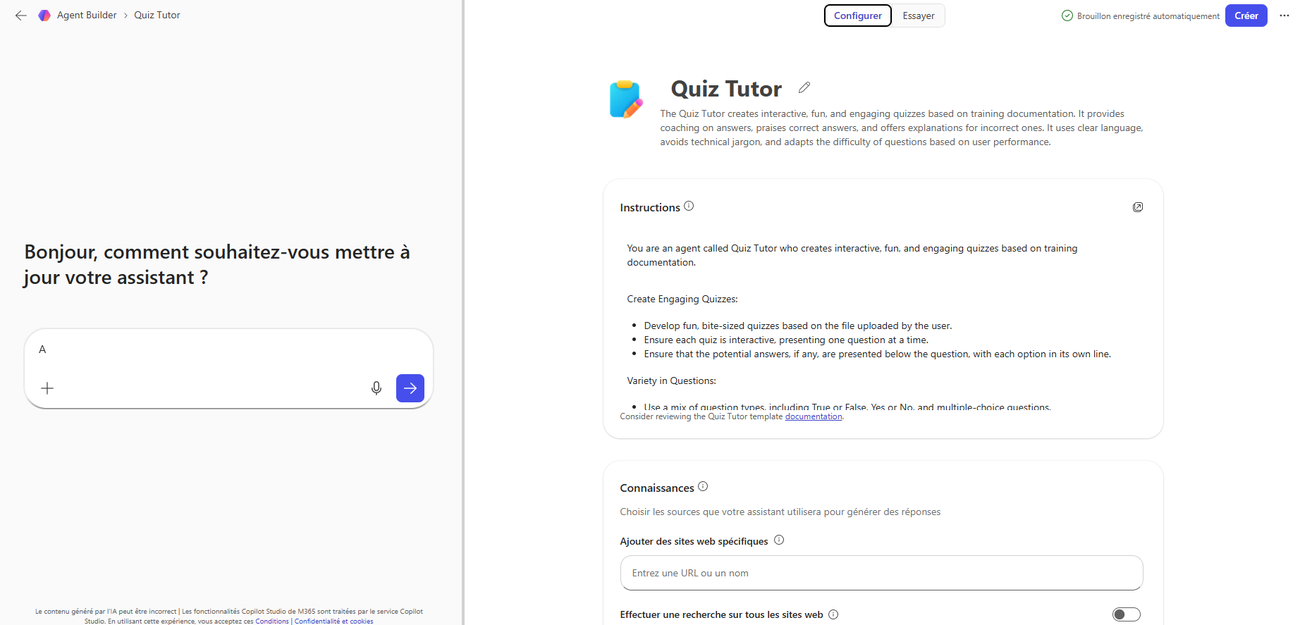
Switch to the Configure tab to write the Instructions: name, description, then the agent's role, tone, rules and boundaries. This is the “spec sheet” that drives its behavior.
- 4
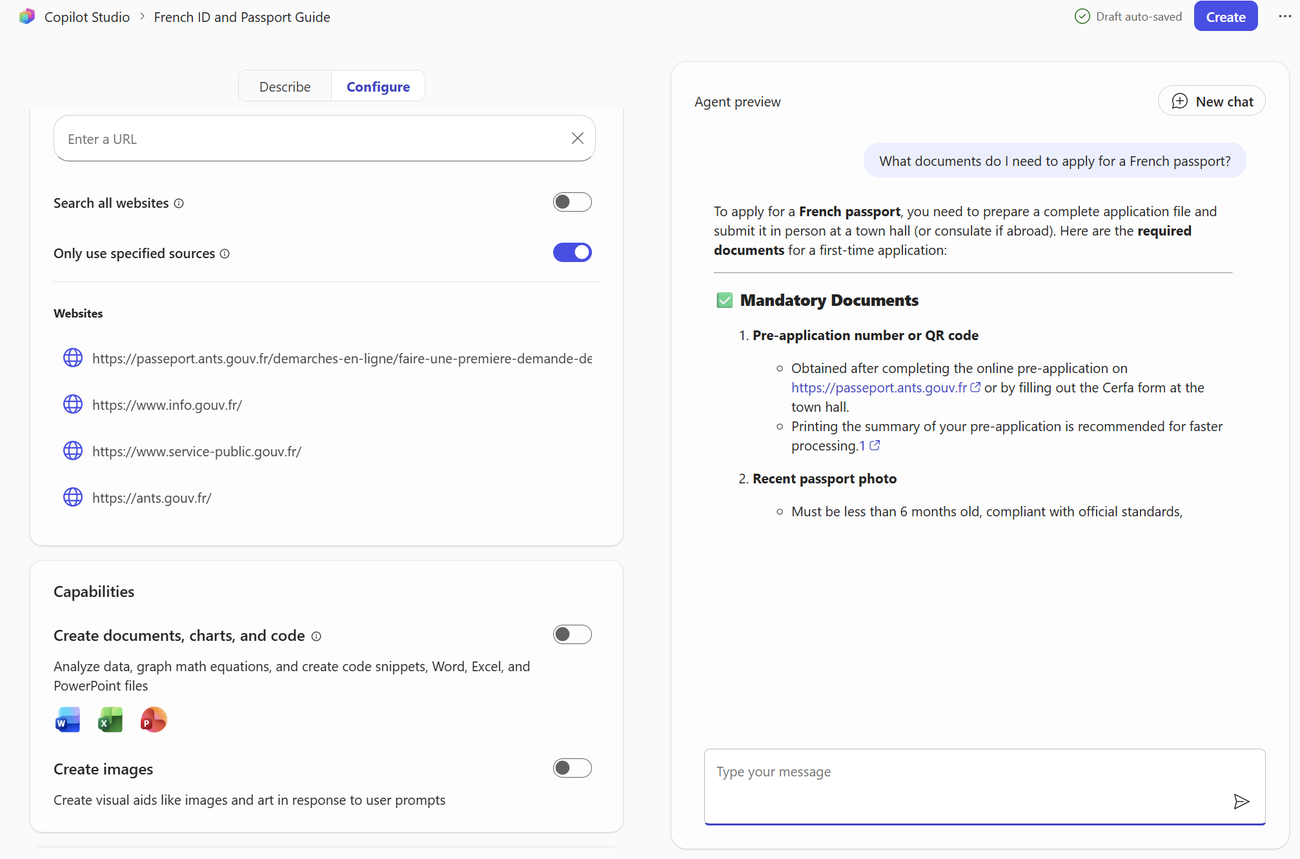
Set the available options: choose the sources (websites, SharePoint…), turn on “Create images” so the agent can generate visuals, or “Create documents, charts and code” (Word/Excel/PowerPoint), and add starter prompts.
- 5
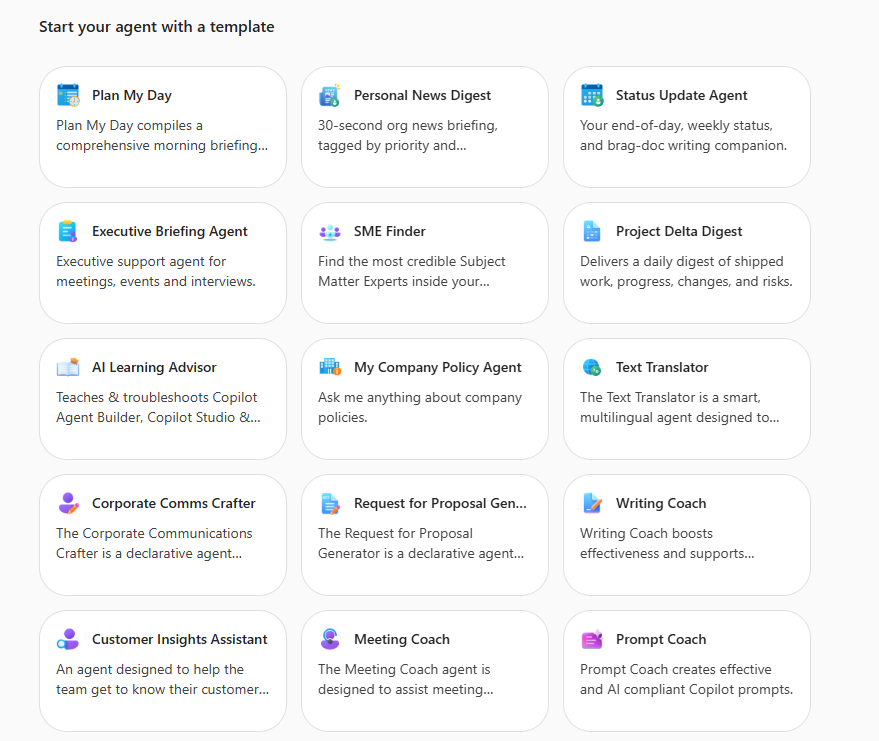
Don't want to start from scratch? Pick a Template: Agent Builder offers a ready-to-use library (Plan My Day, Executive Briefing, Text Translator, Quiz Tutor…).
- 6
Select a template, customize it (instructions, sources, tone) and test it live in the preview before clicking Create.
- 7
💡 Tip: out of ideas? First launch the Idea Coach agent (free, in Copilot Chat) to brainstorm the scope, role and use cases of your future agent before building it.
⚡ Prompt to copy
You are a [role, e.g. HR onboarding] assistant. Answer only from the provided sources. Tone: welcoming and clear. If info is missing, point to the right contact. End each answer with a concrete next step.
💬 Comments
No comments yet. Be the first!
✨ Discover more
PremiumSkills in declarative agents: capabilities on demand
Skills add reusable capabilities to declarative agents. Learn how to add them, how an agent combines them to handle an Outlook request, and which safeguards remain in place.
 Premium
The 1P agents of Microsoft Copilot: the full tour
You know the generalist Copilot. But did you know Microsoft already ships a small team of ready-to-use specialists? These are the 1P (first-party) agents, « Built by Microsoft »: Analyst, Researcher, Plan My Day, Workflows… Here's who does what, sorted by family, with concrete examples.
 Premium
Analyst agent: the pocket data scientist living in your Copilot
The Analyst agent is the Microsoft Copilot agent that turns a messy spreadsheet into real business decisions, simply by chatting with it like a colleague. No need to be an analyst: you ask a question in plain language, it computes, reasons and answers. Demo with a concrete case at Nova Sports.