
 PremiumEND USER6 min read
Edit with Copilot in Word: rewrite and enrich a document
A document that's almost done, but the tone is off, the text is too long, or content is still missing. With Edit with Copilot and « Allow Editing », you ask Copilot to rewrite directly inside Word, and even pull material from another source: an email, a PDF, another document.
✅ How to
- 1A document that's done... almost
We've all been there: the substance is there, but the form still needs work. The tone is too formal, the text too long, some sentences are clumsy, or it needs adapting for an executive, a client, a technical team.
Until now, that meant re-reading, editing, rephrasing, sometimes rewriting whole paragraphs. Edit with Copilot brings a far more natural approach, right inside Word.
- 2What is Edit with Copilot?
Edit with Copilot lets you select part of your document and ask for the change in natural language. Instead of rewriting it yourself, you describe the outcome you want:
- « Make this paragraph more professional. »
- « Simplify this text for a non-technical audience. »
- « Cut this passage by 50%. »
- « Turn this content into a bullet list. »
Copilot then offers a new version you can accept, compare, or ignore. You stay in control throughout.
- 3The « Allow Editing » mode
By default, Copilot can simply chat (« Chat only »): it suggests, but doesn't touch the document. By turning on « Allow Editing », you let it write directly in the file: insert, replace, rephrase in the right place.
This is the mode that turns Copilot into a true co-writer: you describe the intent, it applies the change in the text, and you validate.
- 4Enriching the document from another source
This is where Allow Editing gets powerful: you can ask Copilot to add content to your document based on another source. A received email, a PDF, another Word document, a note.
Concrete example: a colleague emails you the framing of a project (here, the « Thunderbolt » project). You reference that email and ask Copilot to bring its elements into the right section of your document. Copilot pulls the material from the source and writes it straight into the right place, in your document's style.
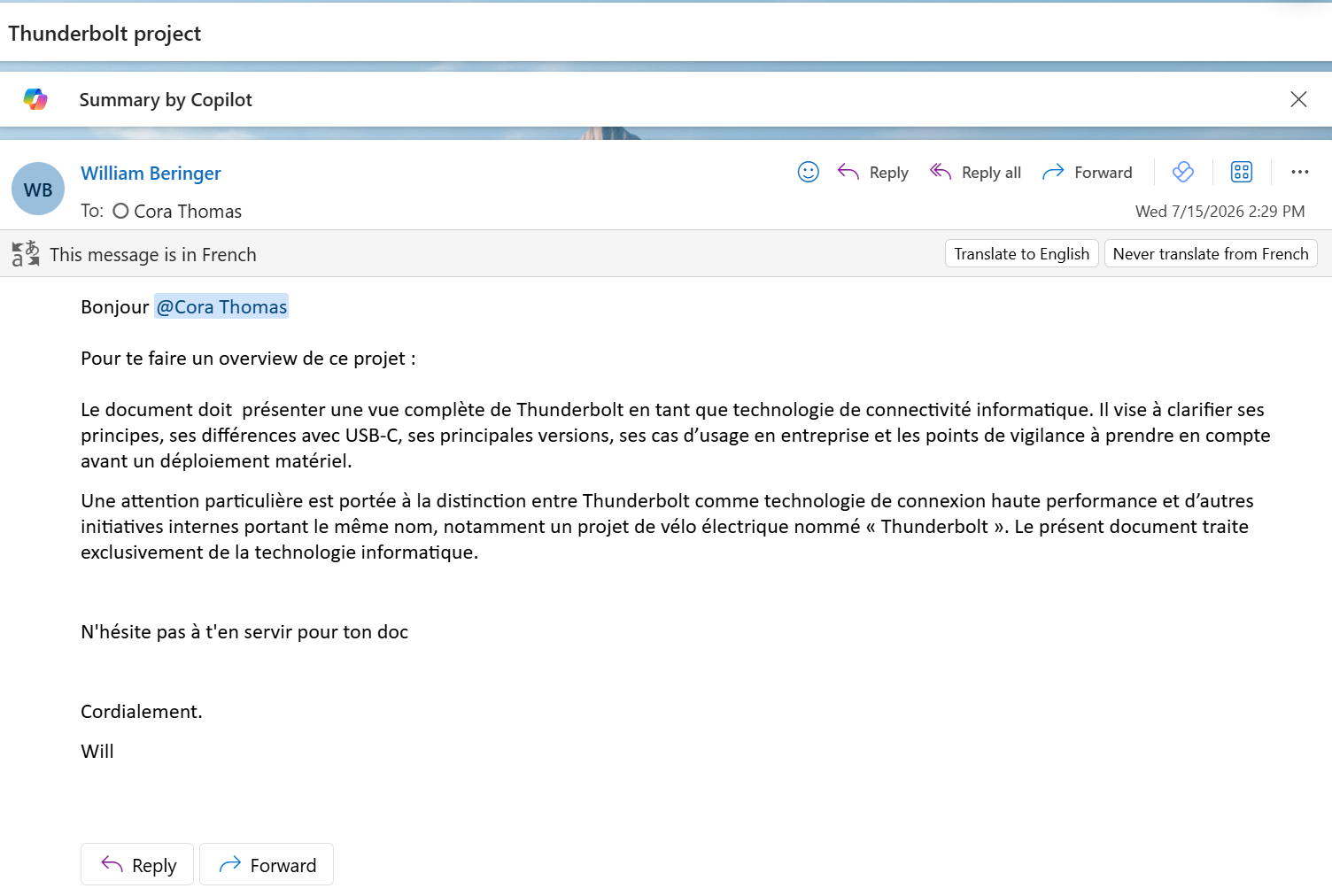
The source email, as shown in the video above.
- 5A few concrete examples
- Adapt your message to the audience: the same information, rephrased for an executive or a technical team.
- Summarize an overly long text: condense a section without losing the essentials.
- Improve a client document: raise the tone and clarity a notch before sending.
- Translate or localize content: switch languages while keeping the formatting.
- Interact with the content: ask for precise formatting, for example highlighting titles in yellow.
The video below shows two of these at once: translating the document into English, then highlighting its headings.
- 6What to remember
Edit with Copilot turns Word into a rewriting assistant, and with « Allow Editing », into a co-writer that acts directly in the file. It doesn't replace the author: it helps them find the right wording, the right level of detail, the right tone faster, and pull content from their other sources. Between a decent idea and an excellent document, the difference often comes down to these small adjustments.
« Allow Editing » vs « Chat only »: in Chat only, Copilot answers and suggests without changing the file. In Allow Editing, it applies changes directly in the document. Switch depending on whether you just want ideas or an applied rewrite.
💬 Comments
No comments yet. Be the first!
✨ Discover more
 Premium
The Library and Pages: keep a memory of your work with Copilot
At the end of a prompt, Copilot can turn its answer into a « Page »: a living document you edit, enrich, export to Word or PDF, share, and even reload into a conversation to pick up where you left off. All your Pages (and generated images) live in one place: the Library.
 Premium
Send an email straight from Copilot
Draft and send an email without leaving Copilot: describe the intent, let Copilot draft it, tweak the tone, send.
 Premium
Quick Create in Copilot Notebooks: which format should you choose?
Audio overview, Mind map, Study guide or Infographic: see how Quick Create turns the sources in your Copilot Notebook into formats that are easy to listen to, explore, learn from or share.