
 PremiumEND USER5 min read
Meeting Recaps: all your meeting summaries in one place
An often-overlooked Teams app that brings together all your meetings, past and upcoming, each with an intelligent recap. No more digging through chats or emails to find a summary: everything is centralized, and you can even listen to an audio recap.
✅ How to
- 1What it's for
Between the meetings you miss, the ones you follow loosely and the ones you attended without time to note everything, information ends up scattered. Meeting Recaps fixes that: it's a single place in Teams that lists all your meetings and, for each one, an AI-generated recap (key points, to-dos, moments where you were mentioned). One reflex, one place to find what was said.
- 2How to access it
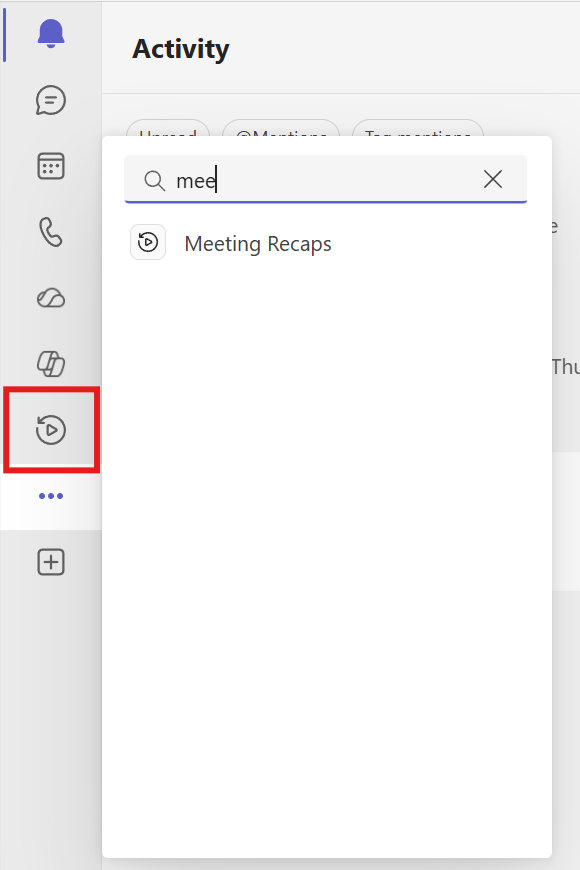
In the Teams side bar, click « ... » (More apps) and search for « Meeting Recaps ». Right-click to pin it and keep it within reach.
- 3Find all your meetings
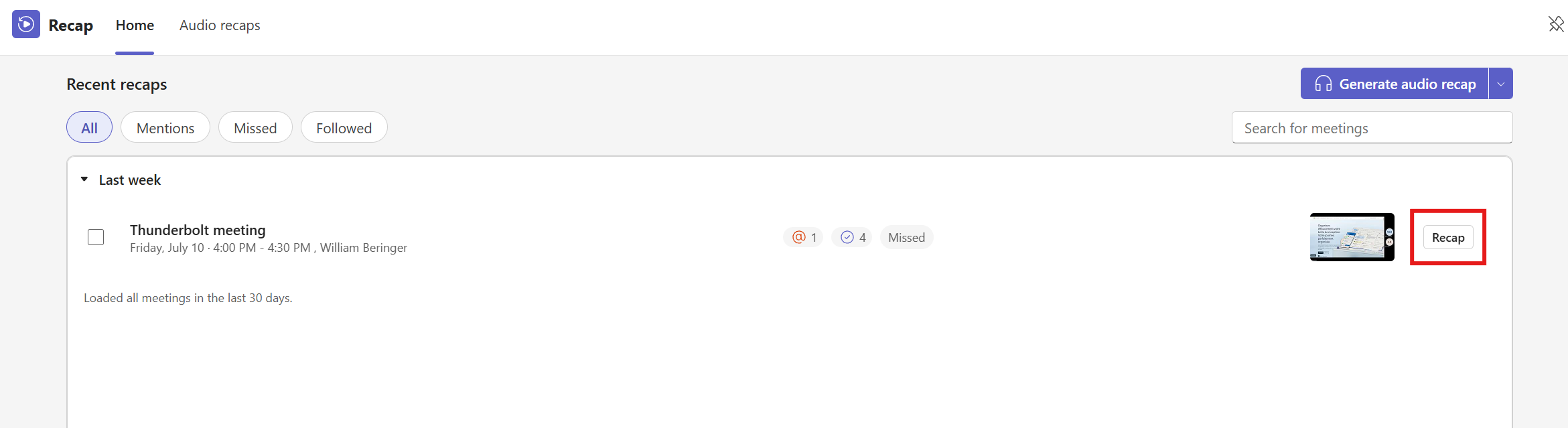
The « Home » tab shows your recent meetings, most recent on top. Quick filters help you narrow down: « Mentions » (where you were named), « Missed » (the ones you missed), « Followed » (the ones you follow). A search bar lets you find a meeting by name. To the right of each meeting, the « Recap » button opens its full intelligent summary.
- 4Listen to an audio summary
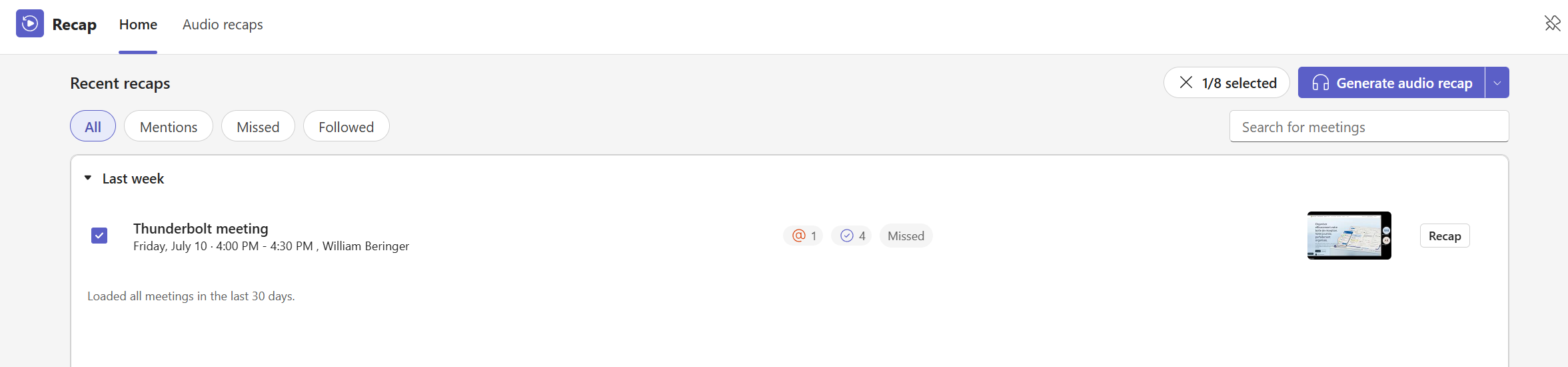
No time to read? Meeting Recaps can generate an audio summary, like a mini-podcast of your meeting. Select one or several meetings, then click « Generate audio recap ».
- 5The audio recap, chapter by chapter
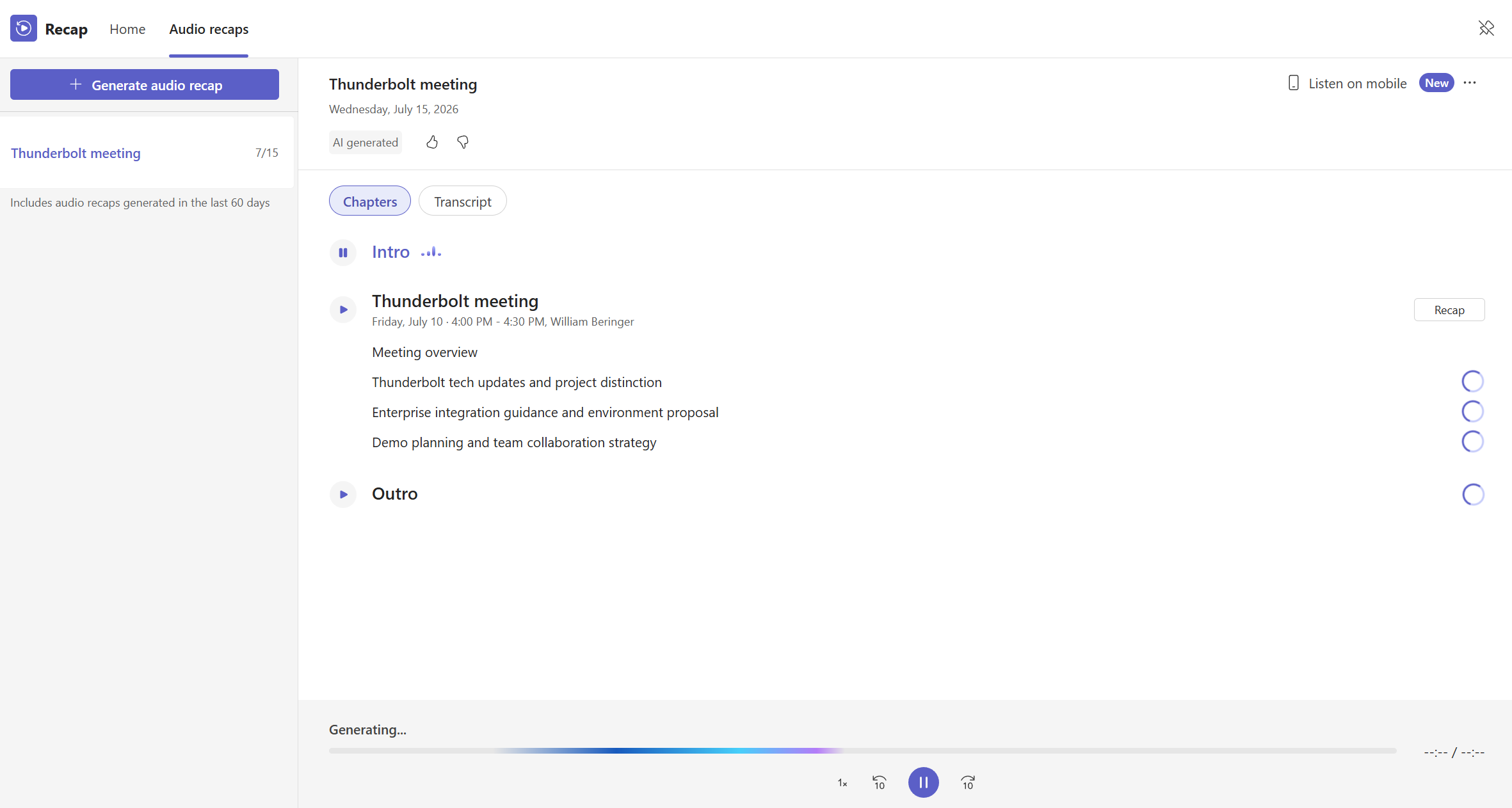
In the « Audio recaps » tab, the summary comes in chapters: an intro, the main topics covered, an outro. You jump from one to another, adjust playback speed, and can switch to the written transcript at any time. Perfect to listen to on your commute or between two appointments.
- 6Listen on mobile
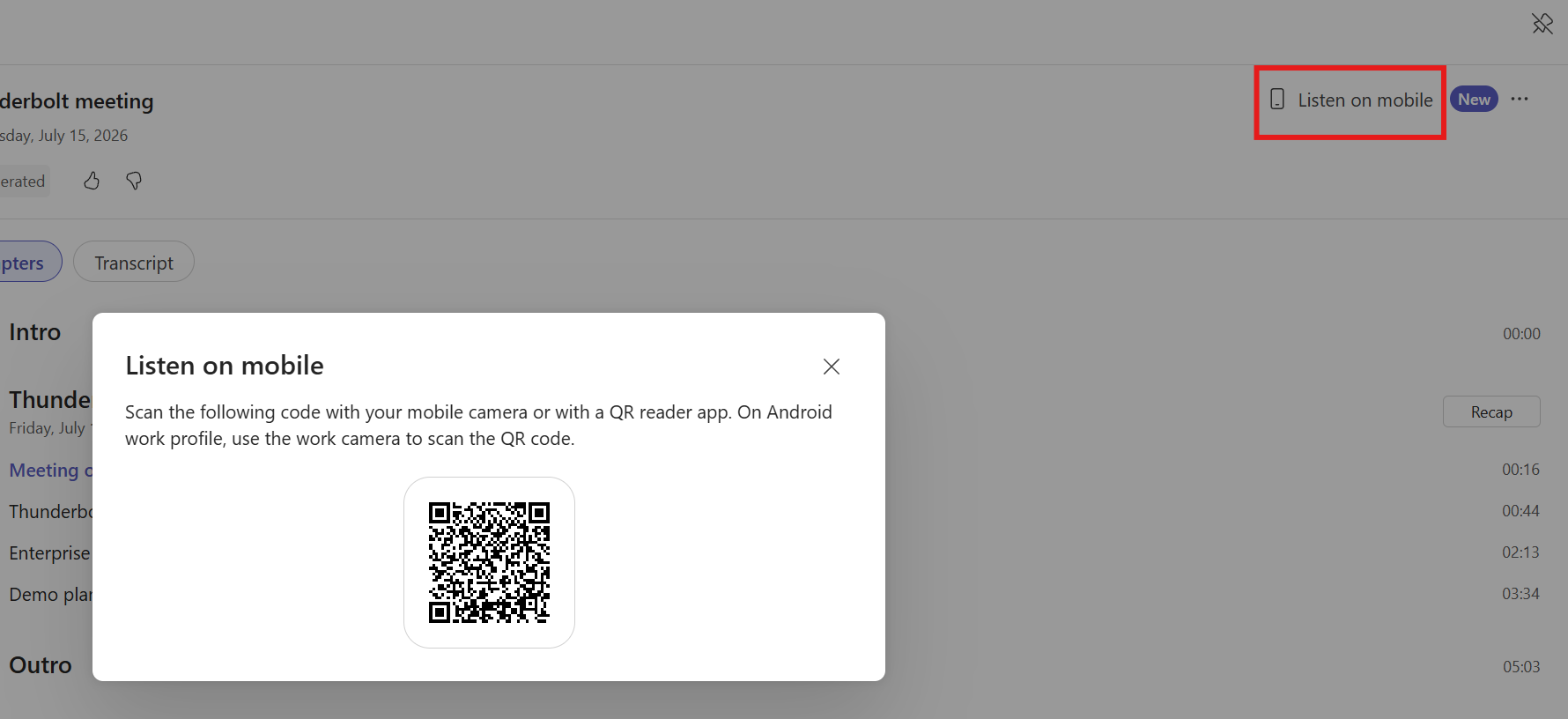
Top right, « Listen on mobile » shows a QR code: scan it with your phone camera to pick up where you left off, on the go.
- 7What to remember
Meeting Recaps is the centralized memory of your meetings in Teams: everything in one place, an intelligent recap per meeting, and an audio summary when you'd rather listen than read. The right reflex after a missed meeting, or to refresh an important discussion before moving on.
💬 Comments
No comments yet. Be the first!
✨ Discover more
PremiumFacilitator: the agent that takes notes in your Teams meetings for you
Facilitator is a Copilot agent that sits in your Teams meetings like an extra teammate: it takes notes in real time, tracks the agenda, keeps up with decisions and tasks, and answers questions in the meeting chat. Let's see how to turn it on (two ways), what it does, and the nuance not to confuse with plain automatic transcription.
PremiumGet the recap of a Teams meeting
After a meeting, Teams and Copilot produce the full recap: summary, decisions, speakers, which you can customize, share and even listen to.
PremiumInterpreter: the real-time interpreter for your Teams meetings
Interpreter is an agent that translates speech live during your Teams meetings: everyone listens to the meeting in their own language, in real time, with the option to keep the tone of your voice. No more human interpreter to understand a colleague or client abroad.