
 PremiumEND USER5 min read
Personalize Copilot: Custom Instructions and Memories
Copilot answers everyone the same way? Not anymore. With Custom Instructions and Memories, you teach it who you are, how you like to work and what it should remember over time. Two settings, a Copilot that feels like yours.
✅ How to
- 1Where personalization lives
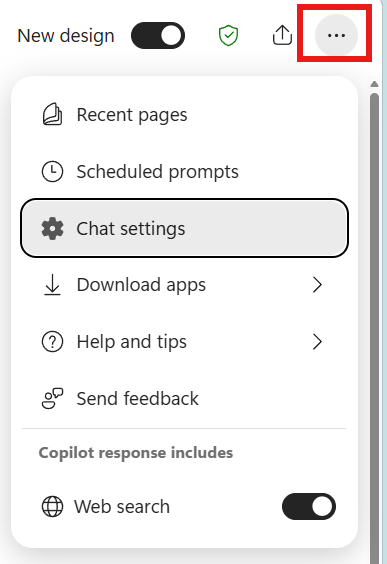
It all happens in the conversation settings. At the top right of Copilot, click the « … » menu then « Chat settings ». In the window that opens, go to the « Personalization » tab: it's the cockpit controlling how Copilot tailors its answers to your preferences.
- 2Two complementary levers
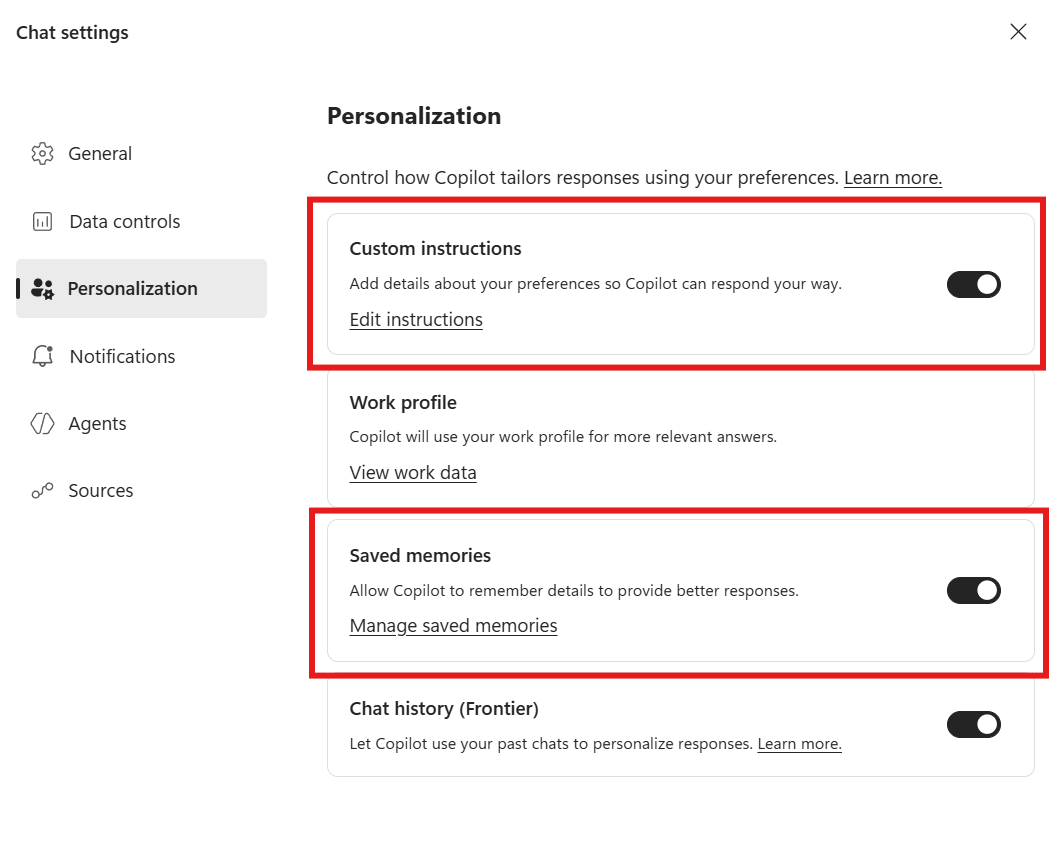
In « Personalization », two settings matter to us, each with its own toggle: Custom instructions (« Add details about your preferences so Copilot can respond your way ») and Saved memories (« Allow Copilot to remember details to provide better responses »). The first defines how Copilot responds, the second what it remembers about you over time. The two combine perfectly.
- 3Custom Instructions: tell Copilot how to answer
Custom Instructions let you define how Copilot should respond every time, including tone, format, level of detail and other preferences. Concretely, it changes:
- The response style (e.g. concise, structured, executive-ready).
- Your language, tone and formatting preferences.
- Adaptation to your unique way of working.
It's your personal user manual, applied automatically to every exchange.
- 4Writing your Custom Instructions
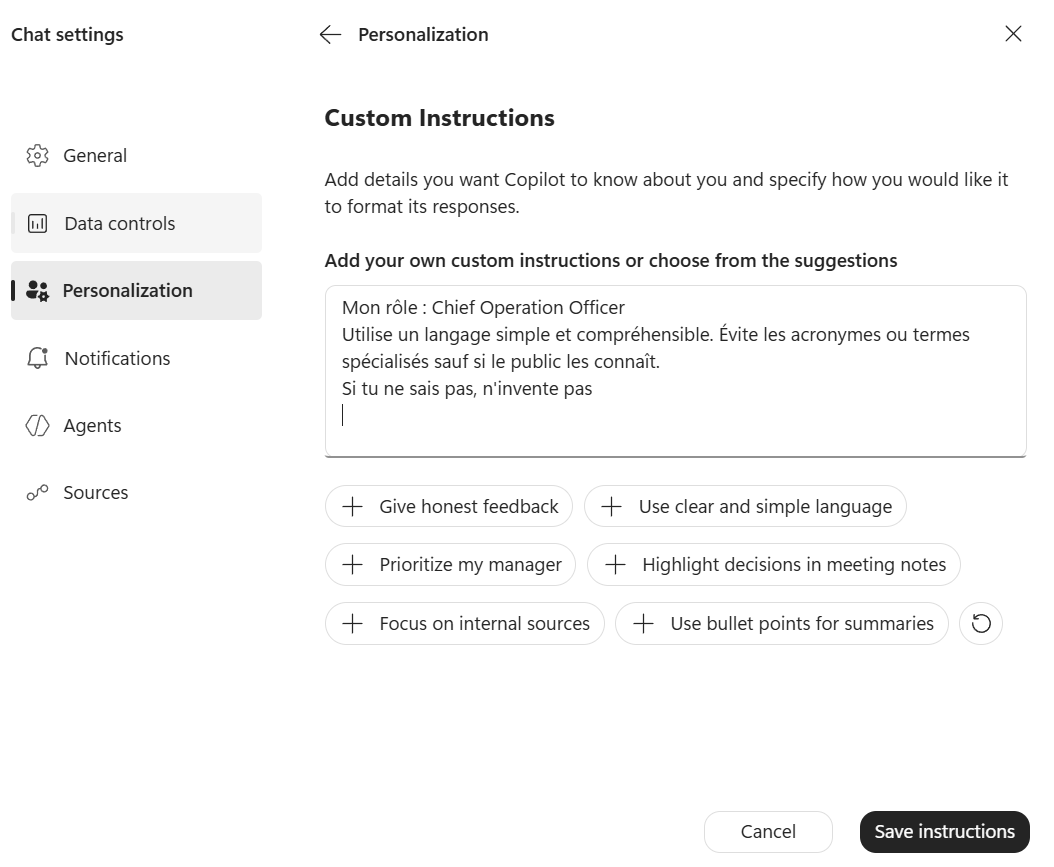
Click « Edit instructions »: a text area lets you write your directions (or pick from suggestions like « Use clear and simple language », « Highlight decisions in meeting notes »…). For example:
- « My role: Chief Operation Officer »
- « Use simple, understandable language. Avoid acronyms or specialized terms unless the audience knows them. »
- « If you don't know, don't make it up. »
Click « Save instructions » and it's applied to all your future conversations.
- 5Memories: what Copilot remembers about you
Memories let Copilot keep useful personal or professional context over time, to become more relevant and personalized. What it remembers:
- Your preferences, your recurring context, your work habits.
- The stable information you don't want to repeat.
- A personalization that spans apps, over the long term.
Where Custom Instructions set rules, Memories build up a knowledge of you, gradually.
- 6Creating a memory in natural language
The simplest way: just tell Copilot directly, and you don't have to start with « Remember ». Several phrasings work:
- « Keep in mind that I mainly work with US-based counterparts. »
- « Note that I often prepare executive summaries and one-pagers. »
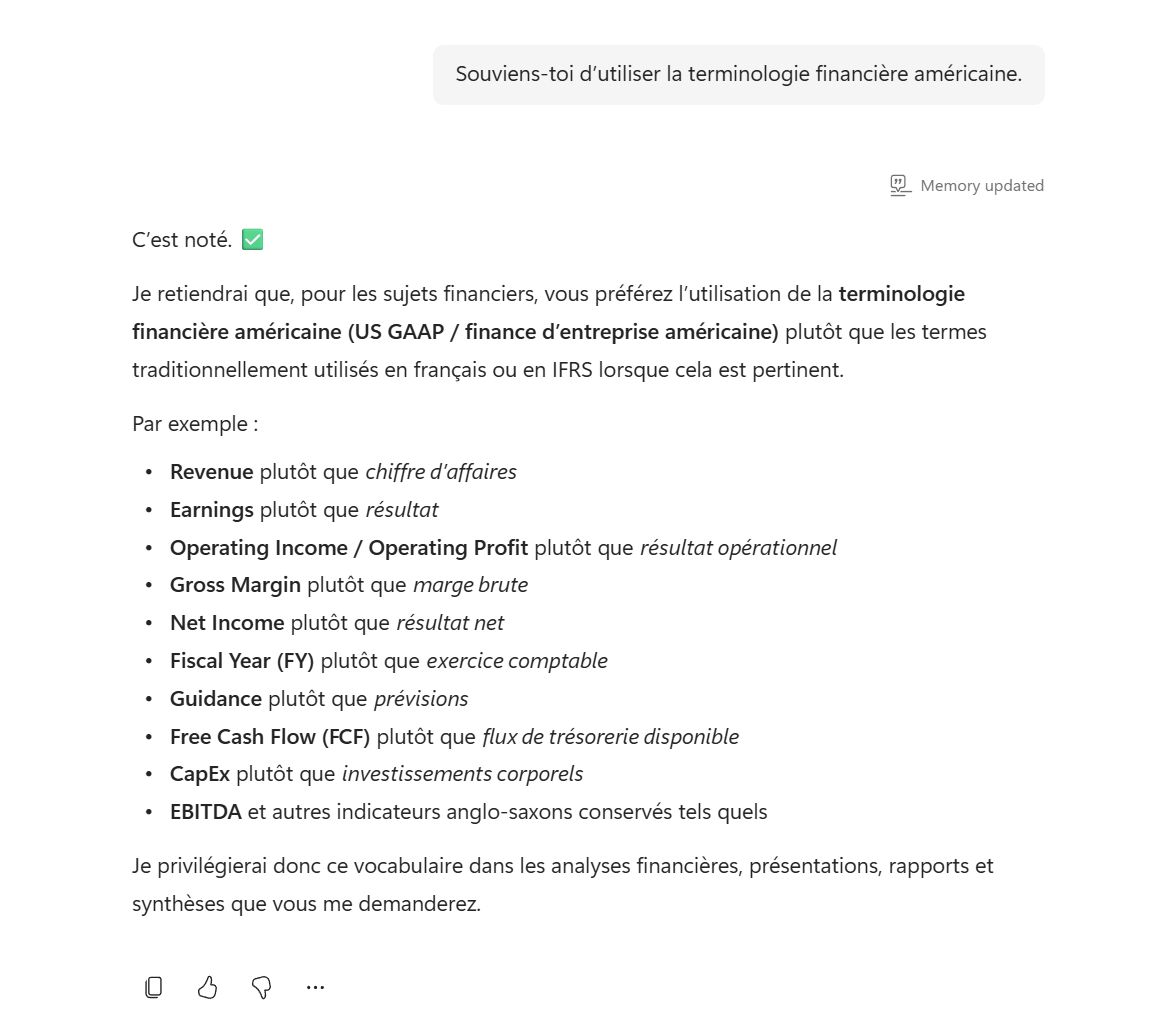
- « Bear in mind to use US financial terminology. »
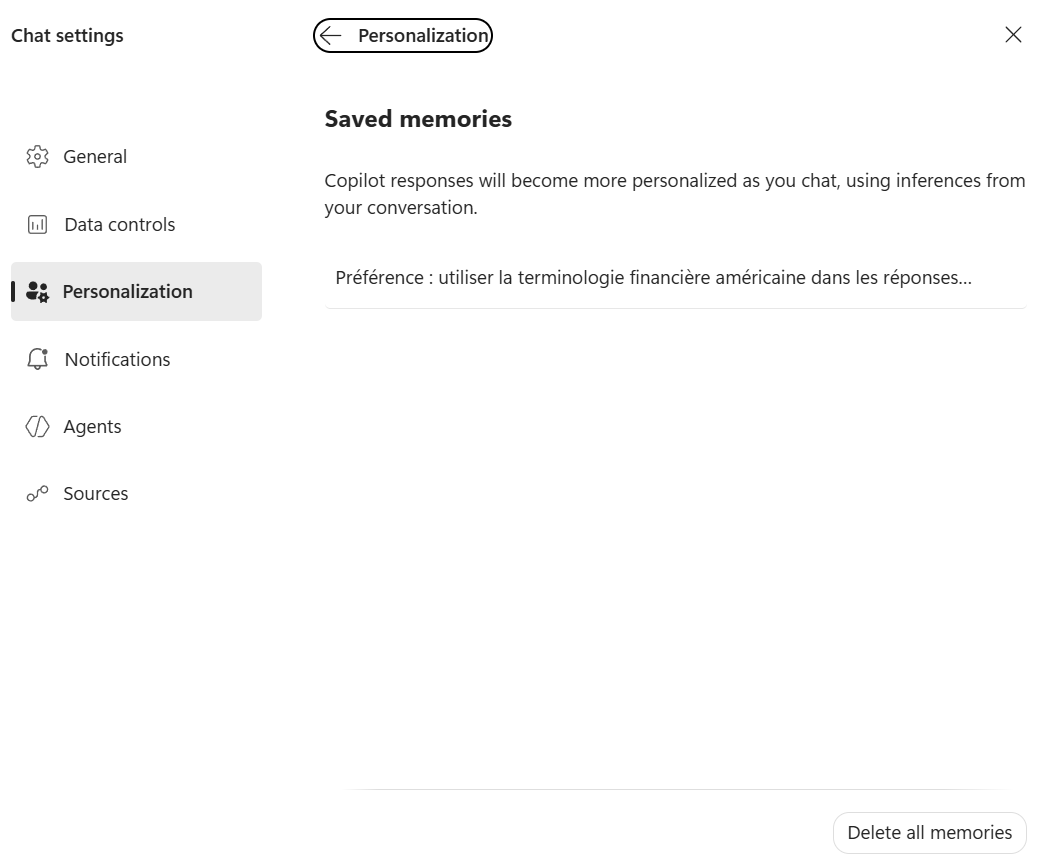
Copilot confirms with a « Memory updated » and applies the instruction. In the first screenshot, it keeps the preference for US financial terminology and even details the vocabulary it will use (Revenue rather than chiffre d'affaires, EBITDA kept as is…). And to take back control? Head to « Chat settings›Personalization›Saved memories » (via « Manage saved memories »): there you see the list of everything Copilot has memorized, and the « Delete all memories » button lets you wipe it all at once, as shown in the second screenshot.
- 7Custom Instructions or Memories: which to choose?
A simple way to tell them apart: Custom Instructions are the HOW (the style, the format, the response rules), Memories are the WHO and WHAT (your context, your stable facts). A COO who wants concise, jargon-free answers: Custom Instructions. The same COO who mostly works with the US and prepares one-pagers: Memories. Both together give a Copilot truly tailored to you.
- 8What I'd keep in mind
Personalizing Copilot isn't a gimmick: it's what turns a generic assistant into one that knows you. You save time (fewer repetitions), gain consistency (the same tone everywhere) and relevance (answers grounded in your reality). Take five minutes to set your Custom Instructions and lay down your first Memories, it's one of the best adoption investments.
💬 Comments
No comments yet. Be the first!
✨ Discover more
PremiumSchedule a recurring prompt: your assistant that works ahead of you
What if Copilot prepared your day before you even opened your laptop? Scheduling a recurring prompt automatically runs an instruction at the frequency you choose (daily, weekly, monthly) and delivers the result, without you relaunching it.
 Premium
Track your Copilot rollout with Copilot Dashboard
To steer adoption, the Copilot Dashboard (enabled via Viva Insights) is the best fit: track Copilot Chat and Microsoft Copilot, per app and more granularly than the native reports.
PremiumThe Frontier program: early access to Microsoft Copilot
Frontier is your door to the next Copilot features, ahead of everyone else. Here's a clear rundown of this early-access program: what it is, who it's for, how IT turns it on (with screenshots), how to spot a Frontier feature with real examples, its benefits and its caveats.