
 PremiumEND USER4 min read
Schedule a recurring prompt: your assistant that works ahead of you
What if Copilot prepared your day before you even opened your laptop? Scheduling a recurring prompt automatically runs an instruction at the frequency you choose (daily, weekly, monthly) and delivers the result, without you relaunching it.
✅ How to
- 1The idea: a prompt that runs on its own
Scheduling a recurring prompt is a recent Copilot feature that automatically runs a prompt at a defined frequency (daily, weekly, monthly…) and delivers the result without you relaunching it manually. Simply put: you write your request once, you say when to repeat it, and Copilot handles the rest, in the background.
- 2Step 1: write and run your prompt
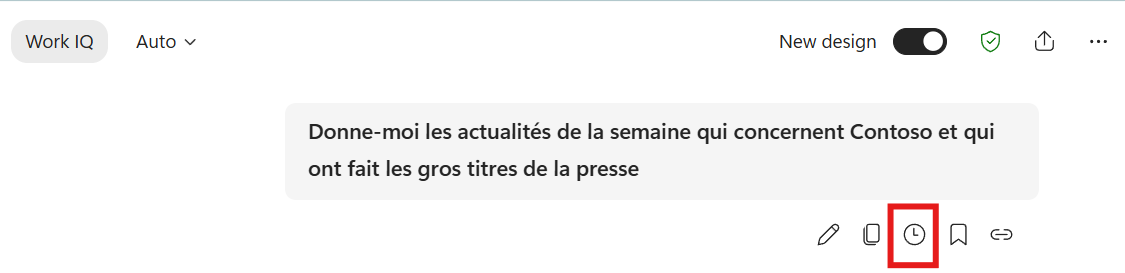
Start with a normal prompt, the one you'd like to receive regularly (for example « Give me the week's news about Contoso that made the press headlines »). Hover over your prompt: a bar of icons appears below it. Click the clock icon, that's the one that opens scheduling.
- 3Step 2: set the frequency in « Create a schedule »
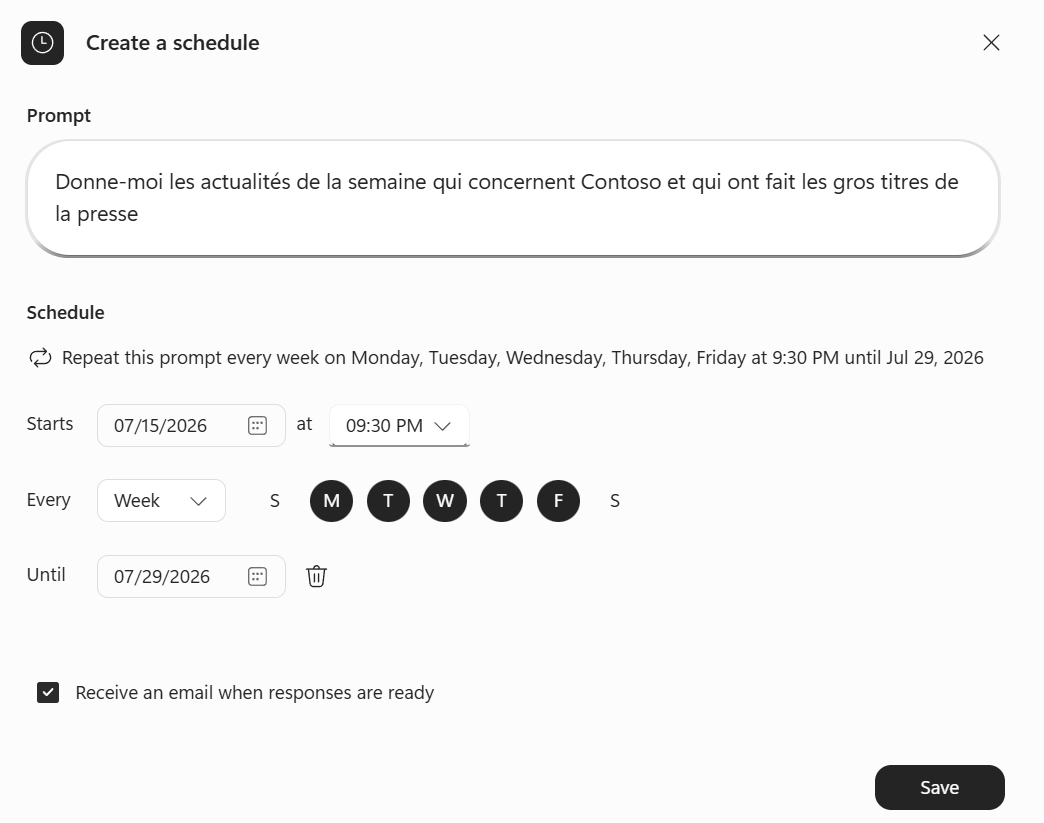
The « Create a schedule » window opens with your prompt already prefilled. You then define:
- Starts: the date and time of the first run (e.g. 07/15/2026 at 09:30 PM).
- Every: the frequency (Week, Day, Month…) and, for a weekly repeat, the specific days (M, T, W, T, F…).
- Until: an end date, so it doesn't run forever.
A summary sentence confirms it all: « Repeat this prompt every week on Monday… Friday at 9:30 PM until Jul 29, 2026 ».
- 4Step 3: choose how to be notified, then save
Check « Receive an email when responses are ready » to get an email as soon as the result is ready, then click « Save ». From there, nothing more to do: Copilot will run your prompt on its own, at each due time.
- 5A few concrete examples
This is where it gets really powerful:
- Every morning at 8am: « Summarize my priority emails received since yesterday and list the actions to take today. »
- Every Monday: « Analyze my week's calendar, identify the important meetings and propose my top 5 priorities. »
- Every Friday: « Summarize the exchanges about the Copilot Studio project and list the open actions. »
- Every month: « Prepare a report on my main clients combining recent meetings, emails and documents. »
- 6Why it's a real habit shift
Before, the user had to launch the prompt themselves, and results depended on their initiative (so sometimes, you forget). With scheduling, the prompt runs automatically, the Microsoft 365 context is refreshed at each run (your latest emails, meetings and documents are taken into account), and the result is sent straight to you in Copilot and/or via notification depending on the available settings.
- 7What I'd keep in mind
We move from a Copilot you call on to a Copilot that anticipates. That small shift changes a lot: your summaries arrive at the right moment, effortlessly, with an always-fresh context. Perfect for a morning ritual, a weekly check-in or a monthly report you never want to forget again.
⚡ Prompt to copy
Summarize my priority emails received since yesterday and list the actions to take today.
💬 Comments
No comments yet. Be the first!
✨ Discover more
PremiumPersonalize Copilot: Custom Instructions and Memories
Copilot answers everyone the same way? Not anymore. With Custom Instructions and Memories, you teach it who you are, how you like to work and what it should remember over time. Two settings, a Copilot that feels like yours.
ChatSave a prompt to reuse it in one click
Saving a prompt lets you store an instruction you use regularly so you can find it in one click, without rewriting it. Available with or without a Copilot license, it's the habit that saves time and standardizes usage.
 Premium
Track your Copilot rollout with Copilot Dashboard
To steer adoption, the Copilot Dashboard (enabled via Viva Insights) is the best fit: track Copilot Chat and Microsoft Copilot, per app and more granularly than the native reports.