
 PremiumEND USER6 min read
Quick Create in Copilot Notebooks: which format should you choose?
Audio overview, Mind map, Study guide or Infographic: see how Quick Create turns the sources in your Copilot Notebook into formats that are easy to listen to, explore, learn from or share.
✅ How to
- 1One Copilot Notebook, two experiences
These are not two different Notebooks. Microsoft says the same Copilot Notebook can be opened in the Microsoft Copilot app or in OneNote without losing its content or context.
For now, OneNote provides the fullest experience, designed as a real workspace. The Copilot app offers a lighter experience that is convenient for reviewing sources and chatting with Copilot. To use all the Quick Create options covered here, open your Notebook in OneNote.
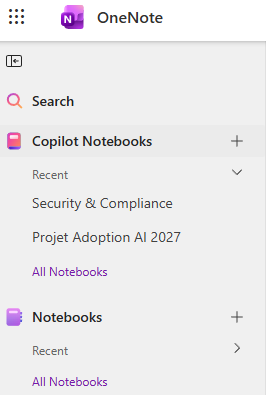
In OneNote, your Copilot Notebooks appear in a dedicated area above your regular notebooks.
- 2Overview: understand your Notebook at a glance
The Overview page gives you the context right away. On the left, Summary captures the topic from the references you added. On the right, Key Insights highlights important information with links back to the sources.
This is also where you find Quick Create. Four buttons turn the same content into an Audio overview, Mind map, Study guide or Infographic, without starting again.
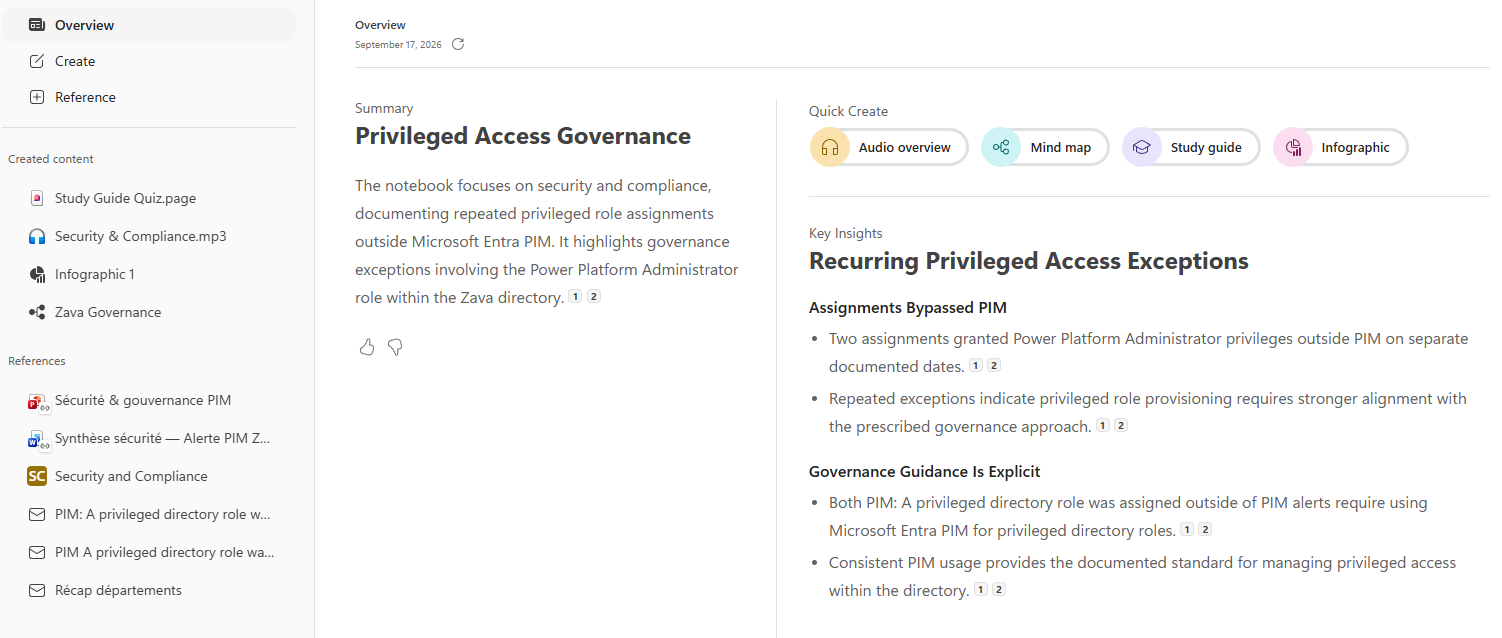
The Overview page brings together the Summary, Key Insights and the four Quick Create shortcuts.
- 3Audio overview: listen instead of reading everything
Audio overview turns the Notebook sources into an AI-generated audio conversation. In OneNote, you can choose the format, voice, style and duration before generating it.
Once ready, you can play or pause it, skip forward or backward by 15 seconds, change the speed and save it to OneDrive.
Example: before a customer meeting, generate an Audio overview from the project notes, presentations and documents to quickly refresh the context.
Remember: « I have a lot of information to absorb, tell me the story. »

- 4Mind map: see how information connects
Mind map generates an interactive map of the key topics and their relationships. You can expand branches, select a node to read its summary, choose « Explain » to explore it with Copilot and export the map as a PNG.
Example: for a Microsoft Copilot deployment project, the map brings out the key themes, dependencies and links between references.
Remember: « Show me how all this information connects. »
Note: Microsoft says Mind map is currently available in Copilot Notebooks in OneNote. Support for the lighter Notebooks experience in the Copilot app is coming soon.

- 5Study guide: learn and test your understanding
Study guide turns your references into learning material. A summary is always created, and you can add topic pages, flashcards and a quiz. The result remains editable and can be regenerated when your sources change.
Example: gather your Copilot Studio documentation, presentations and internal learning material. The guide then helps a colleague learn step by step and check what they remember.
Remember: « Help me learn and master this content. »

- 6Infographic: turn content into a visual summary
Infographic turns the information in your Notebook into a concise visual. It is useful for quickly presenting the key messages in a case, preparing a meeting or sharing a summary that is easier to scan than a long block of text.
This feature is currently labeled « Frontier », so it may still change before general availability.
Remember: « Turn this information into something I can understand visually. »

- 7Which Quick Create should you choose?
The right format simply depends on what you want to do: listen to catch up, explore connections between ideas, learn a topic or share a visual summary. You always start from the same references and choose the most useful output for the moment.
Your need Quick Create Absorb a lot of information quickly Audio overview Understand connections between ideas Mind map Learn and check your understanding Study guide Share a visual summary Infographic
Status as of September 17, 2026, subject to change: Infographic is currently labeled Frontier, and Mind map is still coming to the lightweight Notebooks experience in the Microsoft Copilot app.
📚 Official sources
💬 Comments
No comments yet. Be the first!
✨ Discover more
PremiumStudy guide in Copilot Notebooks: turn your sources into learning material
Summary, glossary, flashcards, quiz… Study guide is one of the Quick Create formats in Copilot Notebooks: it turns your sources into a real learning kit, so you can learn and check what you've retained. Here's how to create and use it, step by step.
PremiumCreate an infographic from Notebooks, based on your own content
Notebooks (which you can open straight from OneNote) does more than gather your sources: with a license, its « Create » menu generates a full infographic from the content referenced in your notebook. Here, we use the fictional « Thunderbolt » project to turn specs into a share-ready visual.
PremiumCreate a Copilot Notebook to organize your watch
Bundle files, chats, meetings and emails on one topic into a Copilot Notebook: a dedicated space where Copilot reasons only over your curated sources.