
 PremiumEND USER5 min read
Study guide in Copilot Notebooks: turn your sources into learning material
Summary, glossary, flashcards, quiz… Study guide is one of the Quick Create formats in Copilot Notebooks: it turns your sources into a real learning kit, so you can learn and check what you've retained. Here's how to create and use it, step by step.
✅ How to
- 1Study guide, to learn rather than just read
With the other Quick Create formats, you listen to, summarize or explore your sources. With Study guide, the goal changes: Copilot turns your Notebook's content into a real learning kit.
This is especially useful for internal training or self-learning: instead of re-reading a pile of documentation, you learn step by step and test what you've understood.
- 2Choose what you want to generate
From your Notebook, open « Create » then « Study guide ». A panel lets you pick several types of content: a full summary, topic pages, flashcards to memorize key terms, a quiz, fill-in-the-blank exercises or a matching game.
Pick whatever is useful to you, one or several at a time, then click « Create ».
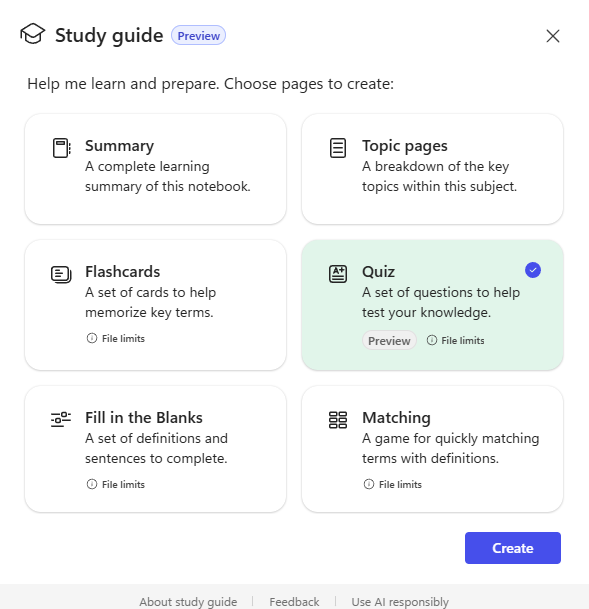
The Study guide panel: choose a summary, topic pages, flashcards, a quiz, fill-in-the-blank exercises or a matching game.
- 3Copilot prepares your material, from your sources
It only takes a moment: Copilot reads the documents referenced in the Notebook and builds the requested content. You stay on the page while it generates, no other action is needed on your side.
As with the other Quick Create formats, everything comes strictly from your sources: the richer and more up to date they are, the more relevant the learning material will be.

- 4The result: a complete, ready-to-use kit
Depending on what you selected, you'll find a summary, topic pages, a set of flashcards or a quiz under « Created content », each as a page you can open at any time.
The quiz, for example, looks like a short multiple-choice questionnaire: a title, a description and numbered questions, ready to launch.
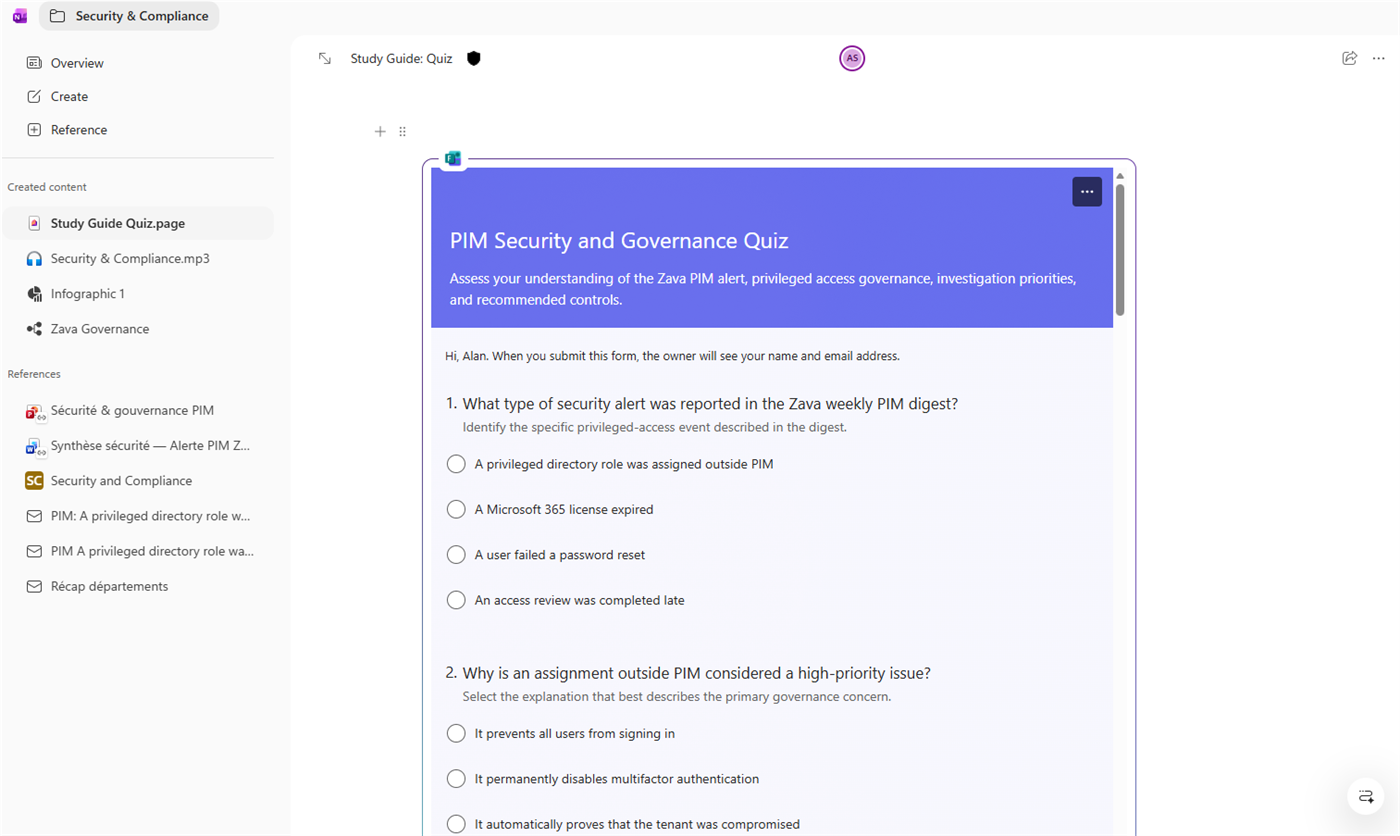
The generated quiz, ready to launch from « Created content ».
- 5Answer the quiz and get corrected right away
As you answer a question, Copilot immediately shows whether it's correct or not, reveals the right answer and gives an explanation that points back to the exact passage in your sources.
You move through the questions one by one, with a score that updates as you go, until you've covered the whole topic.
Example: you gather several documents about a project in a Notebook. Instead of simply asking Copilot for a summary, you generate a Study guide to learn the key points, then check what you've retained with the quiz.
Remember: « I want to learn and check that I've understood my information. »
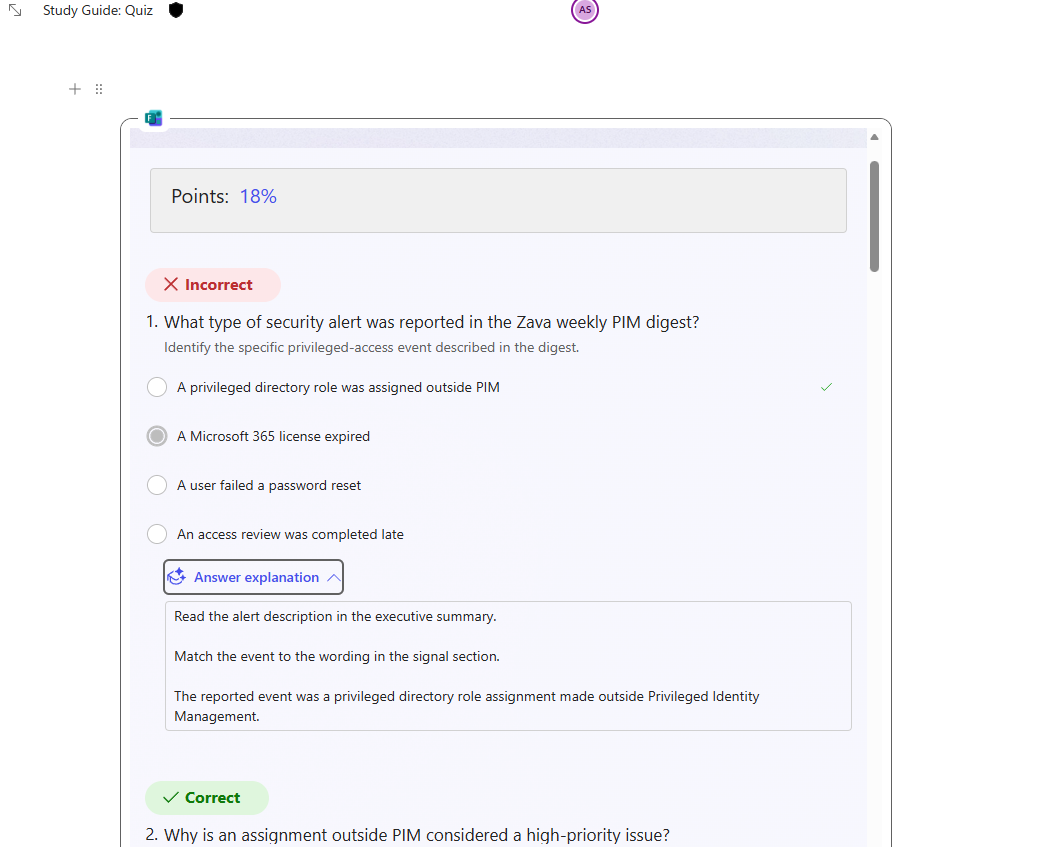
Each answer is corrected right away, with an explanation pointing back to the source.
- 6What to remember
Study guide turns your sources into a real learning path: summary, glossary, flashcards, quiz or exercises, pick and choose. It's a great way to help a colleague get up to speed on a topic, or simply to check what you've retained from a pile of documents yourself.
📚 Official sources
💬 Comments
No comments yet. Be the first!
✨ Discover more
PremiumQuick Create in Copilot Notebooks: which format should you choose?
Audio overview, Mind map, Study guide or Infographic: see how Quick Create turns the sources in your Copilot Notebook into formats that are easy to listen to, explore, learn from or share.
PremiumCreate an infographic from Notebooks, based on your own content
Notebooks (which you can open straight from OneNote) does more than gather your sources: with a license, its « Create » menu generates a full infographic from the content referenced in your notebook. Here, we use the fictional « Thunderbolt » project to turn specs into a share-ready visual.
PremiumCreate a Copilot Notebook to organize your watch
Bundle files, chats, meetings and emails on one topic into a Copilot Notebook: a dedicated space where Copilot reasons only over your curated sources.